
Settings
Settings is your personal account page. Change your e-mail or password, turn two-factor authentication on, decide which events notify you and on which channel, pick the theme and, as an account owner, manage billing and white-label domains. Nothing here is per site — site configuration lives in Site Management.
Where: sidebar Admin → Settings · any signed-in member. The Billing & Plans tab is shown to account owners and superusers only; White Label needs the option granted by a superuser in User Management.
What you see
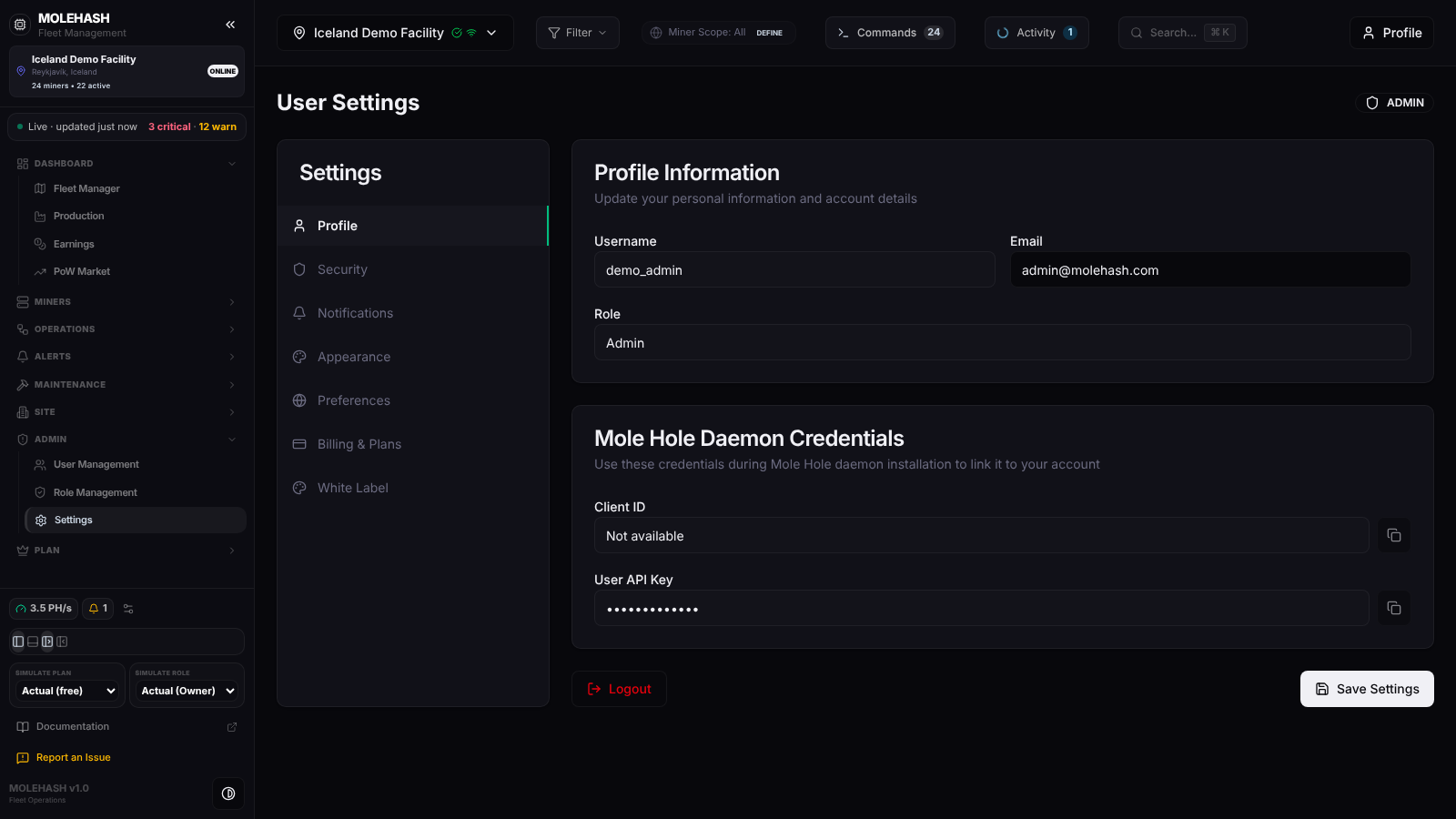 The Profile tab of the demo admin account.
① Header — User Settings and a badge with your account role.
② Settings menu — the tabs Profile, Security, Notifications, Appearance, Preferences, Billing & Plans and White Label.
③ Profile Information — Username (read-only: it is your sign-in identity), Email (editable — a Current password field appears as soon as you change it) and Role (read-only).
④ Mole Hole Daemon Credentials — your Client ID and User API Key, each with a copy button. You type them in when installing a Mole agent (older screens say "pickaxe") that should be linked to your account. Not available means no client ID has been issued to your account yet.
⑤ Logout and Save Settings — the footer shared by the Profile, Security, Appearance and Preferences tabs.
Security tab
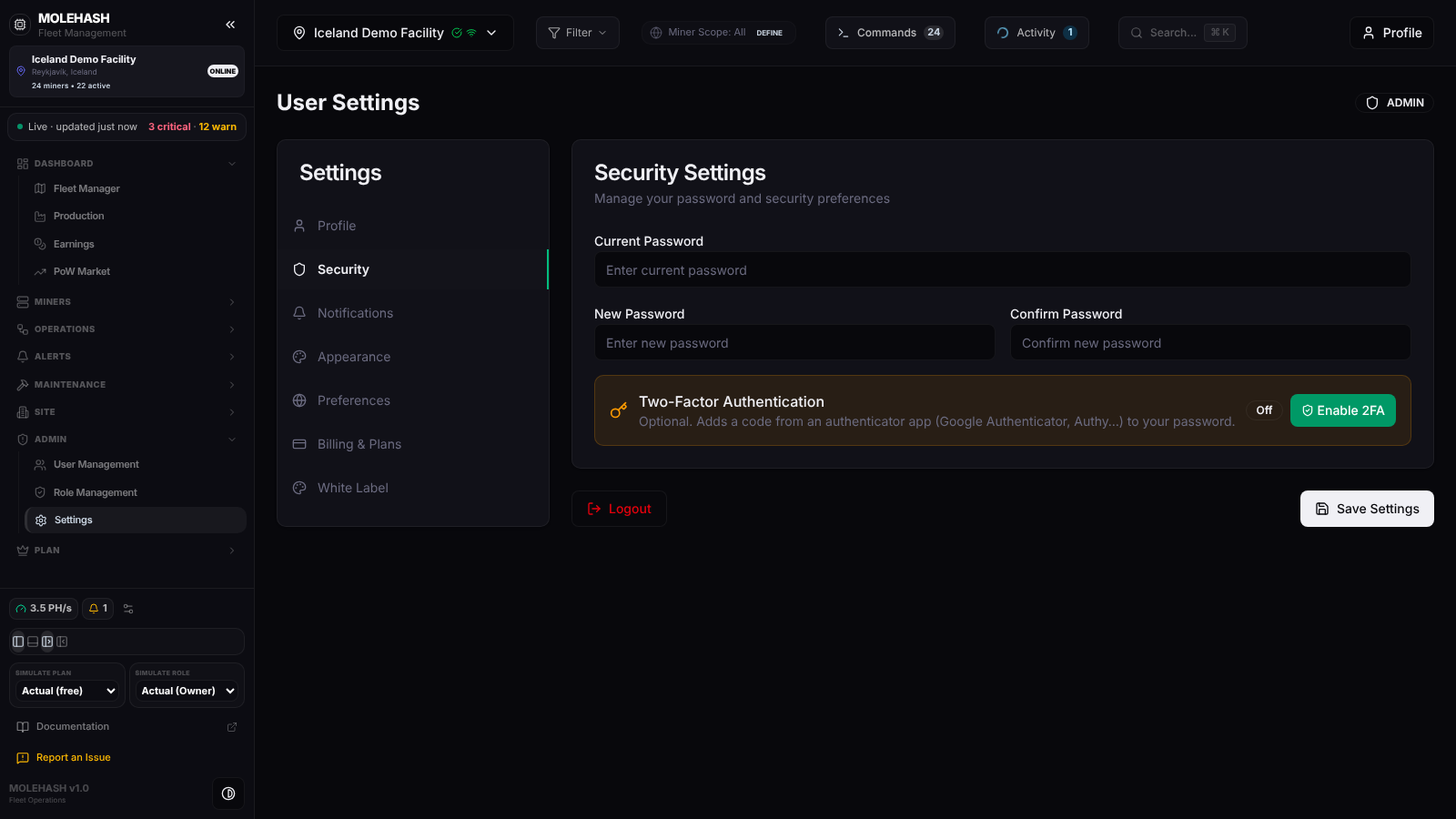 The Security tab: password change and two-factor authentication.
Current Password, New Password (at least 8 characters) and Confirm Password, then the Two-Factor Authentication block with an Off / On badge and the Enable 2FA button.
Notifications tab
Two cards. Trigger Event Selection: switches for Miner Offline, High Temperature Alert, Phase Power Imbalance, Cron Scheduler Failure, Inventory Low and Social Activity. Active Delivery Channels: In-App Notification Feed; Email (target address, your account e-mail by default); Telegram (chat ID, optional bot token); WhatsApp (phone number and gateway token); Discord (webhook URL); SMS (phone number and gateway account details). Each external channel has a test button next to its target.
Appearance and Preferences tabs
Theme: Dark or Black & White (Mono), applied the moment you pick it. Data Refresh Interval: 10 s, 30 s, 1 min or 5 min. Timezone: UTC, Eastern, Central, Mountain, Pacific, London, Paris or Tokyo. The refresh interval and time zone are kept in your browser, not on your account.
Billing & Plans tab (owners)
Current Usage & Subscription — your plan badge, credits used this month with a progress bar, prepaid credits with a Top up button — then one card per plan and the Mole Hole Windows Agent Download (paid plans only). Details are on the Plans & Pricing page.
White Label tab
Without the option: White-label is not enabled. With it: the list of your White Label Domains (domain, Verified / Pending, scope, brand, colours, Powered-by hidden) and the Add Domain form: Custom Domain, Scope (all your sites or one), Brand Name, Logo URL, Primary Color, Secondary Color and Hide "Powered by MoleHash" footer. A pending domain shows the DNS Records Required table (type, host, value, purpose) with copy buttons.
How to …
How to change your e-mail
- On Profile, edit Email and type your Current password in the field that appears.
- Click Save Settings. Toast Profile Updated. Without the password you get Password required; an address already used by another account is refused.
How to change your password
- On Security, fill Current Password, New Password and Confirm Password.
- Click Save Settings. Toast Password Updated; a wrong current password answers Current password is incorrect.
How to turn on two-factor authentication
- On Security, click Enable 2FA. A QR code and a text key appear.
- Scan the code (or type the key) in an authenticator app such as Google Authenticator or Authy, enter the 6-digit code it shows and click Confirm & enable. Toast Two-factor authentication enabled. From now on every sign-in asks for a code after your password.
- To turn it off, click Disable, enter the current code and Confirm & disable. A wrong code answers Invalid code.
How to choose what notifies you
- On Notifications, switch on the events you care about, then enable the channels and fill in their targets.
- Use the test button next to a channel to send yourself a test message.
- Click the save button at the bottom of the tab. These settings are used by Alerts & Triggers.
How to change theme and preferences
- Appearance: pick the theme, then Save Settings → Appearance Saved.
- Preferences: pick the refresh interval and time zone, then Save Settings → Preferences Saved (saved on this device).
How to set up a white-label domain
- In White Label, click Add Domain, fill the form and save. Toast Domain Added — now add the DNS records below, then hit Verify.
- Create the DNS records listed with your DNS provider, then click Verify. On success: Domain Verified — <domain> is now serving your branding.
- Edit changes the brand, colours and footer; the trash icon removes the domain.
How to log out
Click Logout. Your session ends and the sign-in page opens.
Good to know
- The username cannot be changed.
- No Billing & Plans tab? You are a member of other people's sites, not an account owner. Plans belong to the owner.
- Lost your authenticator app? Two-factor can only be turned off with a valid code. A superuser can reset your password but cannot switch 2FA off for you.
- Agent download greyed out: you are on the Free plan, or you have no site yet.
- White-label is not enabled: ask a superuser to switch it on for your account.
- Theme, refresh interval and time zone are stored in the browser you are using; they do not follow you to another device.