
Production
The Production page answers "what is this site producing, and where is output being lost?". It combines what the Mole agent reported last (the live figures) with the site's recorded history into a row of headline figures and a set of charts you can read in under a minute.
Where: sidebar Dashboard → Production · needs the site:view permission · the Daily BTC Production chart and the Earnings & Margin shortcut also need revenue:view (owners and superusers always have it).
What you see
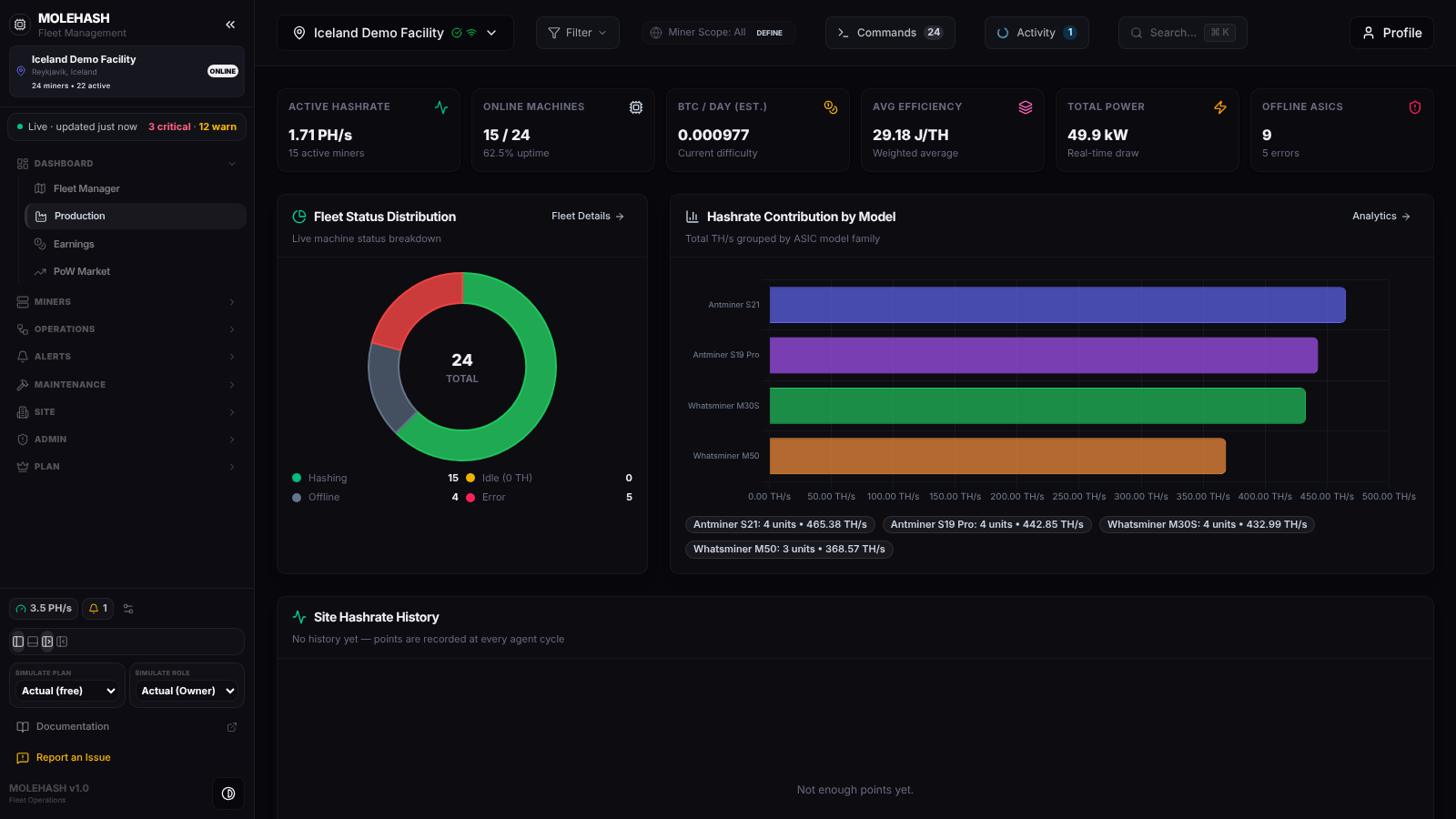 Production on the demo site: 15 of 24 miners hashing, four models, no history recorded yet.
① Scope banner — only when a filter is enabled in the header: "Showing metrics and production logs filtered by global scope: "name" (N of M miners)". Every live figure below is then computed on the filtered miners; the history chart stays site-wide.
② Headline cards
| Card | Value | Small line underneath |
|---|---|---|
| Active Hashrate | Hashrate of the miners that answer and are mining | "N active miners" |
| Online Machines | hashing / total | "% uptime" — the share of the fleet that is hashing |
| BTC / Day (Est.) | Expected bitcoin per day at the current hashrate | "Current difficulty" — uses the live network difficulty |
| Avg Efficiency | Joules per terahash of the active fleet | "Weighted average" |
| Total Power | Site draw in W, kW or MW; measured where the miner reports it, estimated from hashrate elsewhere | "Real-time draw", or "est. for N miners · measured on N" when some are estimated |
| Offline ASICs | Miners offline or in error | "N errors" |
③ Fleet Status Distribution — a donut with the total in the centre and four counts: Hashing (answering and mining), Idle (0 TH) (answering but not mining), Offline and Error. Fleet Details opens the Fleet Manager on its Fleet Status section.
④ Hashrate Contribution by Model — horizontal bars for the six models with the most hashrate; hover a bar for the hashrate and the unit count. Pills under the chart repeat the top four, for example "Antminer S21: 4 units • 465.38 TH/s". Analytics opens the Fleet Manager on its Hashrate section.
⑤ Site Hashrate History — a line over the last 180 days, one point per agent cycle. The subtitle gives the number of points and the date range. While the site has fewer than two points it reads "No history yet — points are recorded at every agent cycle" and the chart area shows "Not enough points yet", as on the screenshot.
⑥ Daily BTC Production (last 7 days with data) — one point per calendar day (UTC) for the last seven days that have data: the day's average hashrate turned into bitcoin at the current difficulty. The footer gives the average BTC/day over the plotted days and the change of the last day against the previous one. Earnings opens the Earnings page. Shown only with the revenue permission.
⑦ Temperature Distribution — bars counting miners per chip-temperature bucket: under 50 °C, 50–60, 60–70, 70–80 and over 80 °C. The footer gives the average temperature of the fleet in scope and a pulsing badge "N units >80°C" when any miner runs that hot. Miners that report no temperature are counted in the under-50 bucket. Power opens the Fleet Manager on its Energy & Power section.
⑧ Cabinet / Rack Efficiency Ladder — up to eight racks ranked by actual hashrate against the rated hashrate of the models they contain. A rack is the one from your published site layout; without a layout the miners are grouped by network range, then by the rack name typed on the miner, and finally under "Unassigned". Bar colour: green at 90 % or more, dark green from 75 %, amber from 60 %, red below.
⑨ Quick Navigation — cards that jump to the Fleet Manager sections (Fleet Status, Hashrate Analytics, Power & Transformers, Earnings & Margin, Work Orders) and to Machines Management.
⑩ Recent Production Telemetry — the five reachable miners that need attention first: miners that are not hashing come first with a red not hashing badge, then the hottest ones. Each row shows IP, model, rack, hashrate (or "N/A"), power (or "—") and a temperature coloured green, amber above 70 °C or red above 80 °C. All Machines opens the Machines page.
How to …
How to look at part of the fleet only
- Open Filter in the header and enable a filter (for example one model, or one rack).
- The scope banner confirms what is included and every live card and chart recomputes on those miners. Disable the filter from the same panel to return to the whole site.
How to drill into a figure
- Use the shortcut on the card you are looking at: Fleet Details, Analytics, Earnings, Power, All Machines, or one of the Quick Navigation cards.
- The matching page opens, scrolled to the right section where there is one.
How to find the miners that are costing you output
- Check Fleet Status Distribution for the Idle, Offline and Error counts.
- Read Recent Production Telemetry: the miners listed there are the ones not hashing or running hottest.
- Click All Machines to act on them (reboot, change pools, open a ticket).
Good to know
- The live cards follow the Mole agent, which reports about every 5 minutes. The history is loaded when you open the page or switch site; a new history point can take up to one agent cycle to appear. There is no refresh button.
- "No Telemetry Recorded": no miners in scope and no history for the site. Install a Mole agent (older screens say "pickaxe") or check the filter in the header.
- "Error loading production metrics": the history could not be loaded; switch site or reload the page.
- The rack ladder shows network ranges instead of names: publish a site layout with miners placed in racks on the Site Map.
- A rack above 100 % means its miners hash above the rated value of their model (overclocked firmware, or a model the rating table does not know).
- The under-50 °C bucket looks too big: miners that report no temperature are counted there.