
Site Map
The Site Map answers "where is each miner, and how is each rack and transformer doing?". It draws the site as rack cards grouped by building or by transformer feed, colours every slot by status, heat, hash rate or power mode, and lets you select whole racks or transformers — a selection that becomes the global scope every other panel then works on. The layout editor is where you add and name racks, place miners in slots and publish the result.
Where: sidebar Miners → Site Map · needs the facility_map:view permission · on the Free plan a banner limits the map to 3 miners (see below).
What you see
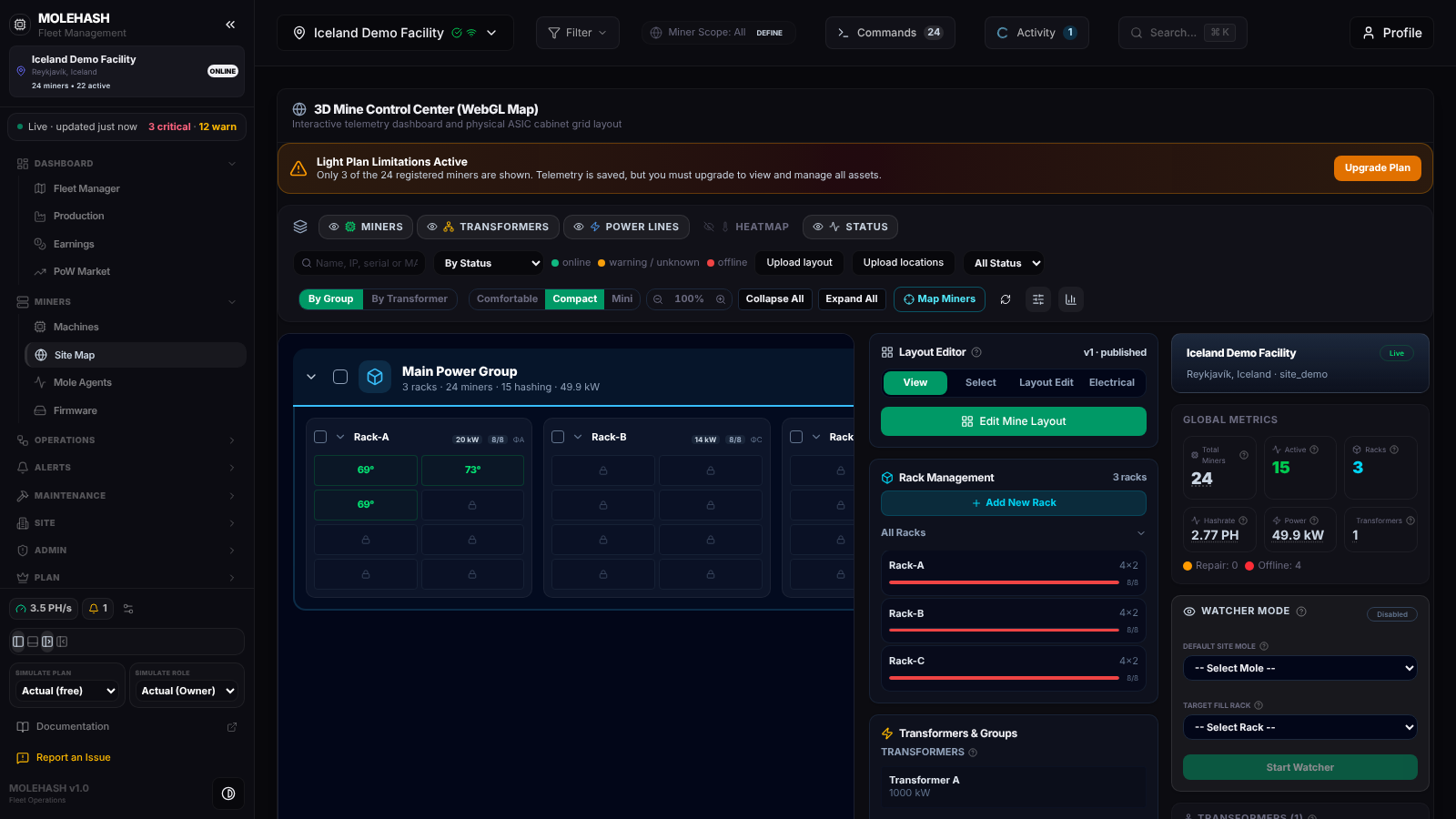 The demo site, Free plan: three racks under "Main Power Group", the layout editor in the middle and the metrics panel on the right.
① Plan banner — Light Plan Limitations Active — Only 3 of the 24 registered miners are shown. Telemetry is saved, but you must upgrade to view and manage all assets. The account owner gets an Upgrade Plan button; the other slots show a padlock (Locked (Free Plan)). Paid plans have no banner. A different banner appears when a top-bar filter is active (Interactive layout and metrics are scoped to…, with Disable Filter).
② Layer toggles — Miners, Transformers, Power Lines, Heatmap, Status: show or hide the slots, the transformer sections, the feed line drawn above a group, heat colouring and status colouring.
③ Second toolbar row — the locate box (Name, IP, serial or MAC to locate…: press Enter and the first match is highlighted for 8 seconds and scrolled into view), the colour selector with its legend (By Status, By Heat, By Hash Rate, By Power Mode), Upload layout and Upload locations (CSV imports of racks and of miner positions), and the status filter (All Status, Active, Repair, Offline, Error — miners of other statuses are dimmed).
| Colour mode | Green | Amber | Red | Other |
|---|---|---|---|---|
| By Status | online, active, healthy | warning / unknown | offline | — |
| By Heat | below 72 °C | 72 °C and above | 85 °C and above | grey when offline |
| By Hash Rate | 90 % of nominal or more | below 90 % | below 70 %, or 0 | — |
| By Power Mode | normal | high | — | low blue, sleep violet |
④ Third toolbar row — By Group / By Transformer (arrange racks under their building group or under the transformer that feeds them), slot size (Comfortable / Compact / Mini), zoom (− / 100 % / +, also Ctrl + mouse wheel over the map; click the percentage to reset), Collapse All / Expand All, Map Miners, refresh (↻), and two icons: Toggle Layout Editor (sliders) and Toggle Metrics HUD (bar chart).
⑤ Rack map — in By Group each building group has a header with a fold arrow, a group checkbox (Select every rack of…), n racks · n miners · n hashing · load, and a chip per transformer feeding it. In By Transformer each transformer shows its capacity, per-phase bars ΦA / ΦB / ΦC (amber above 70 %, red above 90 % of a third of its capacity), a n% Load badge and a pencil to edit its name and kW inline. Unassigned Racks holds racks with no group or no transformer. Each rack card has a checkbox, a fold button, the rack name (hover for its subnet), its load and a hashing/total counter, plus a stopped marker when nothing in it is hashing and a +n unmapped badge for miners found in the rack's subnet with no known position. Only mapped miners are drawn in the grid; a mapped miner that is not detected leaves its slot empty, and no position is ever invented. Click the badge to list the unmapped miners (IP, name, hash rate), tick them to add them to the selection, or press Map… to give one its row and column. Hover a slot for name, status, position (rack, row, column, slot number), IP, model, hash rate, temperature and power (≈ … (est.) when estimated).
⑥ Layout Editor (middle column, when open) — version and state (v1 · published), the mode switcher View / Select / Layout Edit / Electrical, Edit Mine Layout, then Rack Management (Add New Rack, the All Racks list with occupancy bars) and Transformers & Groups.
⑦ Metrics HUD (right column) — the site card (Live), Global Metrics (Total Miners, Active, Racks, Hashrate, Power, Transformers, Repair and Offline counts — each number opens the matching panel), Watcher Mode, then Transformers (n) and Racks (n) lists; click a row to select its miners.
⑧ Selection drawer — slides up from the bottom when at least one miner is selected: n selected, racks involved, total hashrate and power, and the buttons Unplug Selected, Clear Selection, Apply to Global Filter.
How to …
How to select miners, racks and transformers
- Click a slot to toggle that miner; Shift+click another slot to add everything in between.
- Tick a rack checkbox to take the whole rack; Shift+click a second rack checkbox to take every rack between the two. A group checkbox takes the whole building; a transformer header takes everything it feeds.
- Hold Shift and drag on an empty area to draw a rectangle; every slot it touches is added.
- The selection is shared with Machines: miners ticked here are ticked there.
How to scope the whole app to a few racks
Selecting racks, groups or transformers also sets the global scope: a cyan n miners in scope chip appears in the top bar and every panel (Machines, Commands, Production…) works only on those miners until you close the chip, click Clear Selection or untick the last rack. A slot-by-slot or rectangle selection does not change the scope by itself — click Apply to Global Filter in the drawer (toast Global filter updated).
How to act on the selection
- Unplug Selected sends every selected miner to the repair shop (a confirmation is asked above 10 miners). Toast Miners Unplugged. The slot becomes empty at once; where the miner was taken from is written on its repair-ticket line (e.g. R12 (3, 5)), and it stays off the map until it hashes again or is mapped to a slot.
- Right-click a slot for the same menu as on Machines (Details, Settings, Pull, Enable / Disable, Delete, tickets, Change Pools, Reboot, Sleep, Wake, Logs, Power Mode, Fan Mode, LEDs) plus Move to… (rack / slot): choose a rack, row and column; the dialog says Slot is free, Outside the rack, or Slot taken by <name>: the two miners will swap. You can also drag a slot onto another slot. Moves go into the layout draft: press Publish to make them permanent.
How to edit the layout
- Open the editor (sliders icon) and click Edit Mine Layout. A draft is created (Draft Mode Started) and the editing tools appear.
- Add racks with the dashed Add Rack card at the end of a group, or Add New Rack in Rack Management. Click the pencil on a rack card to rename it (Enter saves, toast Rack Renamed). Move Left / Move Right or ▲/▼ reorder; Remove Rack deletes. Undo (n) / Redo (n) are available throughout. Renaming, adding, moving and removing racks only work while a draft is open — outside the editor these buttons are hidden.
- Select a rack in All Racks to open Rack Configuration: Rack Name, Transformer (the feed used for load accounting), VLAN subnet (e.g.
10.12.101.0/25— miners found in it appear in the rack before they are placed), Grid Dimensions (Rows 1–20 × Columns 1–12), Position & Rotation, Occupancy and Power Draw, Duplicate, Remove. - In Transformers & Groups: add a transformer (name, capacity in kW, Save), edit or delete one; add, rename or delete a group (deleting a group deletes its racks).
- The draft is checked after every change: Draft Valid, or Issues Detected with red errors and amber warnings.
- Describe your change in Describe your changes… and click Publish (disabled while errors remain) → Layout Published. Discard throws the draft away and returns to the published layout. Forgot to publish? Reopen the editor: the draft is still there.
How to place miners in slots (Map Miners)
- Click Map Miners. The mapping panel opens.
- Click a slot on the grid to arm it, then either press the IP Report button on the physical machine (the agent forwards the press and the miner drops into the armed slot), scan a barcode or type a serial, name or IP, or pick from the list of unplaced miners.
- The trash icon empties the armed slot. Exit Mapping closes the panel.
Alternatives: Upload locations (CSV ip|mac|serial|name, rack, row, col) for a whole site at once, or Move to… from the right-click menu for one miner.
How to auto-place new miners (Watcher mode)
In the Metrics HUD, choose a Default Site Mole (the agent) and a Target Fill Rack, then Start Watcher. Every miner that agent discovers from now on goes into the rack's next empty slot. Stop Watcher ends it.
Good to know
- Miner colours follow the agent's uploads; transformers refresh every 5 minutes; ↻ reloads both.
- Collapsed racks, the colour mode and the slot size are remembered in your browser. Sites with more than 12 racks start collapsed.
- A rack marked stopped stays on the map so its place is kept; nothing in it is hashing.
- A +n badge means miners are only known by their subnet: place them with Map Miners, Move to… or Upload locations.
- No Mining Site Selected: pick a site in the site switcher. No miners found on this site: the agent has not scanned yet — see Mole agents.
- Rack load uses the reported wattage, or an estimate from hashrate and the model's nominal efficiency when the miner reports none.
Related
- Machines · Miner page · Mole agents
- Site Management (transformers and power cap) · Energy