
User Management
User Management is the Superadmin Console: the one place where a platform superuser manages accounts. From here you create accounts, set anyone's password, put an account on a plan, switch the white-label option on or off, read a user's activity on the current site, delete accounts, and View As a user to see the dashboard exactly as they do.
Where: sidebar Admin → User Management · superuser only — the item is hidden for everyone else. Site owners manage their own members from Site Management → Access instead.
What you see
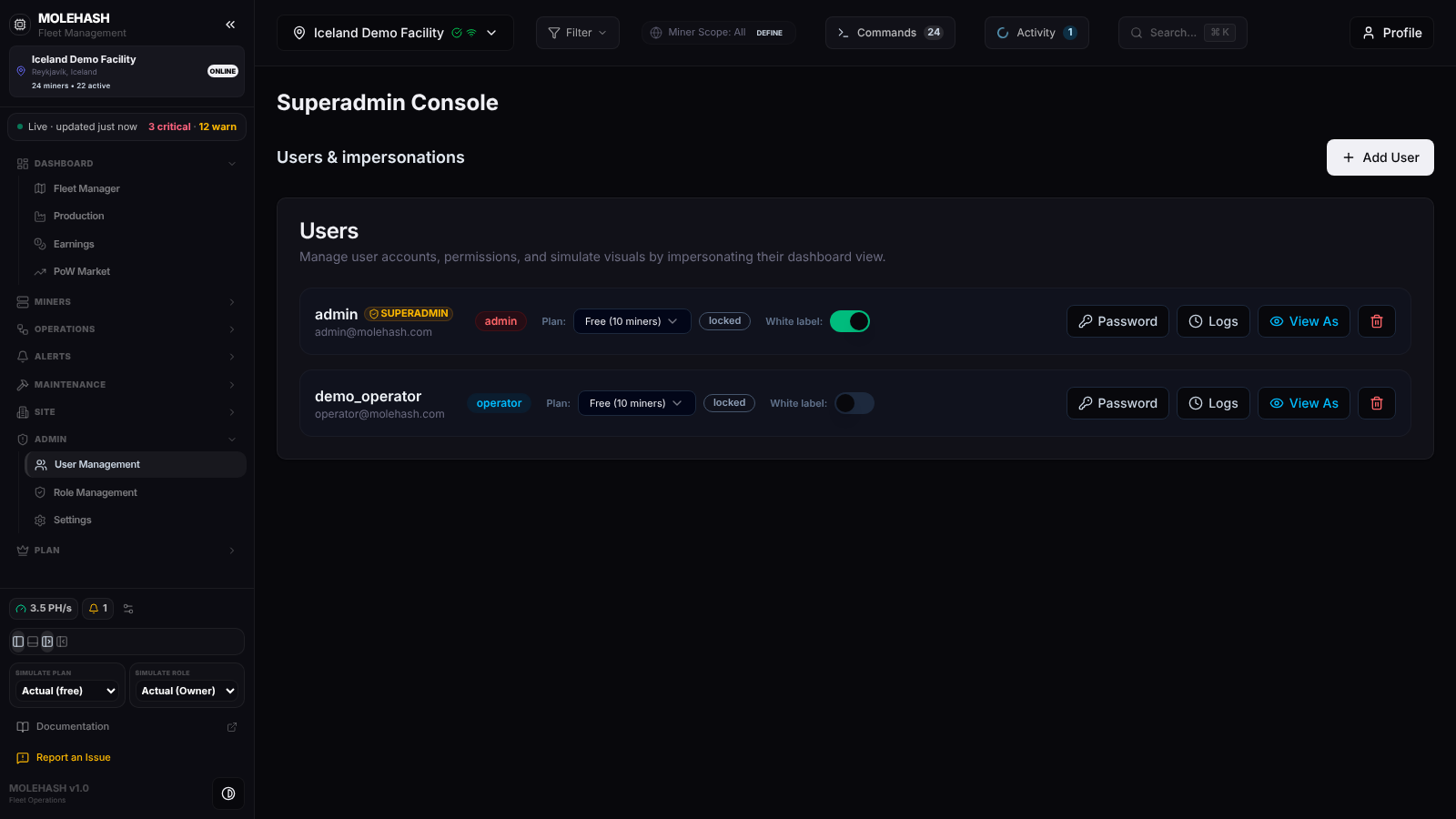 The demo platform's two accounts: a superuser and an operator.
① Header — Superadmin Console, the Users & impersonations section title and the Add User button.
② Users card — one line per account. When a site is selected in the sidebar, only that site's members are listed; with no site selected you see every account on the platform.
| Element | Meaning |
|---|---|
| Username and e-mail | The account; an amber SUPERADMIN badge marks platform superusers. |
| Role badge | The account-level role: admin (red), operator (blue), viewer (green). This is not a site role — site roles are set per site in Site Management. |
| Plan | A selector: Free (10 miners), Lite (25), Basic (250), Premium (2,000), Unlimited (Ordina). |
| Subscription badge | unlocked when the subscription is active; otherwise its state (none, cancelled, past_due) or locked. |
| White label switch | Whether the account may set up white-label domains and branding. |
| Password / Logs / View As / trash | The actions described below. |
Empty state: No Users Found with an Add User button.
How to …
How to create an account
- Click Add User. Fill Username and Email (both required) and pick a Role (Admin, Operator or Viewer).
- Click Create User. A random one-time password is generated, copied to your clipboard and shown once in a toast that stays for 60 seconds: User account "x" was created. One-time password: …. Pass it on to the person; they change it in Settings.
- Username already exists and Email already exists explain a refusal.
WARNING
Accounts created here are active immediately and can sign in with the one-time password — no verification e-mail is sent, unlike self-registration. In this build the Role you pick may not be applied; check the role badge afterwards and correct it if needed.
How to set someone's password
- Click Password on the line. The Set a new password dialog opens.
- Type a password of at least 6 characters, or click the refresh icon to generate one, then Save password. The person's current password is not needed. The new password is copied to your clipboard; their open sessions stay valid until they expire. Toast: Password updated.
How to put an account on a plan
Pick a plan in the Plan selector. The account is moved to that plan with an active subscription and its credit allowance is reset to the plan's figure. Toast: Plan Updated. This is the manual way to handle customers billed outside the platform; plans and limits are described in Plans & Pricing.
How to grant white-label
Toggle the White label switch. It applies immediately and springs back if the server refuses. The person then finds the White Label tab in their Settings.
How to read a user's activity
Click Logs. Activity Logs: <username> lists that user's entries in the current site's audit log (time, what was touched, action, details). A site must be selected, otherwise you get No Active Site. Only site-level actions are recorded there: members, roles, invitations, ownership transfers.
How to see the dashboard as a user (View As)
Click View As. The dashboard switches to that user: an amber banner reads Viewing dashboard as <username> (<email> • Role: …) and you see exactly the sites, permissions and plan limits they have. Click Stop Impersonating in the banner (or the line's Viewing As button) to come back to your own account. The impersonation survives a page reload.
How to delete an account
Click the trash icon and confirm. Toast: User Deleted. You cannot delete your own account.
Good to know
- The list reloads when you change site and after every action; it does not refresh on a timer.
- The list looks short? A site is selected, so only its members are listed. Deselect the site to see every account.
- There is no deactivate switch here; an account is either present or deleted.
- Two-factor authentication cannot be reset from this panel; people manage it themselves in Settings → Security.
- A plan set here does not create a payment subscription; a later payment event for that customer can overwrite it.
- Deleting a user does not transfer the sites they own. Transfer ownership first from Site Management → Access → Make owner.