
Operator Stats
Operator Stats answers "who did how much repair work in the last weeks?". Everything on this panel comes from repair tickets: each miner ticked Done on a ticket is one repair, credited to the ticket's assignee (or its creator when nobody is assigned). The panel ranks operators by repairs and lets you open one operator's daily activity.
Where: sidebar Maintenance → Operator Stats · needs the site:view permission. The Fleet Uptime card in the sidebar also links here.
What you see
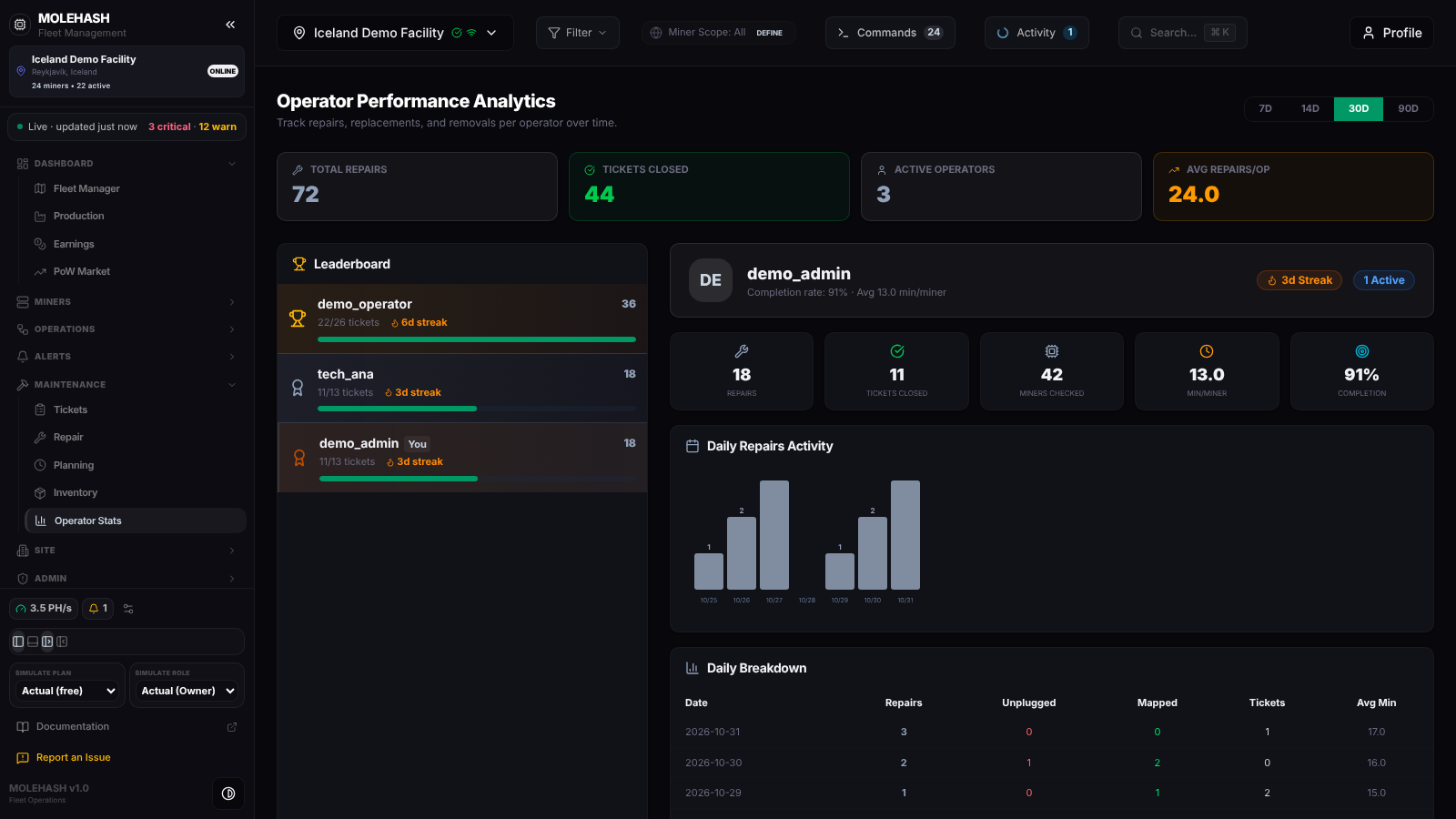 Thirty days of repair activity on the demo site: three operators, demo_admin selected.
① Header and period — Operator Performance Analytics and four period buttons: 7D, 14D, 30D (default) and 90D. The period selects the tickets created in the last n days.
② Summary cards
| Card | Meaning |
|---|---|
| Total Repairs | Miners marked Done across all listed operators (72 on the demo). |
| Tickets Closed | Tickets that reached Completed (44). |
| Active Operators | Operators in the leaderboard (3). |
| Avg Repairs/Op | Total Repairs divided by Active Operators (24.0). |
③ Leaderboard — operators sorted by repairs. Rank 1 gets a gold trophy, ranks 2 and 3 a silver and bronze award, the others a number. Each row shows the username (with a You tag on your own account), the repairs count, closed/assigned tickets, a flame with nd streak when the streak is above 0, and a bar relative to the top operator. Click a row to select that operator; your own row is selected by default when present.
④ Operator header — initials, username, Completion rate: x% · Avg y min/miner, and the badges nd Streak and n Active (open or in-progress tickets).
⑤ KPI tiles
| Tile | Meaning |
|---|---|
| Repairs | Miners marked Done. |
| Tickets Closed | Tickets that reached Completed. |
| Miners Checked | Miners marked Done or Skipped. |
| Min/Miner | Average minutes spent per miner, when the start and end of each check are known. |
| Completion | Tickets Closed as a percentage of the tickets credited to the operator. |
⑥ Daily Repairs Activity — one bar per day with activity (quiet days are not drawn), labelled month/day, the day's repairs printed above the bar. It scrolls sideways for long periods. Empty state: No activity data for this period.
⑦ Daily Breakdown — a table, newest day first: Date, Repairs, Unplugged, Mapped, Tickets (completed that day) and Avg Min.
What a streak is
The number of consecutive calendar days, ending today, on which the operator did at least one repair or completed a ticket. A quiet day breaks it, so the flame disappears on a day off even after a busy week.
How to …
How to change the period
Click 7D, 14D, 30D or 90D. The panel reloads for the current site.
How to look at one operator
Click their row in the leaderboard. The right side switches to their header, KPI tiles, chart and daily table.
How to recover from an error
If the panel shows Error Loading Stats, click Retry. There is nothing to export or edit on this panel.
Good to know
- The data loads when you open the panel or change the period or site; it does not refresh on a timer.
- No Operator Activity means no ticket was created in the period for this site. Old tickets completed this week are not counted if they were opened before the window.
- Only tickets that reached Completed (every miner Done or Skipped) count as closed. Resolve and Close on the Tickets panel do not appear here.
- Repairs are credited to the ticket's assignee, not to the person who clicked Done. Keep tickets assigned to the technician doing the work.
- Tickets created by the Pull Miner command are assigned to the person who ran it and credited to them.
- The Unplugged and Mapped columns are always 0 in this build, and Min/Miner reads 0.0 for tickets created from the app, because the start time of each check is not recorded yet.
- Miner commands, firmware installs and map edits are not counted here; see Activity for those.