
Power & Curtailment
This panel (titled Command Center on screen) answers two questions: how much is the site drawing right now? and how do I bring it down — or back up — at a given time?. You describe a power event: what to reach (a percentage of site power, a number of megawatts or a number of miners), which miners to pick first, how fast to do it, and when. At the start time the platform chooses the miners, sleeps or wakes them in waves through the Mole agent (the "pickaxe"), and at the end time puts back exactly the miners it changed. Events run once or repeat on chosen days. Saved controls keep a curtail or restore recipe ready to fire.
Where: sidebar Operations → Power & Curtailment · needs the miners:control permission to create, run, pause, cancel or delete events; viewing the site is enough to read them.
What you see
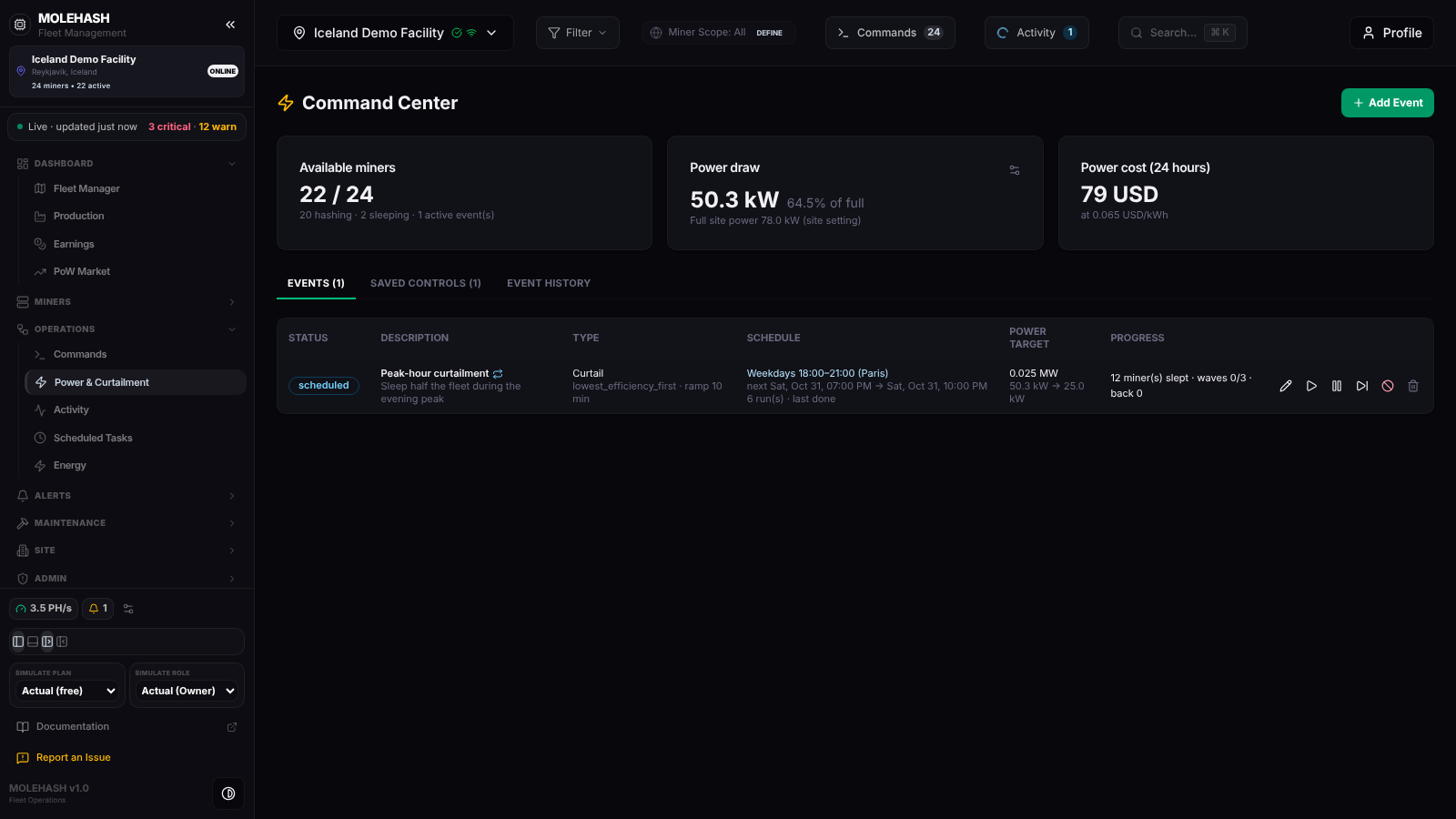 The Command Center of the Iceland Demo Facility: summary cards, the three tabs and one scheduled weekday curtailment.
① Available miners — 22 / 24 on the demo: miners that are hashing or sleeping, over the total. Below: n hashing · n sleeping · n active event(s).
② Power draw — the estimated site draw (kW or MW) and x % of full. The line underneath says where "full" comes from: Full site power 78.0 kW (site setting) when you entered it, otherwise estimated from n miners at nominal draw. The ⚙ icon opens a small form with Full site power (MW) (leave empty to use the estimate), Power cost per kWh and Currency, with Save / Close.
③ Power cost (24 hours) — today's estimated bill: current draw × 24 h × your price, in your currency (79 USD at 0.065 USD/kWh on the demo). If no price is set, the card tells you to set it with the ⚙ on Power draw.
④ Tabs — Events (n): scheduled, running and paused events. Saved Controls (n): your reusable recipes. Event History: finished runs (done, cancelled, failed, missed, skipped).
⑤ Event table
| Column | Meaning |
|---|---|
| Status | scheduled (blue), running (amber), paused, done (green), cancelled, failed, missed (the window passed while the platform was unavailable), skipped (a run you skipped). |
| Description | Name — with a ↻ icon when it repeats — and description. |
| Type | Curtail, Power target, Restore or Power mode → low, then the strategy and ramp n min. |
| Schedule | Repeating: Weekdays 18:00–21:00 (Paris), then next … or running since …, and n run(s) · last <status>. One-off: the start and until the end. |
| Power target | 70 % of site power, 2.5 MW or 200 miners; below, the estimated load before → after. |
| Progress | n miner(s) slept · waves sent/total · back n (restore waves sent). |
| Row icons | ✎ Edit · ▶ Run now · ❚❚ Pause / ▶ Resume · ⏭ Skip · ⃠ Cancel · 🗑 Delete (see below). |
Click a row to expand its log: start, each wave with queued and refused counts, end reached, done, and any error.
⑥ Saved Controls tab — Run button, name, direction (Curtail (down), Restore (up), Mode → x), miner target, strategy, power target, ramp, plus ⟲ (schedule from this control) and 🗑.
How to …
How to add a power event
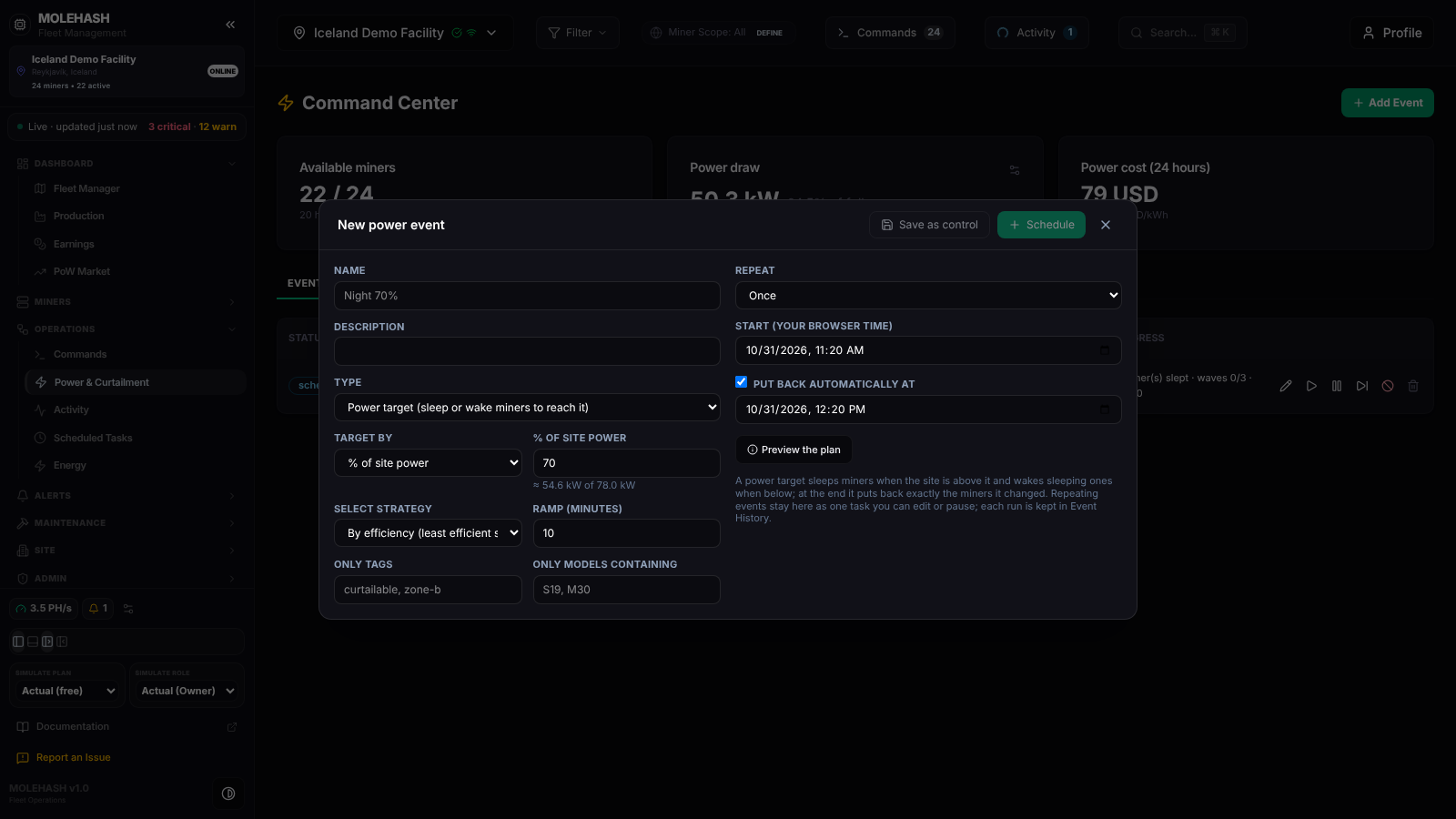 The New power event dialog: a one-off 70 % power target starting now, put back automatically 1 hour later, ramped over 10 minutes.
- Click Add Event (top right). The New power event dialog opens.
- Name (required) and Description.
- Type:
- Power target (sleep or wake miners to reach it) — sleeps hashing miners while the site is above the target, wakes sleeping ones while it is below.
- Curtail (only sleep miners down to the target) — never wakes anything.
- Restore (wake sleeping miners).
- Power mode (normal / low / high / sleep) — switches the firmware power mode of every matching miner; pick the Mode.
- Target by (Curtail and Power target): % of site power (the hint shows ≈ 54.6 kW of 78.0 kW), Power (MW), or — Curtail only — Number of miners (Miners to sleep). Restore and Power mode have Max miners (blank = all matching) instead.
- Select strategy — which miners go first: By efficiency (least efficient sleep first, most efficient wake first — the default), Lowest hashrate first, Random, By tags (filter order). Ramp (minutes) (0–720) spreads the miners over up to that many waves, one wave per minute at most, so the load changes gently.
- Only tags and Only models containing (comma-separated) restrict the candidates. Only deployed, enabled miners are ever considered.
- Repeat:
- Once — set Start (your browser time) and tick Put back automatically at with an end time if you want the miners restored.
- Every day, Weekdays (Mon–Fri) or Chosen days — pick the Time zone, Start at and, for curtail and power target, Put back at (an earlier time means the next day). The zone you choose is remembered in your browser.
- Preview the plan shows what would happen if the event ran now: how many miners slept or woken in how many waves, load before → after, the first planned names and the command. The real choice is made again at start time from live data, so the final numbers can differ slightly.
- Click Schedule. A toast says Power event scheduled (or Repeating power event scheduled). Save as control stores the recipe under Saved Controls instead (not available for Power target).
If something is missing the dialog tells you: a curtailment needs a target; a power target needs MW or %; a repeating event needs a start time; the end must be after the start.
How to manage an event (row icons)
| Icon | When | What happens |
|---|---|---|
| ✎ Edit | scheduled, paused, running | Opens the dialog. On a running one-off only name, description and end time can change; on a running repeating event the new end applies tonight, the rest from the next run. |
| ▶ Run now | scheduled | Confirm Start "…" now?. A repeating event runs its next window immediately and keeps that window's end. |
| ❚❚ Pause / ▶ Resume | scheduled / paused | A paused event never starts; resuming re-arms the next occurrence. |
| ⏭ Skip | repeating only | Scheduled: skip the next run. Running: stop tonight's run and put the miners back now; the schedule continues. Recorded as skipped. |
| ⃠ Cancel | scheduled, paused, running | One-off: cancelled; a running curtail or target puts back what it changed. Repeating: ends the whole schedule. |
| 🗑 Delete | anything not running | Confirm Delete "…"?. Cancel a running event first. |
How to use a saved control
- Run → confirm Run "…" now? → a one-off event is created from the control and starts immediately (toast Control started); the view switches to Events.
- ⟲ opens New power event prefilled with the control, so you can schedule it.
- 🗑 deletes the control after confirmation.
How to follow a running event
Expand the row for the wave-by-wave log. Every wave is an ordinary command batch (sleep, wake or power mode), so it also appears in Activity and in the Command Center Log on the Commands page, with the per-miner result. Miners whose firmware refused the command are listed in the log.
Good to know
- The cards and tables refresh every 30 seconds; the platform checks events every 30 seconds too, so a start time is honoured within half a minute.
- A % target is only as good as Full site power. If the estimate from the miners looks wrong, set the real value in the ⚙ form.
- The site draw is measured on miners that report power and estimated from the model's nominal draw for the others; a sleeping miner counts at its sleep draw.
- Empty states: No power event. Get started by adding one. and No past event yet.
- Select a site first: the panel needs a current site in the top bar.
- Repeating events appear in short form on the Scheduled Tasks page too, in the Power schedules card.
Related
- Commands — the queue the waves go through
- Scheduled Tasks — fixed-time commands and the Power schedules card
- Energy — consumption and cost history
- Activity — the result of each wave