
Planning
The Technician Planning Board answers "who is doing which ticket, and when?". The left column lists the tickets nobody owns yet; the right side shows one lane per technician with the tickets scheduled on each day of the planning week. Assigning a ticket here sets its owner and its time slot, so the technician then finds it in the Repair console.
Where: sidebar Maintenance → Planning · needs the tickets:manage permission on the current site · on the Free plan a banner notes that planning is limited.
What you see
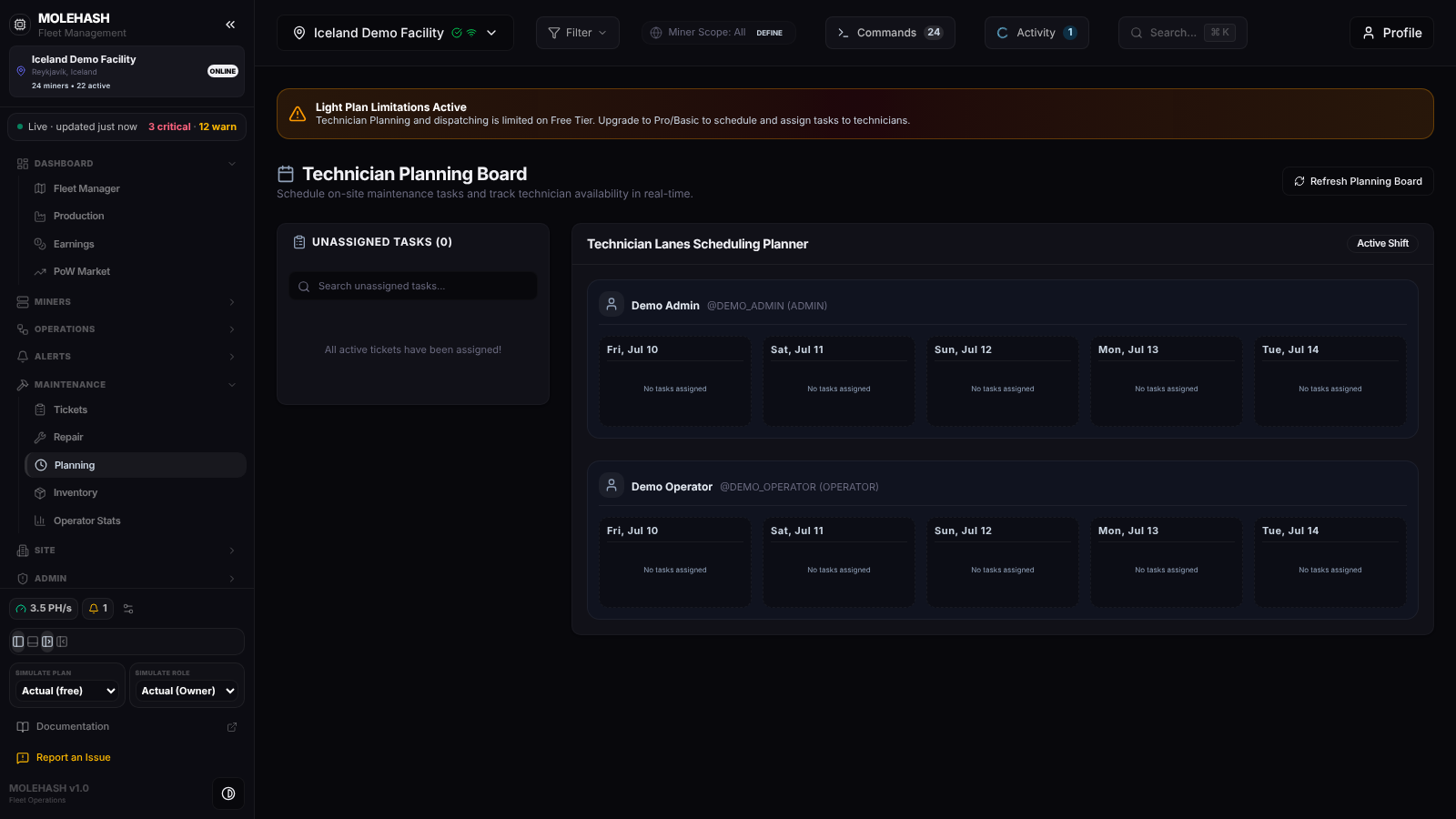 The planning board on the demo site: a Free-plan banner, no unassigned task, and two technician lanes.
① Plan banner — on the Free plan an amber banner reads Light Plan Limitations Active — Technician Planning and dispatching is limited on Free Tier. In this build the banner is informational: the board itself still works.
② Header — Technician Planning Board and the Refresh Planning Board button, which reloads tickets and technicians.
③ Unassigned Tasks — the counter in the title is the number of tickets without an assignee that are not completed. A search box filters them by title, description or ID. Each card shows the title, a n miners badge, the description (or No description provided.), a short ID and the site. When the column is empty it reads All active tickets have been assigned!, or No matching unassigned tasks found. when the search matches nothing. Clicking a card opens the Assign Task box underneath.
④ Assign Task box
| Field | What it does |
|---|---|
| Select Technician | Searchable list of technicians (full name and username). The first one is preselected. |
| Date | One of the five days of the planning week. |
| Start Time / End Time | Time slot, 08:00 to 12:00 by default. |
| Cancel / Schedule Task | Close the box, or save. |
⑤ Technician Lanes Scheduling Planner — one block per technician (full name, @username (role)), each with five day columns. A column lists the tickets scheduled for that technician on that day with the title and the start – end hours; completed tickets turn green with a tick. Empty columns read No tasks assigned. Clicking a scheduled ticket reopens Assign Task prefilled, so you can move it.
Who appears as a technician
The lanes list the members of the current site whose role is Owner, Admin or Operator. If that list cannot be read, the board falls back to every Admin or Operator account on the platform, and if that is not available either (you are not a superuser) it shows two placeholders, System Administrator and Site Operator.
How to …
How to assign and schedule a ticket
- Click a card in Unassigned Tasks (or a ticket already placed in a lane).
- Pick the technician, the day and the start and end times.
- Click Schedule Task. The ticket gets its assignee and time slot, its status goes back to Pending, and a toast confirms Schedule Saved — Assigned "…" to <user> for <date>. The board reloads.
- Every other open Planning board is told about the change in real time: it shows Schedules Synchronized and reloads.
WARNING
Saving always puts the ticket back to Pending, even one that was In progress, Resolved or Closed. Move in-progress work with care.
How to move a ticket to another day or technician
Click the ticket in its lane, change the technician, day or times, and click Schedule Task again.
How to unassign a ticket
There is no button for it on this board. Recreate the ticket, or ask an administrator to clear the assignee.
Good to know
- The planning week shown is fixed to 10–14 July 2026 in this build: there is no date picker and no week navigation. Tickets scheduled on any other date keep their schedule (it still shows as Scheduled in the ticket detail) but do not appear in the lanes.
- The board reloads when you open it, switch site, save an assignment, click Refresh Planning Board, or when another user saves a schedule. It does not refresh on a timer.
- A ticket assigned to a username that is not in the technician list appears neither in Unassigned Tasks nor in any lane. Check the Owners column on the Tickets panel.
- Tickets created by the Pull Miner command are assigned to the person who ran it, so they never show up as unassigned.
- If the lanes show only System Administrator and Site Operator, the member list could not be read: select a site you belong to, or ask a superuser.
- Times are stored exactly as typed, without a time zone.