
Activity
Activity answers what ran on this site, did it work, and what is still running? and, in its second view, who did what?. Runs history lists every command batch (manual, automation, power event, log patrol), every scheduled-task run, network scan, import and Mole agent sync, with live progress bars, per-miner results and grouped errors. User actions is the audit trail of changes made by people. The same information feeds the Activity button in the top bar, which follows you on every page.
Where: sidebar Operations → Activity · any member who can view the site sees Runs history; User actions shows everyone's actions only with the audit:view permission (site owners and superusers always have it) — otherwise you see your own actions with a notice.
What you see
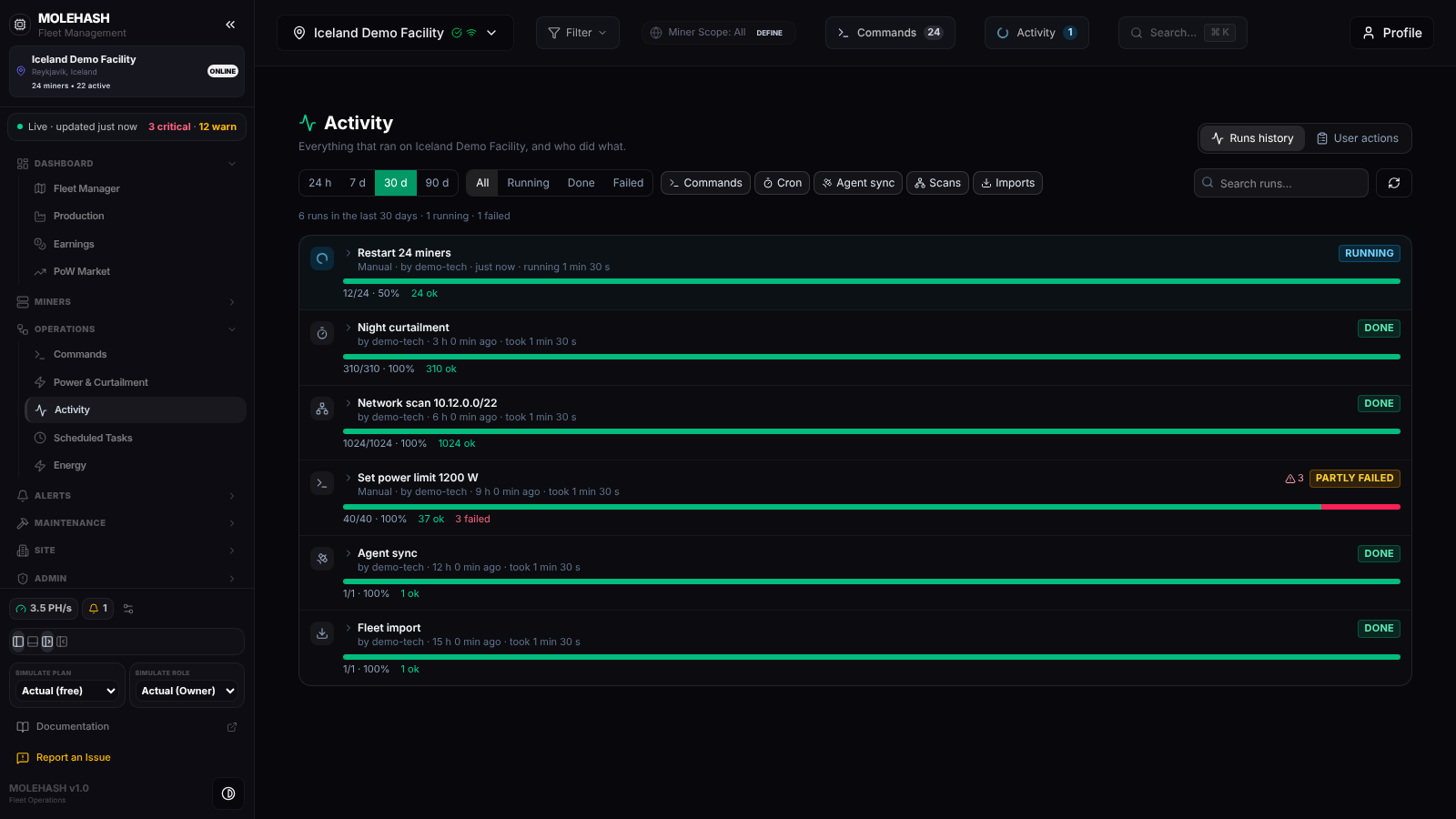 Runs history of the Iceland Demo Facility over 30 days: a restart batch in progress, a curtailment, a scan, a partly failed power-limit batch and an agent sync.
① Header — Activity — Everything that ran on <site>, and who did what. and the view switch Runs history / User actions.
② Filters — period 24 h / 7 d / 30 d / 90 d; status All / Running / Done / Failed (Running includes queued and paused; Failed includes partly failed, interrupted and cancelled); kind chips Commands / Cron / Agent sync / Scans / Imports (click to toggle, none selected = everything); Search runs… (title, subtitle or user); a refresh button.
③ Summary line — 6 runs in the last 30 days · 1 running · 1 failed. When 200 runs are reached, a note says only the 200 most recent of each kind are shown.
④ Run rows
| Element | Meaning |
|---|---|
| Icon and title | Commands: the command and miner count (Restart 24 miners, Set power limit 1200 W). Cron: the task name (Night curtailment). Scans: Network scan <range>. Agent sync: Agent sync. Fetch logs: Fetch logs · n miners — a log patrol round (see below). |
| Subtitle | Where it came from — Manual, Automation · <rule>, Log patrol · random sample, Cron · <schedule> — then by <user>, when it started, took … or running …. |
| Status badge | QUEUED (nothing picked up yet), RUNNING, PAUSED, DONE, PARTLY FAILED (some miners failed or were cancelled), FAILED (nothing succeeded), CANCELLED, INTERRUPTED (a scheduled run the platform lost during a restart). |
| Progress bar | Green = ok, red = failed, grey = cancelled, pulsing blue = in progress; text done/total · %, then n ok, n failed, n cancelled, n in progress, n waiting. |
| ⚠ n | Number of errors on a finished run; the first one is previewed under the row. |
| Cancel | Shown while something can still be stopped. |
Click a title to expand the run (refreshed every 3 seconds while it is active):
- Commands — the parameters, an Errors box that groups identical messages with their counts, and the per-miner list (IP, status, value returned or error) with a Failed miners only checkbox. The first 300 miners are listed.
- Cron — Job <name> · <schedule>, then the per-miner items, or the task's output when it did not target miners.
- Scans — devices found, ports, target ranges, error if any.
- Agent sync — records processed, start and finish.
⑤ User actions view — filters: scope This site / All my sites (superusers also get Whole platform), period, a person (Everyone or one user), a search box (Action, path, id, user…), refresh. 50 rows per page.
| Column | Meaning |
|---|---|
| When | Local time. |
| Who | The user; (by <actor>) when someone acted on their behalf; system when nobody. |
| Did what | A readable sentence: signed in, invited a member, changed a member's role, or created / ran, updated, deleted followed by what was touched (for example created / ran miners › bulk-command). |
| Site | Only in the all-sites scope. |
| Result | Green when the action succeeded, red when it was refused or failed; audit for older membership changes. |
Click a row for the technical details: method and path, duration, source IP, and the request content (passwords and tokens are stripped before anything is stored).
The Activity button in the top bar
The Activity button shows a spinner and a count while runs are active, and a red dot when a command, scheduled task or import failed in the last 24 hours. Its panel has three tabs: Running (n), History and Scheduled. The first two show the same run rows (with Cancel); Scheduled lists everything that will run on the site — scheduled tasks, scheduled reports, automations, manual tasks and agent schedules — with their rule, next run (in 12 min, on demand, paused) and last status. When a command, scheduled task or import finishes, a toast tells you the result wherever you are in the app.
The log patrol, in plain words
Some problems never show in telemetry: an input voltage that sags, a power supply that trips, a fan that is dying. So every 10 minutes, on each site with a live Mole agent, the platform asks the agent to read the logs of up to 5 miners chosen at random (never the same miner twice within 6 hours). These rounds appear in Runs history as Fetch logs · n miners with the subtitle Log patrol · random sample. Each log is kept with its miner and scanned for known signatures:
| Family | Severity | What it looks for |
|---|---|---|
| Low or unstable voltage | high | under-voltage, low or abnormal input voltage, voltage drop, brown-out, PSU voltage errors |
| Power supply fault / power loss | high | power lost, PSU error or fault, over-current, power type error |
| Overheating | medium | over-heat, temperature too high, thermal shutdown |
| Fan failure | medium | fan speed 0, fan dead, error or lost |
| Hashboard lost | medium | chain not found or lost, hashboard missing |
| Chip errors | low | chip errors, ASIC errors, too many hardware errors |
| Pool / network errors | low | pool disconnected or rejecting, stratum errors, connection refused, DNS failure |
The per-miner result in the run says problems: […] or none found. For every family except chip and network errors, one alert per site and family is opened or updated — Low or unstable voltage: 3 miners in their logs — listing the latest miners that confirmed it; you find it under Alerts → Issues.
For the two electrical families the platform also sends an e-mail titled [MoleHash] ⚡ <family> — n miners to the site owner and to every member whose role carries alerts:manage: once at first detection, then again when the affected count reaches 3, 10, 25 and 50 miners, and never more than once an hour per family. A sagging feed therefore shows up after a handful of samples instead of after a rack goes dark.
How to …
How to find out why a batch failed
- Open Runs history and click the Failed status filter.
- Click the run title to expand it.
- Read the Errors box — identical messages are grouped, so "power limit not available on stock firmware × 3" is one line.
- Tick Failed miners only to list just those miners, then act on them from Machines or Commands.
How to stop a run
- Click Cancel on the row (page or top-bar panel).
- Confirm with Stop it (or Keep to leave it alone).
- A toast says Cancelled. For commands, the miners not yet started are cancelled and the ones already in progress finish; for a scheduled task the live run stops; for an import it is marked cancelled.
How to audit what a colleague did
- Switch to User actions.
- Pick the person in the user dropdown and widen the period.
- Search by words from the action, for example bulk-command or invited.
- Expand a row for the details of the request.
Good to know
- The page refreshes every 30 seconds; the top-bar panel every 5 seconds while open, every 15 seconds while something runs, otherwise every minute.
- Nothing ran in this period. — widen the period or clear the kind chips.
- A command run stuck in QUEUED means no agent has picked it up; check Miners → Mole Agents. After 3 minutes without an agent, the items fail on their own.
- PARTLY FAILED is normal when some miners' firmware cannot run the command; expand the run to read the grouped reason.
- Agent syncs are kept only since the last platform restart (noted in the panel footer).
- User actions only record what people did — agent uploads, token refreshes and page polling are not logged.
Related
- Commands — the Command Center Log and queue statuses
- Scheduled Tasks — where scheduled runs are defined
- Power & Curtailment — power event waves appear as command runs
- Issues — alerts raised by the log patrol