
Navigating the app
Mole Hash is a single dashboard: a sidebar on the left (or a bar at the bottom), a header with the site switcher and global tools, and the current page in the middle. Everything you see belongs to one site at a time — the one shown in the header. This page explains where things are so you can find any panel in a couple of clicks.
Where: everywhere — the layout is the same on every page · the sidebar only lists the panels your role allows on the current site (superusers see everything).
What you see
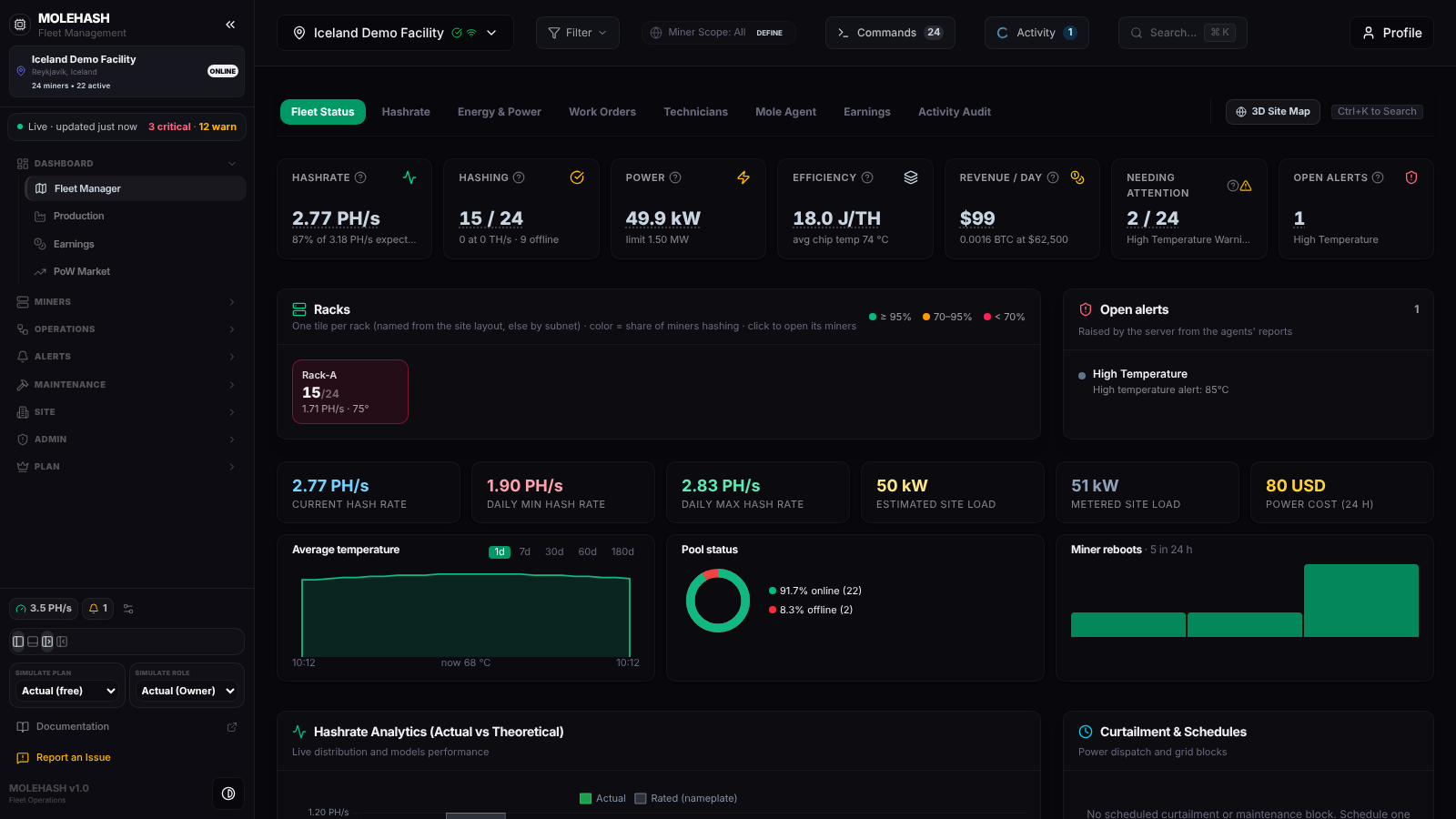 The Fleet Manager of the demo site, with the sidebar expanded on the left and the header tools across the top.
① Sidebar
From top to bottom:
- Brand and collapse arrow — the « arrow collapses the sidebar to a narrow rail of icons; » expands it again.
- Current site card — site name, location, "24 miners • 22 active" and a status badge (ONLINE / OFFLINE).
- Live indicator — "Live · updated just now" with a pulsing green dot while a Mole agent has reported within the last 15 minutes; "Offline · updated …" with a grey dot otherwise. On the right, the counts of open alerts by severity ("3 critical · 12 warn"). Click the line to open the sync diagnostics in Settings.
- Navigation — eight groups. Hover an item for a one-line description; the group containing the current page is expanded automatically, and a group disappears when none of its items is allowed for you.
| Group | Items |
|---|---|
| Dashboard | Fleet Manager · Production · Earnings · PoW Market |
| Miners | Machines · Site Map · Mole Agents · Firmware |
| Operations | Commands · Power & Curtailment · Activity · Scheduled Tasks · Energy |
| Alerts | Issues · Alerts & Triggers |
| Maintenance | Tickets · Repair · Planning · Inventory · Operator Stats |
| Site | Site Management · Pools · Workers · Security · Reports |
| Admin | User Management · Role Management · Settings |
| Plan | Plans & Pricing |
- Live chips — small chips at the bottom of the sidebar: Hashrate (fleet hashrate) and Alerts (number of active alerts) are on by default; the gear next to them (Configure sidebar widgets) also offers Power (live draw) and Low stock (parts below their minimum). A chip reads "—" until its figure has arrived.
- Layout switcher — four small buttons: Dock left, Dock bottom, Expanded (labels) and Rail (icons only). Your choice is remembered in this browser.
- Simulate Plan / Simulate Role (superusers only) — preview the dashboard as another plan or role.
- Documentation, Report an Issue (opens the feedback dialog), the version number and the light/dark theme toggle.
② Header
Left to right:
- Site switcher — the current site with its status and agent-connection icons (green when connected, red when disconnected, amber on error). Click it to pick another site; superusers get a search box. The choice is remembered per browser.
- Filter — the global miner filter: add conditions, combine them with ALL / ANY, enable or disable the scope with the eye icon, save and reload named filters. The badge counts the conditions and turns green when the scope is active. Fleet Manager, Production and Earnings then compute on the filtered miners.
- Miner Scope chip — "Miner Scope: All" with a DEFINE link when no scope is active; "Scope: name" with the match count once a filter is enabled (a Stale badge means the filter matches nothing), with quick buttons to enable, edit or clear it. When racks or transformers were selected on the Site Map, a chip reads "N miners in scope" with an × to clear.
- Commands — opens the bulk command dialog for the selected miners, else the scoped miners, else the whole fleet; the badge is the number of targets.
- Activity — what is running on the site right now. The icon spins with a count while something runs and shows a red dot after a failure in the last 24 hours. The panel has Running, History (7 days) and Scheduled tabs, a filter by kind, a progress bar per run and a Cancel button for runs that can still be stopped. A toast tells you when a command or scheduled task finishes.
- Search… ⌘K — the command palette (Ctrl+K or Cmd+K; Esc closes). Type to find pages and Fleet Manager sections, sites, and miners by name, IP or model; use the arrow keys and Enter. Picking a miner opens it in Machines.
- Profile — your name, e-mail and role, plus Settings and Log out.
On tablets the Commands, Activity and Search controls shrink to icons; on phones only a menu button, the site switcher and Profile remain, and the menu button opens the same eight groups in a drawer.
③ Dock and rail modes
- Expanded — the layout on the screenshot: labels, site card, live indicator, chips and footer.
- Rail — a narrow column with one icon per group. A group with a single page opens it directly; a group with several pages opens a small flyout listing them. Groups that do not fit go into a More popover. The chips stack at the bottom.
- Dock bottom — the same group icons in a bar across the bottom of the window; More also holds the layout switcher, Documentation, Report an Issue and the theme toggle.
④ Banners
- Update banners at the very top of the window: an amber "A new version of the server is being deployed — the dashboard may be unavailable for a minute. Reconnecting…" while the server restarts, a green "Server updated and back online." for a few seconds when it is back, and a blue "A new version of the dashboard was published" with a Reload now button when your tab is running an older version. A stale tab keeps working but may miss new features, so reload when you see the blue bar.
- Upgrade banner (account owners) above the header when the plan's limits are reached.
- Viewing dashboard as user (amber) while a superuser impersonates a member; Stop Impersonating ends it.
- Error loading data (red, dismissible) in the page when something could not be loaded.
⑤ Page addresses
Each panel has its own address, for example /overview, /machines, /energy. A miner has its own page at /machines/<miner id>, and Fleet Manager sections can be linked with /overview?section=power. Opening / or an unknown address shows the Fleet Manager. The demo lives under /demo/<page> with sample figures. The browser Back and Forward buttons work as expected, and panels you have visited keep their filters and scroll position when you switch between them.
How to …
How to switch page
Click a sidebar item, a rail icon (or an entry of its flyout), a result in the search palette, or type the address directly.
How to switch site
Click the site switcher in the header and pick a site, or type its name in the search palette. Every panel reloads for that site.
How to change the sidebar layout
Use the four buttons of the layout switcher at the bottom of the sidebar, or the « / » arrows at the top. In bottom-dock mode the switcher is inside More.
How to choose the live chips
Click the gear next to the chips, then tick Hashrate, Power, Alerts or Low stock.
How to find a miner quickly
Press Ctrl+K, type its IP, name or model, and press Enter. Machines opens with that miner selected.
Good to know
- Live figures follow the Mole agent (older screens say "pickaxe"), which reports about every 5 minutes; the chips refresh every minute.
- A panel is missing from the sidebar: your role lacks its permission on this site. Earnings also sends you back to the Fleet Manager when you lack
revenue:view. - The sidebar lost all its items for a moment: the permission check failed during a server restart; it retries by itself within a few seconds.
- "No site selected" in the header: sites are still loading. A brand-new account without any site sees the onboarding instead of the dashboard.
- The amber update banner stays: the server has been unreachable for more than two checks; wait a minute, or check your connection.