
Account and login
Everything in Mole Hash starts with an account. You register with an e-mail address, confirm it with a code, and can protect the account with an authenticator app. This page walks through the sign-in screens and explains what happens when you are invited to a site.
Where: the sign-in page (/login), Sign Up (/register) and Forgot? (/forgot-password) — public pages, no permission needed. Two-factor authentication is managed later in Admin → Settings → Security. A new account starts on the Free plan.
What you see
Sign in
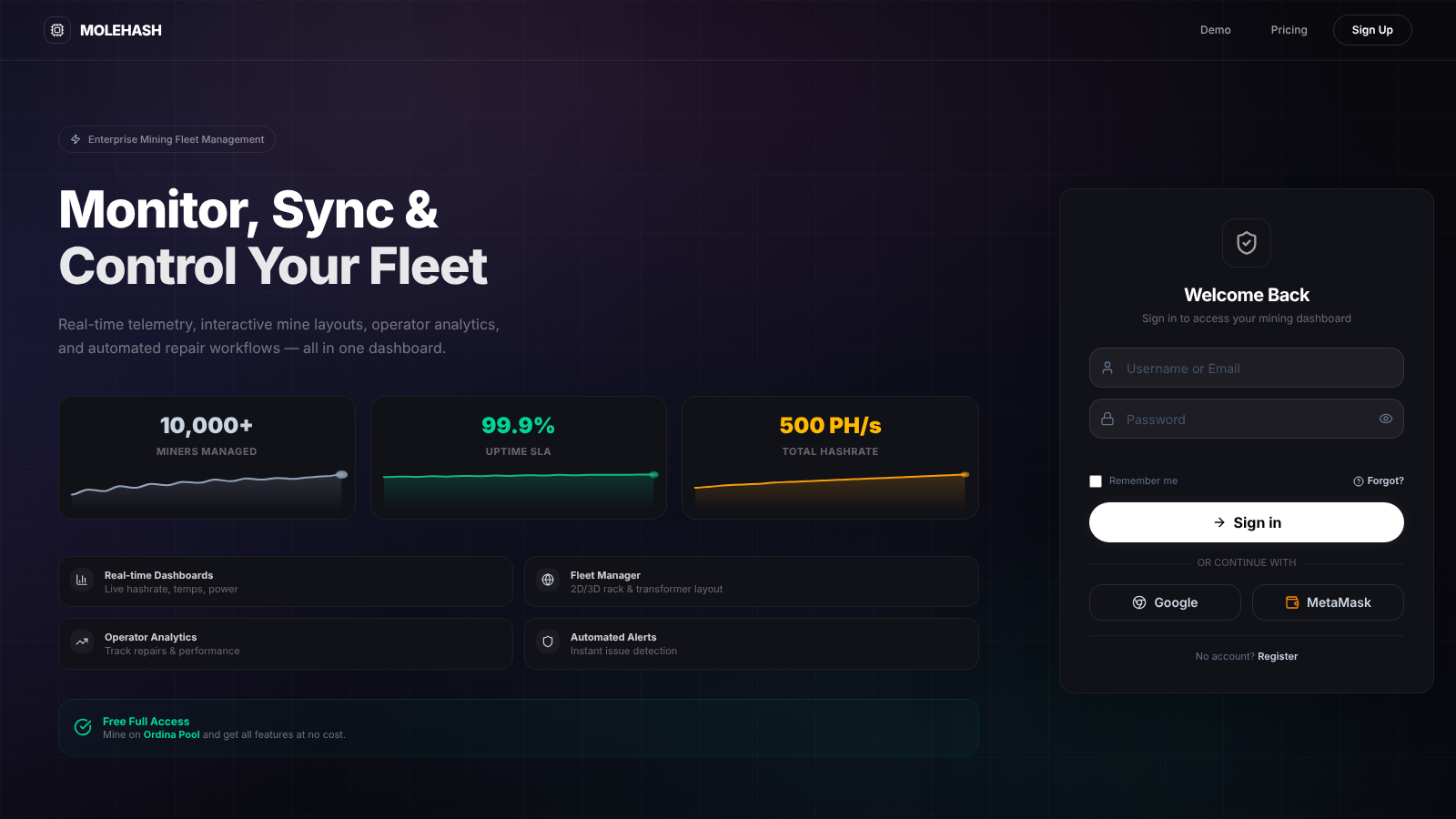 The sign-in card. The top bar switches to Sign Up and links to the Demo and Pricing.
① Username or Email and Password (eye icon to reveal). ② Remember me and the Forgot? link. ③ The Sign in button — a Cloudflare CAPTCHA appears above it on the live site and must be completed first. ④ OR CONTINUE WITH: Google and MetaMask. ⑤ "No account? Register".
Create account
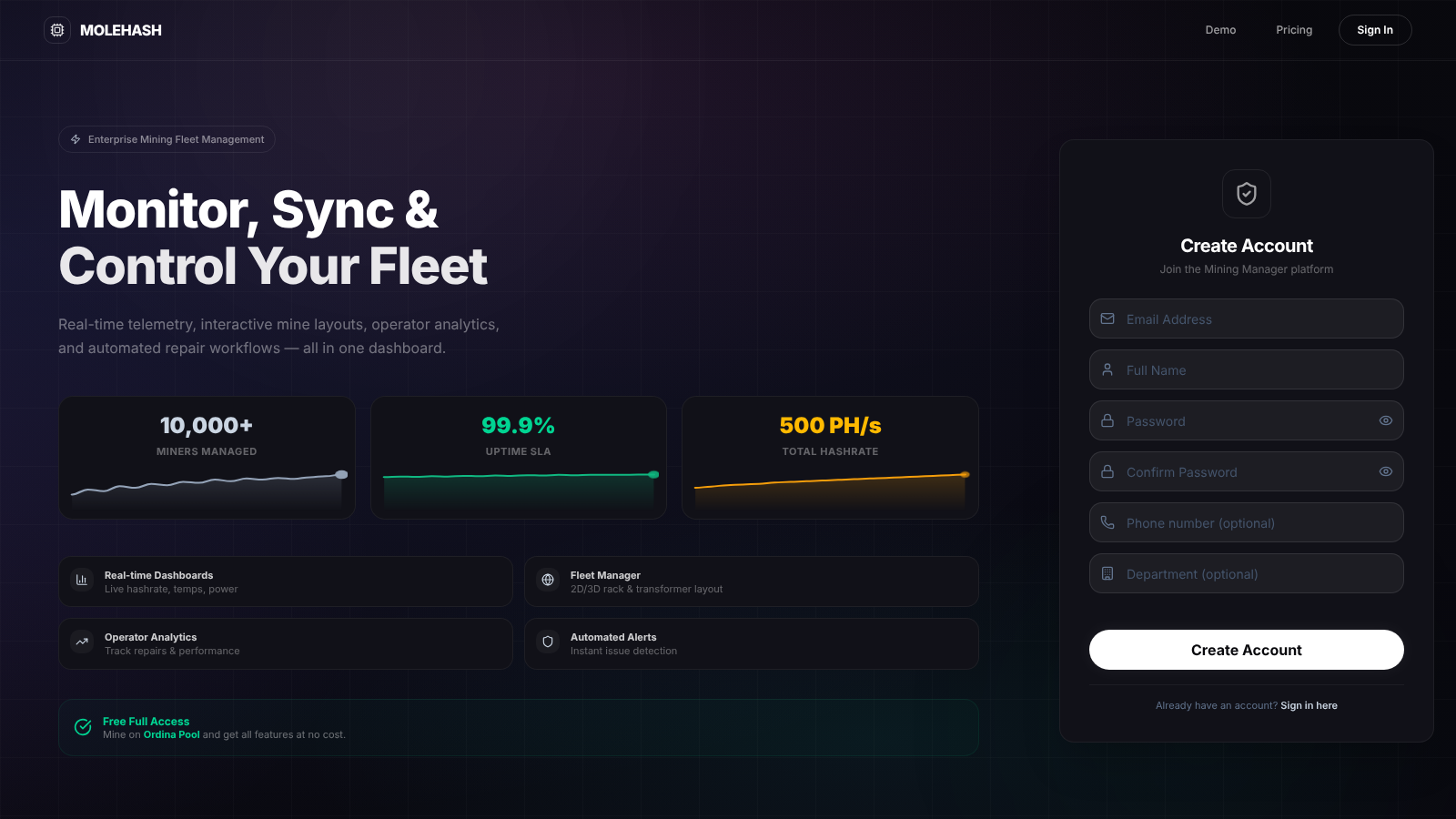 The registration card.
① Email Address, Full Name, Password (at least 6 characters) and Confirm Password. ② Phone number (optional) and Department (optional). ③ Create Account, then "Already have an account? Sign in here". Your username is derived from your e-mail address; you can sign in with either.
Reset password
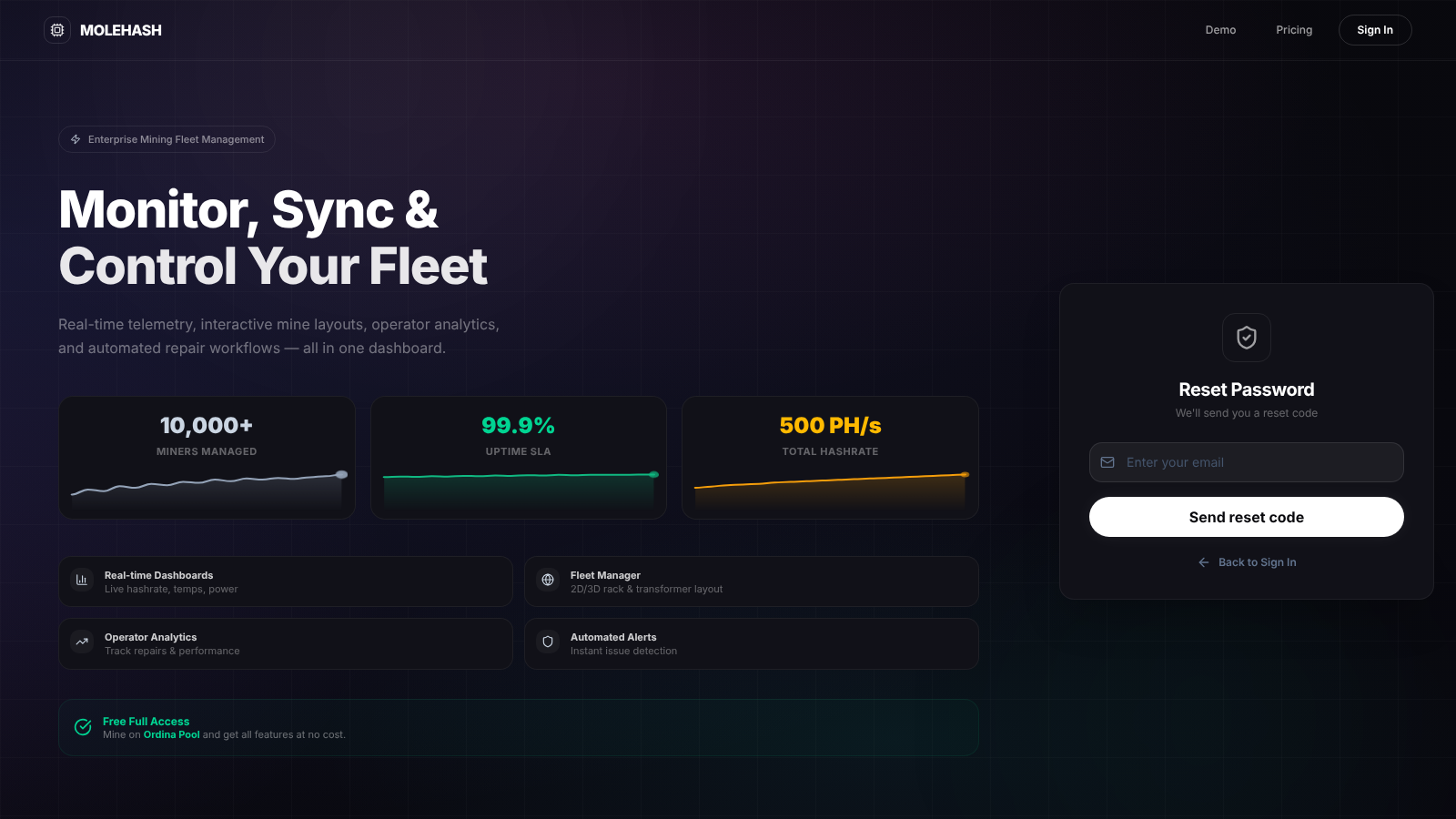 The reset request card.
① Enter your email. ② Send reset code. ③ Back to Sign In.
Two-factor authentication in Settings
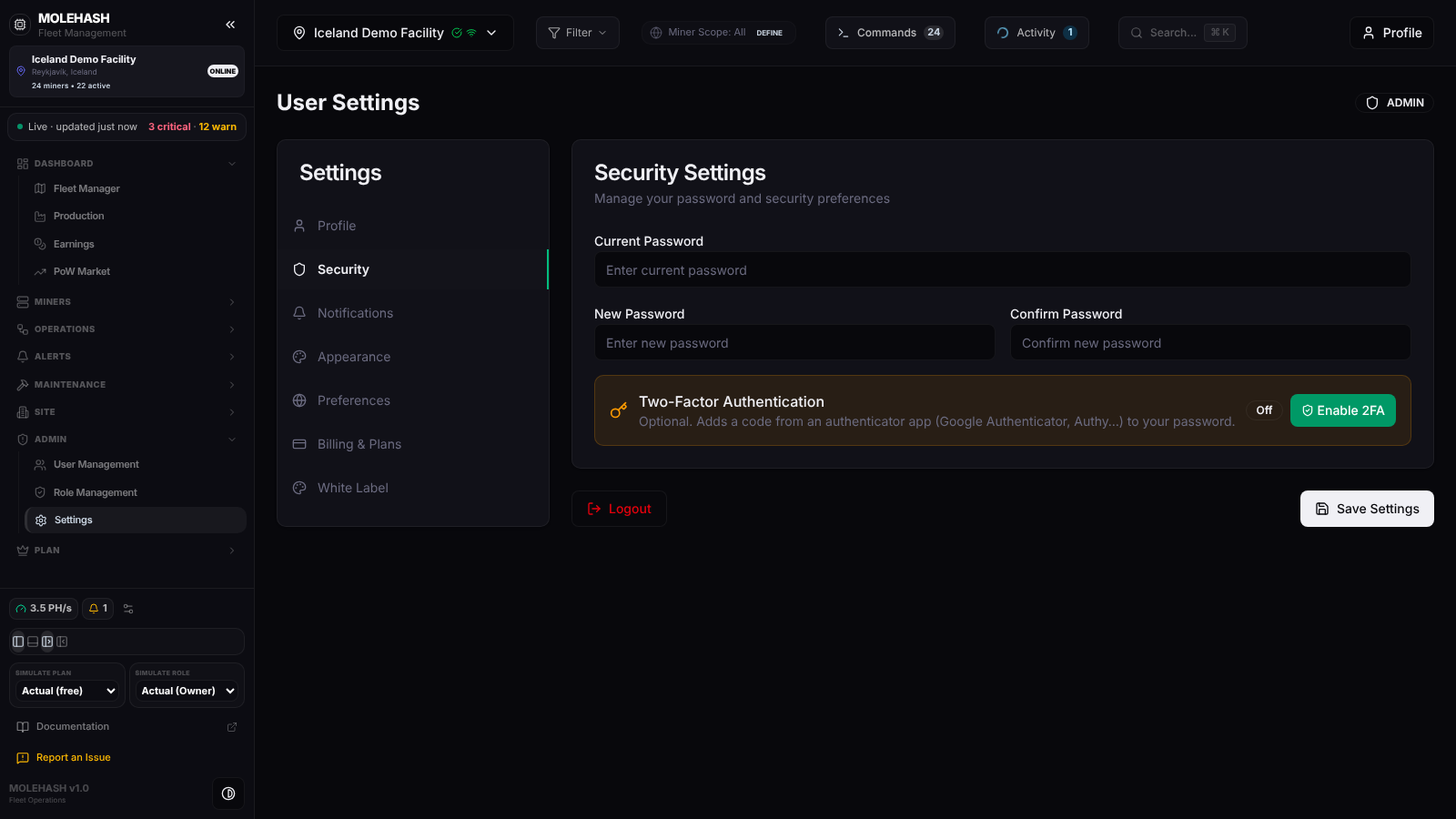 Security Settings: password change on top, the Two-Factor Authentication box underneath.
① Current Password, New Password, Confirm Password and Save Settings to change your password. ② The Two-Factor Authentication box with an On / Off badge and an Enable 2FA button (a Disable button once it is on). ③ Logout.
Invitation note
When you arrive from an invitation e-mail, a green note on the sign-in or registration card reads "You've been invited to a MoleHash site. Sign in / Create your account with address and you'll be added automatically", with the address already filled in.
How to …
How to create an account
- Click Sign Up, fill in the form, complete the CAPTCHA and click Create Account. "Email already registered" means an account already uses that address: sign in or reset your password instead.
- The screen reads "Registration submitted successfully!" and a 6-digit code is e-mailed to you. The account stays inactive until the code is confirmed.
- On Verify Email, type the code and submit. The message "Email verified — your account is active!" confirms the activation. After 8 wrong codes the address is blocked for 15 minutes.
- Protect your account then offers two-factor authentication. Set it up now (see below) or click Skip for now — I'll do it later in Settings. Either way you land on the sign-in card.
How to sign in with a password
- Enter your username or e-mail and your password, complete the CAPTCHA and click Sign in.
- If two-factor authentication is on, the Two-Factor Auth step asks for the 6-digit code from your authenticator app. The step expires after 5 minutes ("Your sign-in step expired. Enter your password again.").
- On your very first sign-in without 2FA, the Protect your account step is shown once; enable it there or Skip for now. Later sign-ins go straight to the dashboard.
- "Incorrect username or password" is self-explanatory; "Inactive user" means the e-mail was never confirmed or the account was deactivated. Ten failed attempts block the account for 15 minutes.
You stay signed in for 7 days. Any pending invitation for your e-mail address is accepted when you sign in.
How to enable two-factor authentication
On the Protect your account step, or in Settings → Security with Enable 2FA:
- Scan the QR code with Google Authenticator, Authy or any compatible app, or type the Secret Key into the app by hand.
- Enter the 6-digit Authenticator Code the app shows and click Enable 2FA (in Settings: Confirm & enable). A toast confirms "Two-factor authentication enabled".
- From now on every sign-in asks for a code. "Invalid code": check the code and the clock of your phone, then try again.
How to disable two-factor authentication
- Open Settings → Security and click Disable in the Two-Factor Authentication box.
- Enter the current code from your authenticator app and click Confirm & disable. The badge switches to Off.
How to sign in with Google
Click Google and pick your Google account. If no Mole Hash account uses that e-mail address yet, one is created on the spot, already active. (On a server where Google sign-in is not configured, the button only opens a test prompt.)
How to sign in with MetaMask
Click MetaMask, approve the connection in the wallet and sign the message it shows. The wallet address signs you in, or creates an account the first time.
How to reset a forgotten password
- Click Forgot?, enter your e-mail and click Send reset code. The screen always answers "If an account exists for this email, a reset link has been sent…" so that nobody can probe which addresses exist. You can ask at most 3 times per address every 15 minutes.
- Open the e-mail and click the Choose a new password button. The reset card opens with "Link verified — just choose your new password." (If you prefer, the card also accepts a code pasted by hand under Reset code (from the e-mail).)
- Enter the new password twice (at least 6 characters) and click Update password. The link is valid for 30 minutes and works once; after that you get "Invalid or expired reset token" and must request a new one.
- "Password reset successfully!" brings you back to the sign-in card.
How to join a site you were invited to
Invitations are tied to the e-mail address they were sent to and are valid for 7 days.
- Open the link in the invitation e-mail. It brings you to Sign in if an account already uses that address, otherwise to Create Account, with the address filled in.
- Sign in, or register and confirm your e-mail, with that address. Your membership is created automatically and the site appears in your site switcher with the role chosen by the inviter.
- "This invitation was sent to a different email address" means you are signed in with another account: use Sign in with another account.
Good to know
- No verification e-mail: check the spam folder; the code is tied to the address you typed. Registering again with the same address is refused — ask a superuser to activate the account, or reset your password.
- "Please complete the Cloudflare Turnstile CAPTCHA": wait for the widget to load and tick it before submitting.
- Lost your authenticator: there is no self-service 2FA reset; contact a superuser.
- Invited but no site after signing in: the invitation has expired or was sent to another address; ask the site owner to Resend it.
- Accounts created by a superuser in User Management skip the e-mail confirmation and receive a one-time password to change in Settings.
Related
- Settings (password, 2FA)
- Site Management (invitations, members)
- User Management