
Fleet Manager
The Fleet Manager is the first page you land on. It answers "how is this site doing right now?" in one glance: seven headline figures, a rack grid coloured by how many miners are hashing, the open alerts, and a column of sections you can scroll through for more detail. Every big number on the page is a link to the panel that owns it, so you can start here and drill down.
Where: sidebar Dashboard → Fleet Manager · needs the site:view permission · the Revenue / day card and the Earnings section also need revenue:view (owners and superusers always have it; other members simply do not see them).
What you see
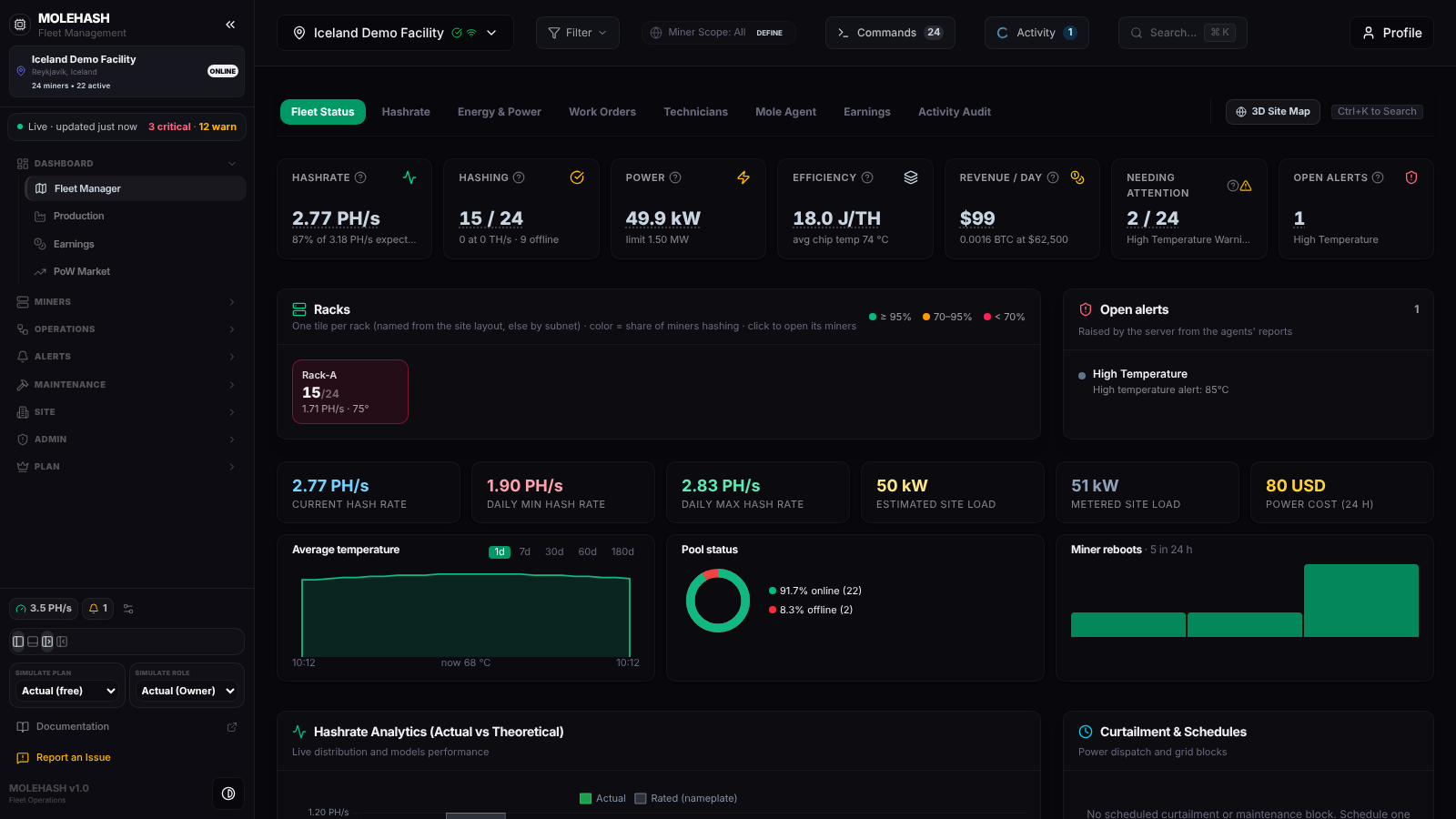 The Fleet Manager on the demo site: 24 miners, 15 hashing, one open alert.
① Section bar — a row of tabs under the header: Fleet Status, Hashrate, Energy & Power, Work Orders, Technicians, Mole Agent, Earnings and Activity Audit. Click one to scroll to that section; the bar stays visible while you scroll and highlights the section you are in. On the right, 3D Site Map opens the Site Map and a hint reminds you that Ctrl+K opens the search.
② Headline cards — seven cards (six without the revenue permission). Each value opens the panel named in the last column; the small ? icon explains the figure.
| Card | Value | Small line underneath | Opens |
|---|---|---|---|
| Hashrate | Live hashrate of the miners in scope | "87% of 3.18 PH/s expected" — the share of what the installed models are rated for | Production |
| Hashing | hashing / total miners | "N at 0 TH/s · N offline" — "0 TH/s" miners answer but do not mine (usually a failed board, a disabled pool or stuck firmware) | Machines |
| Power | Site draw in W, kW or MW | "limit 1.50 MW" (the contracted limit), or "est. for N · measured on N" when some miners do not report their wattage and it is estimated from their hashrate | Energy |
| Efficiency | Joules per terahash | Average chip temperature of the hashing miners, or "no temperature data"; the card turns red above 80 °C | Energy |
| Revenue / day | US dollars per day | Projected BTC per day at today's difficulty and the current BTC price | Earnings |
| Needing attention | miners with at least one issue / total | The most common issue and its count, "no issue detected", or "scanning…" while the check runs | Issues |
| Open alerts | number of open alerts | Title of the first alert, or "all clear" | Issues |
③ Fleet Status — Racks shows one tile per rack: the rack name from your site layout (otherwise the network range), "15/24" hashing, total hashrate and average temperature. Green means 95 % or more of the rack is hashing, amber 70–95 %, red below 70 %. Next to it, Open alerts lists up to 20 alerts raised from the agents' reports (red dot for critical and high, amber for medium); click one to open Issues.
④ Daily tiles — Current / Daily min / Daily max hash rate, Estimated site load, Metered site load and Power cost (24 h), followed by Average temperature (with a 1d · 7d · 30d · 60d · 180d picker), the Pool status donut (pool connections online / offline / unknown) and the Miner reboots histogram per hour. Metered load reads "N/A" until a meter feed exists; power cost reads "set €/kWh" until the site has an electricity price in Site Management.
⑤ Hashrate — Hashrate Analytics (Actual vs Theoretical): one bar pair per model, Actual against Rated (nameplate); hover for the number of hashing units and the percentage of rated. Beside it, Curtailment & Schedules lists the next four scheduled work orders, or a link to Planning when there are none.
⑥ Energy & Power — one card per transformer configured on the site: load against capacity, active miners, a status badge (Overloaded above 90 %) and bars for phases A, B and C when the phase loads are known. Without transformers the card links to Site Management → Power.
⑦ Reboots — a candlestick chart with a 24 h / 7 d / 30 d picker. A red candle means reboots were accelerating inside that window, green means they were calming down; the bars underneath are the total count. Hover a candle to see the split between ordered reboots (sent from Mole Hash) and detected ones (an uptime reset seen by the agent). The header gives the total and the number of miners affected.
⑧ Work Orders — up to six open work orders (title, target miner, severity, assignee, age, status; titles open Planning) and Critical Hardware Alerts worked out live from the miner list: up to four miners at 80 °C or more (High temperature) and up to four reachable miners at 0 TH/s (Zero hashrate). details opens that miner.
⑨ Technicians — one card per site member (up to nine) with their role and the number of open work orders assigned to them.
⑩ Mole Agent — the Discovery Grid lists each Mole agent of the site (older screens call it a "pickaxe"): name and version, network range, discovered hosts, time since its last report, and Online when it reported within the last 15 minutes. Network Scan Status sums up the ranges scanned, agents online and miners reporting.
⑪ Earnings — three cards: Hashrate Yield Rate, Power Cost Metrics and Gross Margin Estimate. The yield rate and the $0.065/kWh tariff on these cards are fixed reference values, not your site's settings; use the Earnings page for a figure at your own electricity price.
⑫ Activity Audit — the last eight entries of the site's audit log: time, action, what it touched, who did it (or "system") and a short detail.
How to …
How to jump to a section
- Click a tab in the section bar (for example Energy & Power).
- The page scrolls there and the tab stays highlighted. The address bar changes with it, so you can bookmark or share a link that opens straight on that section.
How to open the miners of one rack
- In Racks, click a tile.
- The Machines page opens filtered on that rack's network range. Clear the filter from the Machines filter bar when you are done.
How to narrow the page to part of the fleet
- Open Filter in the header and build or enable a saved filter (or select racks on the Site Map).
- The headline cards, rack tiles, charts and hardware alerts recompute on the filtered miners only. The daily tiles, reboots, Mole agents and audit log always stay site-wide.
How to change the time window
- Reboots: click 24 h, 7 d or 30 d above the chart.
- Average temperature: click 1d … 180d on the card. This also changes the period of the daily min/max and reboot tiles.
Good to know
- Live figures follow the Mole agent, which reports about every 5 minutes; the daily tiles refresh every 5 minutes and the reboot chart every minute.
- "—" or "scanning…" on a card means the figure has not arrived yet; "N/A" on metered load means no meter is connected.
- All racks red and "No miners reported yet": no agent is reporting for this site. Check Miners → Mole Agents.
- Rack tiles named by a network range instead of a rack: publish a site layout with miners assigned to racks on the Site Map.
- Power reads "est. for N": those miners run stock firmware without their web password set, so the agent cannot read their wattage and estimates it from hashrate.
- You cannot see Revenue or Earnings: your role lacks
revenue:viewon this site; ask an owner. - Opening an unknown address in the app brings you back to this page.