
Site Management
A site is one physical farm: it owns miners, members, roles, a Mole agent (older screens say "pickaxe") API key and a power envelope. Site Management lists every site you can access, lets you add, edit or delete sites, and opens each site's dashboard, where you manage people and invitations, power cap and transformers, and site details.
Where: sidebar Site → Site Management · needs the site:view permission to see the list; editing a site and its API key needs site:update, deleting needs site:delete, people and roles need the members:* and roles:* permissions. The person who created a site (its owner) can do everything on it. The number of sites you may own depends on your plan (see Plans & Pricing).
What you see
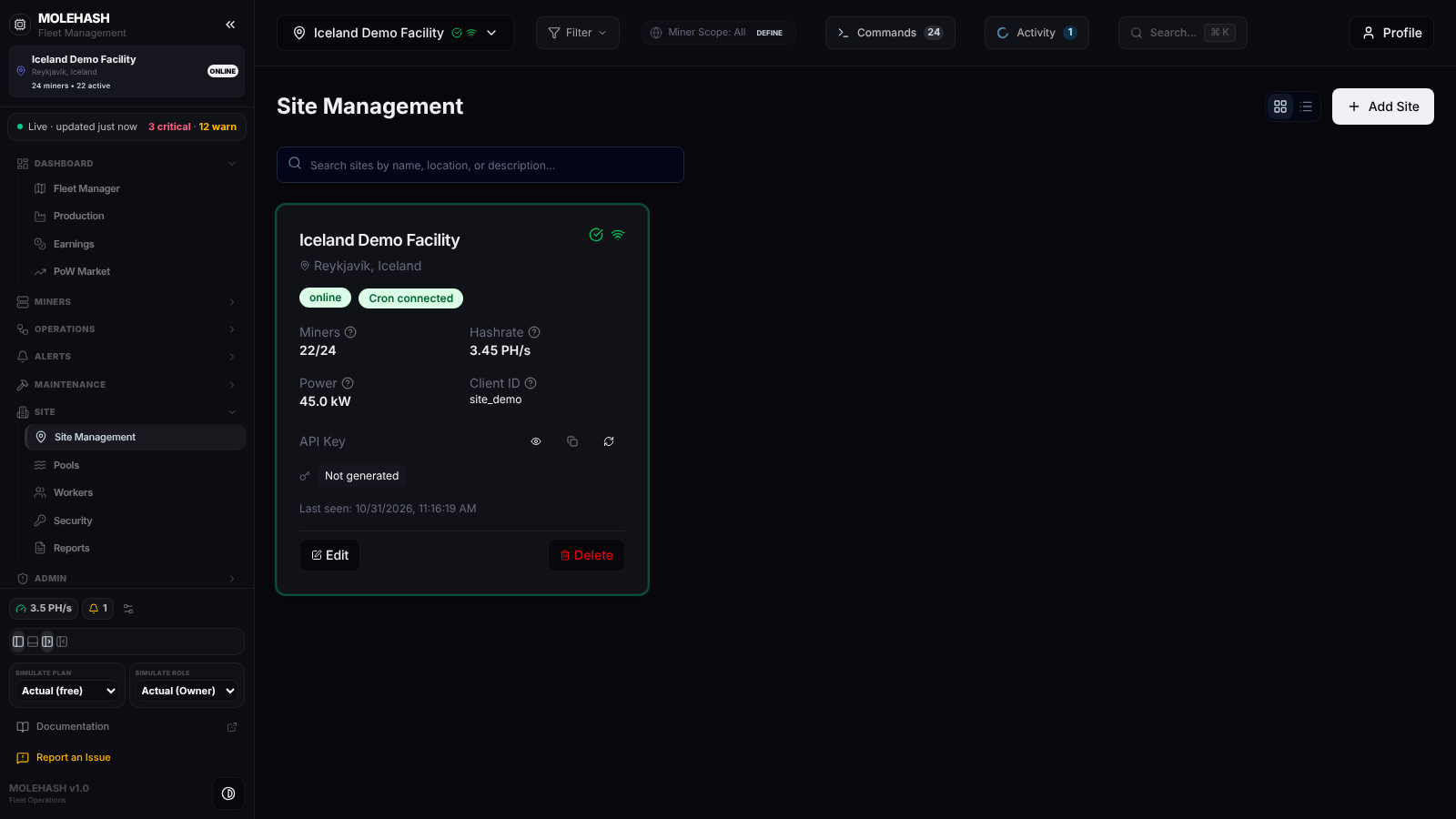 The site list on the demo account: one site card, shown in grid view.
① Header — Site Management, a grid / table view toggle (remembered in your browser) and Add Site. Superusers also get a search box (name, location or description).
② Site card — one per site. Clicking a card makes it the current site and opens its dashboard.
| Element | Meaning |
|---|---|
| Name and location | Iceland Demo Facility — Reykjavík, Iceland on the demo. The two icons on the right repeat the two badges below. |
| Status badge | Site health (online, offline…) worked out from the miners' latest reports. |
| Cron badge | State of the Mole agent link: connected, disconnected or error. Grey means no agent has reported yet. |
| Miners | Active miners / registered miners (22/24). |
| Hashrate | Current hashrate of the site (3.45 PH/s). |
| Power | Current draw (45.0 kW). |
| Client ID | The identifier the agent sends with every upload (site_demo). |
| API Key | The secret the Mole agent uses to push data. Masked by default; Not generated when none exists. The three icons are reveal (eye), copy and regenerate. Members who cannot edit the site see an empty key. |
| Last seen | Last time the site reported. |
| Edit / Delete | Open the site form, or remove the site. |
The site dashboard
Clicking a card opens the dashboard with four tabs.
Overview — cards for Site Status, Cron Status, Active Miners and Total Hashrate; Site Information (name, location, client site ID, creation date, description); Performance Metrics (total power, efficiency in J/TH, uptime, last update); Network Configuration (network range, scan interval, cron interval, auto-scan, scan ports); and an Operations block with shortcuts to Tickets, Repair and Commands. The Uptime figure is not measured in this build: it shows 99.9 % when the site is online and 0 % otherwise.
Power — the Dynamic MW Power Balancer: live load, 24-hour average / min / max, 24-hour energy (with cost when an energy price is set), headroom under the cap or measured power; an hourly bar chart of the last 24 hours (dashed line = cap), a per-building table (live load, hashing, online, miners) and a collapsible Power cap (optional) section. The badge reads Monitoring only until a cap is set. A collapsible Transformers block holds the transformer list and visualiser (load %, temperature, per-phase A/B/C sliders, miner mapping). The numbers refresh every five minutes.
Access — three sub-tabs: People & Invitations, Roles & Permissions and Audit Logs, with a Sync Access button that reloads all three.
| Members Directory column | Meaning |
|---|---|
| User | Full name, username, (You) on your own line. |
| Sign-in address. | |
| Site Role | Owner, Admin, Operator, Viewer, a custom role, or Suspended (member kept, no access). |
| Actions | Role, Suspend / Activate, Password, Make owner, remove. |
Pending Invitations lists each invitation with its e-mail, target role, expiry, Pending / Expired status and Resend / Revoke buttons.
Settings — the Site Information editor (identity, location, contact, energy and power, network), a short form with the site name, client site ID, location and description, and a Danger Zone.
How to …
How to add a site
- Click Add Site. The Add New Site form opens.
- Fill Site Name and Location (required) and, if you like, a Description.
- Click Create Site. The client ID and the API key are generated for you. A name already in use is refused with Site name already exists.
How to edit or delete a site
- Edit reopens the same form; click Update Site to save.
- Delete asks for confirmation and removes the site. Only members with the delete permission see it work.
How to give the Mole agent its API key
On the site card, click the eye icon to reveal the key, the copy icon to copy it, and paste it in the agent's configuration together with the Client ID. The refresh icon generates a new key and replaces the old one at once — the agent must be updated, or it stops uploading.
How to invite someone (Access → People & Invitations)
- Click Invite Member, enter the Email Address, pick the Assigned Role and click Send Invitation.
- The invitation is valid for 7 days. The e-mail takes the person to the sign-in or registration page with their address pre-filled; the moment they sign in or register with that address they become a member — there is no separate acceptance step.
- User is already a member of this site and An invitation is already pending for this email explain a refusal. Resend e-mails the link again for another 7 days; Revoke cancels it.
How to change, suspend or remove a member
- Role opens Change Site Access Role; pick the new role and Save Changes. The owner cannot be demoted.
- Suspend keeps the person in the list but removes all their access; Activate reopens the role dialog with Viewer preselected.
- The remove icon deletes the membership after confirmation. The owner and your own account are protected.
How to set a member's password (owner only)
Password is shown to the site owner (and superusers) on members other than the owner and yourself. In Set a new password, type a password of at least 6 characters or generate one with the refresh icon, then Save password. The new password is copied to your clipboard; the member's current sessions stay open until they expire. This works only for people whose account exists through your sites (not for superusers or owners of their own sites).
How to transfer ownership (owner only)
Click Make owner on the member, then Transfer ownership in the confirmation. They become Owner and the site now counts against their plan; you stay on the site as Admin. Only the new owner can transfer it back. The person must already be a member.
How to manage roles (Access → Roles & Permissions)
Create Role opens a form with a name, a description and the permission matrix (ticking a write permission ticks its matching view permission). Select a custom role to edit it, then Save Changes or Delete. System roles are read-only. See Roles & permissions for what each permission unlocks.
How to set or remove a power cap (Power tab)
- Expand Power cap (optional), enter a value in MW (0.1 to 30) and click Apply MW Power Cap. Active miners are asked to adapt their power mode to stay under it; what was done appears under Balancing Actions Triggered.
- Remove Cap clears it. Without a cap nothing is sent to the miners.
How to edit site details (Settings tab)
In Site Information, click Edit, change the fields and click Save (n); only the fields you changed are saved. Fields include the site name, description and company; address, region, latitude, longitude and time zone; contact name, phone and e-mail; energy cost ($/kWh), target power cap and maximum capacity (MW); scan range and gateway IP. In this build Edit is available to superusers only — other members see Read Only. The short form below (name, client site ID, location, description) saves with Save Changes; changing the client site ID can orphan data uploaded under the old one.
WARNING
In the Danger Zone, Delete Site and Reset Data are not wired up yet. Delete a site from the site list instead.
Good to know
- Opening the site list also accepts any pending invitation addressed to your e-mail.
- No Site Selected on the dashboard: pick a site in the list first.
- A Suspended member cannot open the site; the sidebar hides every item for them.
- Expired invitation: Resend renews it for 7 days.
- The site counts, hashrate and power on the cards come from the agent's latest uploads; a site whose agent is down keeps its last values and shows Cron disconnected.
- Superusers see every site and every action; owners see everything on their own sites.