
Inventory
The Parts Inventory answers "how many spare parts do we have, in what condition, and what is running low?". You register parts in a catalog, record stock going in and out per storage location, set a minimum level per part, and create alert rules that notify you when a part or a whole category drops below a threshold.
Where: sidebar Maintenance → Inventory · needs the inventory:view permission to read; adjusting stock, creating site locations and site alert rules need inventory:manage on the site. Any signed-in member can add a part to the catalog or create a personal alert rule.
What you see
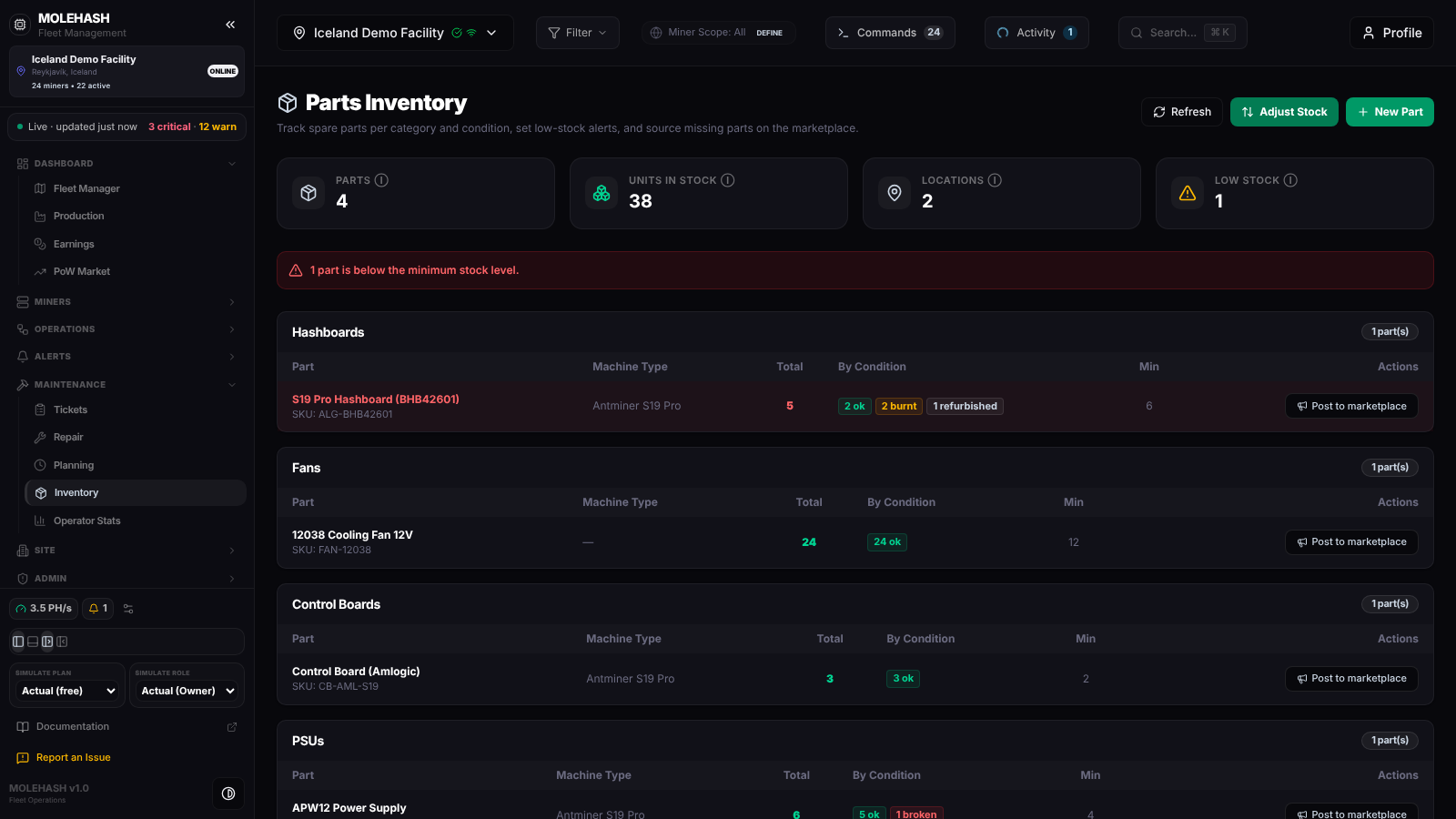 The demo inventory: four parts in stock, two locations, one part below its minimum.
① Header — Parts Inventory with Refresh, Adjust Stock (opens the adjustment form) and New Part (opens the part form). Opening one form closes the other.
② Summary tiles
| Tile | Meaning |
|---|---|
| Parts | Parts that have at least one stock line visible for this site (4 on the demo). |
| Units in stock | All units added up, whatever their condition (38). |
| Locations | Storage locations usable for this site: the site's own plus the shared ones (2). |
| Low stock | Parts whose total is below their minimum; amber when above zero (1). |
③ Low-stock banner — a red line n part(s) are below the minimum stock level whenever Low stock is above zero.
④ Stock tables — one card per category that has stock: Hashboards, Fans, Control Boards, PSUs, Cables, Other, each with a n part(s) badge.
| Column | Meaning |
|---|---|
| Part | Name and SKU. Shown in red when below the minimum (the S19 Pro Hashboard on the demo). |
| Machine Type | The miner model the part fits, for example Antminer S19 Pro, or — . |
| Total | Units across all visible locations and conditions; green, or red when below the minimum. |
| By Condition | One chip per condition with units: ok (green), burnt (amber), broken (red), refurbished (grey), unknown. |
| Min | The minimum stock level set on the part. |
| Actions | Post to marketplace. |
A part with no stock line is not listed here, even though it exists in the catalog and in the part pickers. With nothing at all the page reads No parts in the catalog yet.
⑤ Inventory Alert Rules (below the tables) — one line per rule: name, a Paused tag when disabled, its scope (Part: …, Category: … or All parts), the condition counted, the minimum, the cooldown and the notification channels, with an on/off switch and a delete button. New Rule opens the rule form.
How to …
How to add a part to the catalog
- Click New Part.
- Fill Name and SKU (both required; the SKU must be unique), then Category, Machine Type, Compatible Models (comma separated) and Min Stock Level.
- Click Create Part. Toast Part Created. If the SKU is already used you get Part with SKU … already exists. The part appears in the tables once it has stock.
How to add or remove stock
- Click Adjust Stock. The form starts with one line; Add line adds more, and new lines inherit the previous line's location and condition.
- On each line choose a Part (search by name, SKU or model), a Location, a Quantity (+/-) — positive adds units, negative removes them — and the Condition of the units you are touching (for example Burnt for boards pulled out of miners).
- Click Apply adjustment (or Apply n adjustments). Each line is applied on its own and turns Applied (green) or Failed (red, with the reason). The summary reads x units across y parts · z locations · n applied · m failed. Retry n lines resends only the failed lines; Start new adjustment clears the applied ones.
- A toast confirms Stock Adjusted, or Partially Applied when some lines failed.
Removing more units than present brings the stock to 0, never below. Every adjustment is recorded with your username.
How to create a storage location
In the Adjust Stock form, under Need a new location?, type a name and click Add Location. With a site selected the location belongs to that site; otherwise it is shared by all your sites. Lines without a location pick it up automatically.
How to create a low-stock alert rule
- Click New Rule.
- Give it a Rule Name, choose the Scope (Category or Specific part), the Condition that is counted (OK by default: only units in that condition are compared with the threshold), the Min Quantity (5 by default), a Cooldown in minutes between two notifications (60 by default) and the Notification Channels: In-app, Email, Telegram, WhatsApp, Discord, SMS.
- Click Create Rule. Toast Alert Rule Created. The rule belongs to the current site, or to you alone when no site is selected.
When a stock change takes the counted quantity under the minimum and the cooldown has passed, an Inventory low alert appears in Issues and is sent on the chosen channels to the site's members who can view inventory.
How to pause, resume or delete a rule
Use the switch to pause or re-enable a rule, and the trash icon to delete it (immediate, toast Rule Deleted). You can do this on rules you created, or on any rule of a site where you manage inventory.
How to source a part on the marketplace
Click Post to marketplace on a part line. The Create post dialog opens prefilled as a Need parts post titled Looking for <part>, with the category, machine type and a quantity equal to the shortfall (at least 1). Publishing the post does not change your stock.
Good to know
- The panel reloads when you come back to it, after each of your changes, and when you click Refresh. There is no automatic timer.
- The Low stock tile compares the total of all conditions with the minimum, while an alert rule counts only its chosen condition (OK by default). The tile and a rule can therefore disagree — that is intended: a rule on OK units tells you about usable parts.
- Burnt and broken units count in Total. Keep an eye on the condition chips when judging what is really available.
- Site locations are only offered while that site is selected; shared locations are always available.
- Switching site keeps your Adjust Stock lines, but a site location picked earlier may no longer be valid: the line fails and can be edited and retried.
- A permission message on a line means you can read but not change that site's stock.
- The sidebar can show a Low stock chip (gear icon → Sidebar widgets → Low stock), off by default, with the number of parts below minimum for the current site.
- Parts are not yet linked to repair tickets from the app: consumption on a repair is recorded by hand as a negative adjustment.