
Miner page
The miner page answers "what is going on with this machine?". It gathers everything the Mole agent has reported about one miner, its history on the platform (events, reboots, repair tickets) and the place where you edit its settings and alert thresholds.
Where: sidebar Miners → Machines, then click a row or card (the ← arrow brings you back) · needs the miners:view permission; Edit miner, Configure Pools and the photo need miners:update. On the Free and Lite plans saving a pool configuration is refused: free sites mine on the Ordina pool.
What you see
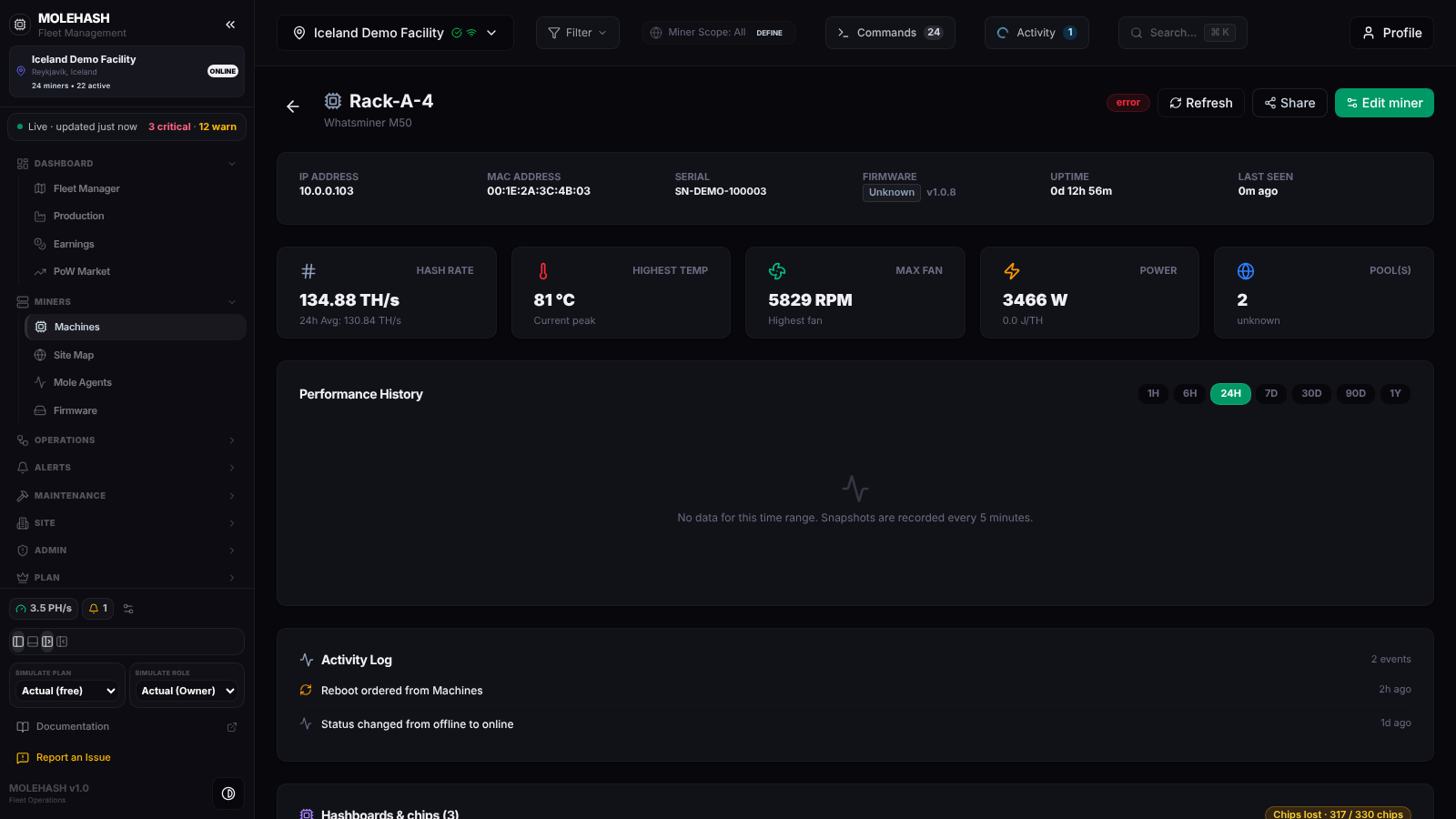 Rack-A-4 on the demo site: header, identity strip, five KPI cards, performance history and activity log.
① Header — name, model, a lifecycle badge when the miner is not deployed (e.g. IN REPAIR), the PSU serial and the description if set. On the right: the raw status badge (green when healthy, red on error, grey when offline), Refresh, Share (copies the page link; toast Link Copied) and Edit miner.
② Identity strip — IP Address, MAC Address, Serial, Firmware (family badge and version), Uptime, Last Seen (0m ago, 2h ago…). N/A means the agent has not reported the value.
③ KPI cards
| Card | Big figure | Small line |
|---|---|---|
| Hash Rate | Current TH/s | 24 h average |
| Highest Temp | Hottest temperature reported | Current peak |
| Max Fan | Highest fan speed, RPM | Highest fan |
| Power | Watts | Efficiency in J/TH |
| Pool(s) | Number of configured pools | Pool status |
④ Performance History — range buttons 1H · 6H · 24H · 7D · 30D · 90D · 1Y (24H by default). Four charts share the time axis: Hashrate, Temperature, Fan Speed and Share Distribution (accepted in green, rejected in red). When pools are known, a bar chart compares accepted / rejected / stale shares per pool. A new miner shows No data for this time range. Snapshots are recorded every 5 minutes. until a few snapshots exist.
⑤ Activity Log — the 20 most recent events for this miner, newest first (Show All n Events unfolds the rest). The icon tells the kind of event: healthy, failing, reboot, pool change; warning triangles mark warnings and errors.
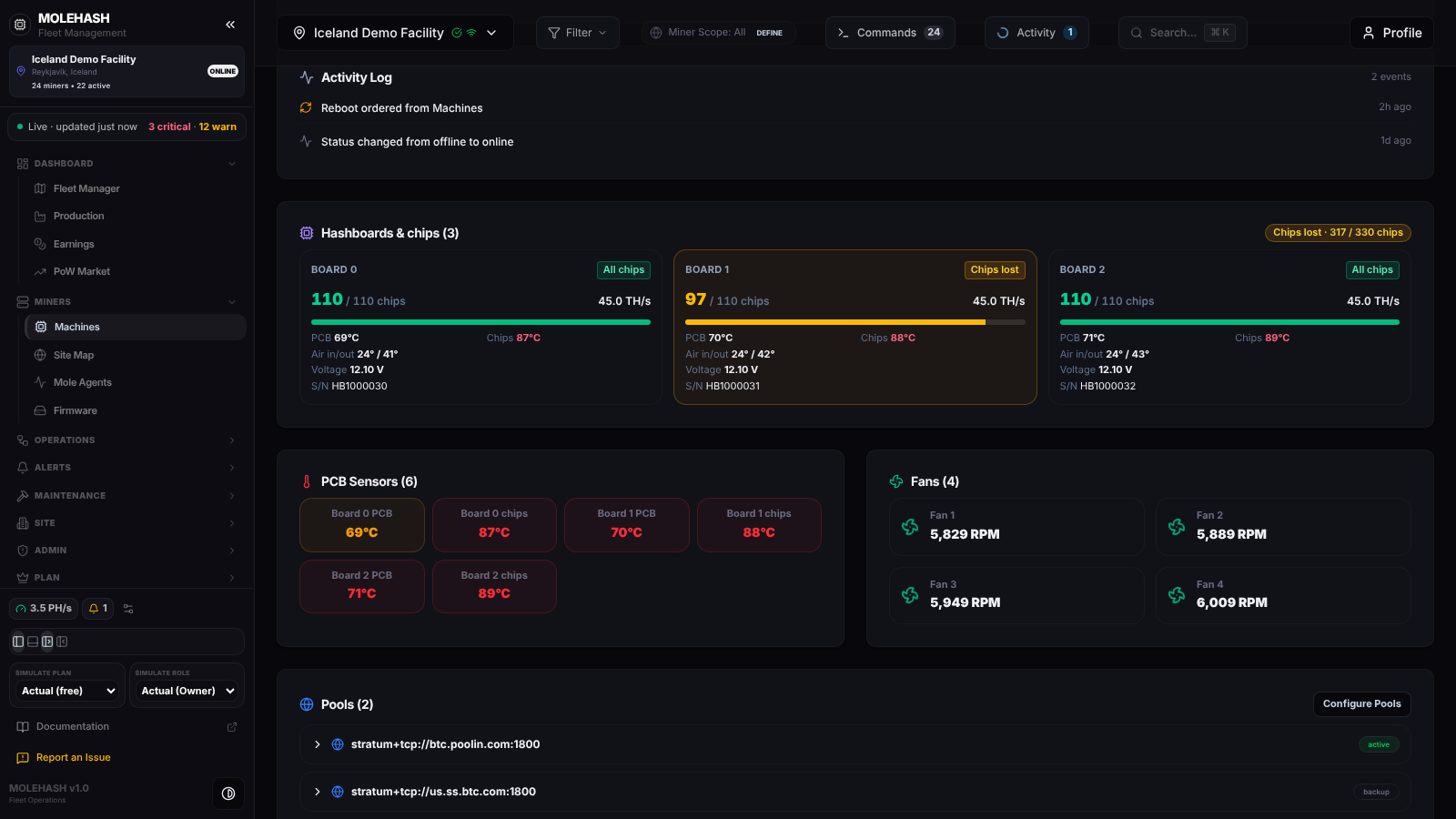 Board 1 of Rack-A-4 has lost 13 chips: the card and its tile turn amber.
⑥ Hashboards & chips (n) — one tile per board and a summary badge in the corner (All chips · 330 / 330 chips, Chips lost · 317 / 330 chips, No chips…). Each tile shows working / expected chips, the board's hashrate, a ratio bar, the PCB temperature (the board itself) and the Chips temperature (the hashing chips, normally 15–20 °C hotter), Air in/out when the firmware gives inlet and outlet temperatures, Voltage and the board S/N. Temperatures turn amber from 75 °C and red from 85 °C.
| Board state | Meaning |
|---|---|
| All chips (green) | Every expected chip is working. |
| Chips lost (amber) | Some chips are missing on this board. |
| No chips (red) | The board is detected but no chip answers. |
| Board missing (red) | The control board does not see the board at all. |
| Not reported | The agent has not sent board details for this miner (agents older than v3.285.0). The card then reads The agent has not reported this miner's boards yet — update the agent. |
The expected chip count comes from the board itself when the firmware sends it, otherwise from the model's specification split across the boards.
⑦ PCB Sensors (n) — temperature tiles, amber from 60 °C and red from 70 °C. Stock Antminer firmware has no separate sensor list, so the tiles are built from the boards (Board 0 PCB, Board 0 chips…) or, failing that, a single Control board tile. No sensor data when nothing is available.
⑧ Fans (n) — Fan 1 to Fan 4 with their RPM; the icon spins while the fan turns. When the agent does not report four fans, the tiles are derived from the highest fan speed.
⑨ Pools (n) — one row per pool with its address and status badge (active, backup). Click a row to unfold the worker, the accepted / rejected / stale shares and the difficulty when the firmware reports it. Configure Pools is described below.
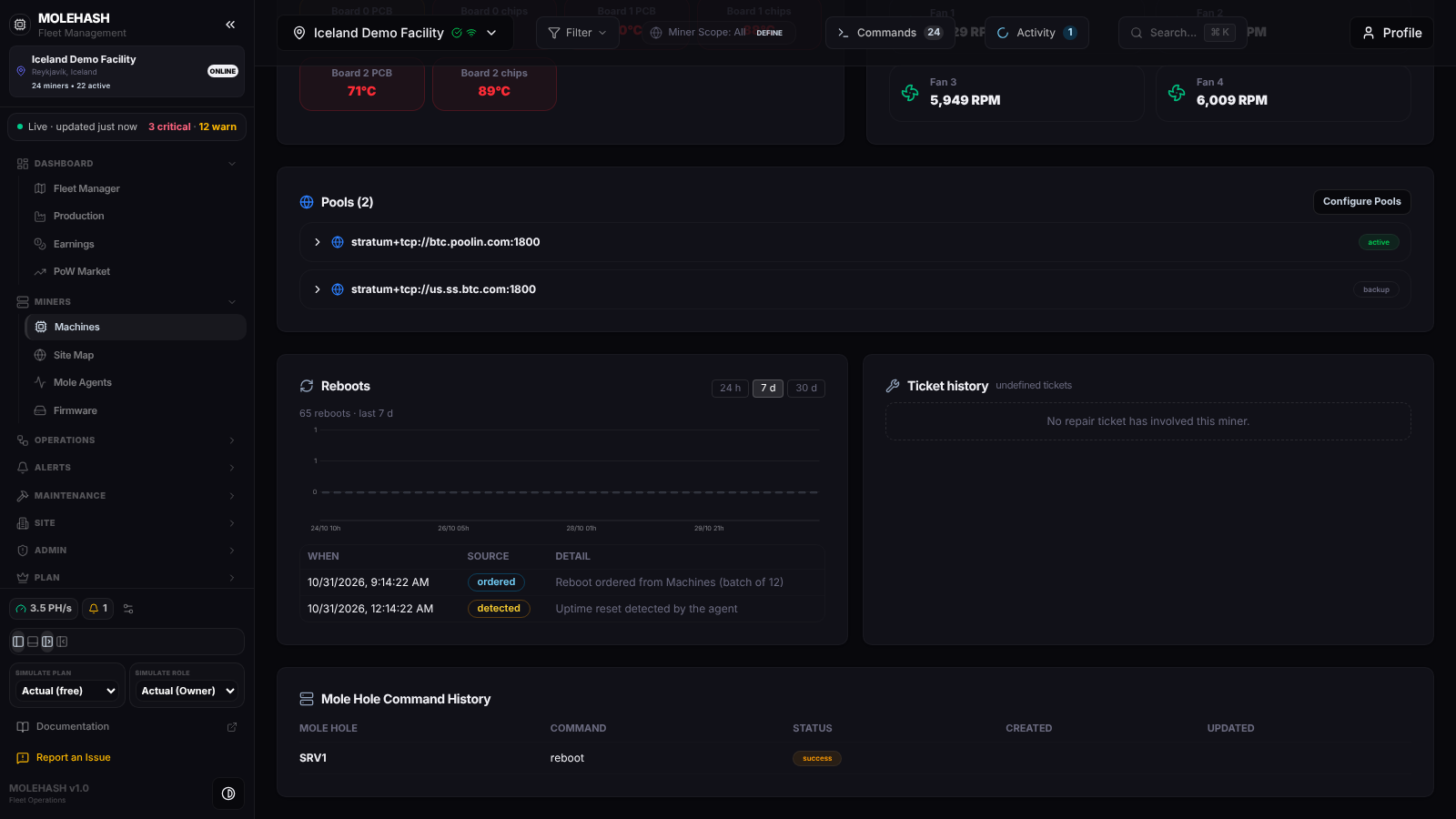 The bottom of the page: reboot chart and list, ticket history, command history.
⑩ Reboots — a candlestick chart over 24 h / 7 d / 30 d (red candle: reboots accelerating, green: calming down) and a list of each reboot with When, Source (ordered = a reboot sent from the platform, detected = the agent saw the uptime reset) and Detail. Refreshes every minute.
⑪ Ticket history — every repair ticket this miner appeared in: Opened, Ticket (title, miner count, priority, author), Issue on this miner, Diagnosis, Technician, Status, Closed. No repair ticket has involved this miner. when empty.
⑫ Mole Hole Command History — shown only when the agent has reported commands for this miner: agent, command, status, created, updated.
How to …
How to edit the miner
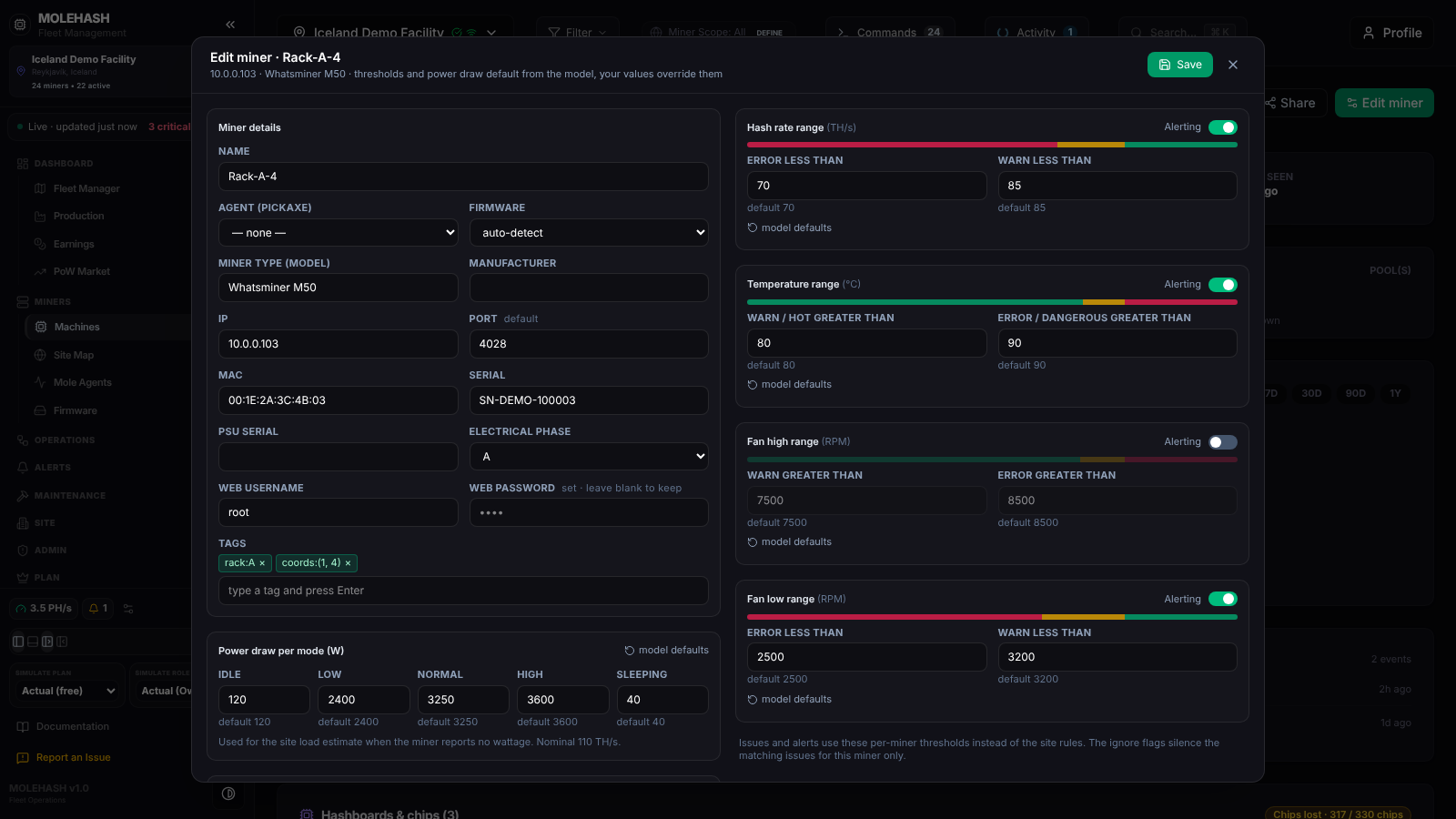 Left: identity, credentials, tags and power draw per mode. Right: the four alerting ranges.
- Click Edit miner (or Settings (edit miner) in the right-click menu on Machines). The subtitle reminds you that thresholds and power draw default from the model and your values override them.
- Miner details:
| Field | Notes |
|---|---|
| Name | Shown everywhere instead of the hostname. |
| Agent (pickaxe) | Which of the site's agents reports this miner ((offline) is flagged; — none — possible). An agent from another site is refused. |
| Firmware | auto-detect, or force a family: Stock, VNish, Braiins OS, LuxOS, ePIC, Hiveon, MARA. |
| Miner type (model), Manufacturer | The model drives the default thresholds, power draw and expected chips. |
| IP, Port | Port 4028 is the default. |
| MAC, Serial, PSU serial | Identification. |
| Electrical phase | A, B or C, used for transformer phase balance. |
| Web username, Web password | Credentials the agent uses to read wattage and run commands on the miner. The password shows set · leave blank to keep or not set; it is stored encrypted and never displayed again. |
| Tags | Type and press Enter or a comma; × removes a tag. |
- Power draw per mode (W): Idle, Low, Normal, High, Sleeping, each with its model default underneath; the mode the miner is currently in is tagged active. These figures feed the site load estimate when the miner reports no wattage (stock firmware without credentials). model defaults restores them; only values that differ from the default are saved. Accepted range 0–20 000 W.
- Miner options (scroll down): State (Deployed, In repair, Spare, Decommissioned) · Active (monitored) — unticked, the miner stays listed but is ignored by alerts and expected totals · the ignore flags (hardware errors, missing boards, missing fan, reboots, duplicate MAC, bad shares, miner type changes) which silence the matching issue for this miner only · Description · Photo (Upload a JPEG, PNG or WebP up to 5 MB, Remove; photo changes apply at once, without Save).
- Alerting ranges (right column), one card each for Hash rate (TH/s), Temperature (°C), Fan high (RPM) and Fan low (RPM). Each has an Alerting switch, a coloured bar, two thresholds with the model default under them (Error less than / Warn less than for hash rate and fan low; Warn greater than / Error greater than for temperature and fan high) and a model defaults link. A switched-off range is greyed out and never evaluated. Issues and alerts use these per-miner values instead of the site rules.
- Click Save. Toast Miner saved; the page reloads. Out-of-range power draw or an unknown state is refused with the reason.
How to configure pools
- In the Pools card click Configure Pools. The Configure Stratum Pools dialog shows Pool 1 to 3, each with a status (Active / Backup / Disabled), Pool URL, Worker Username, Worker Name and Pool Password.
- Fill in the pools you want (rows with an empty URL are dropped) and click Save Configuration. Toast Pools Updated.
WARNING
This dialog stores the pool list on the platform (the first pool becomes the miner's primary pool for reports and filters). It does not change anything on the machine. To push a new pool to the hardware, use Change Pools in the right-click menu on Machines or the Commands panel.
How to refresh or share
- Refresh reloads the figures and the charts. There is no automatic refresh on this page apart from the Reboots card.
- Share copies a link that opens this miner directly.
- Hardware actions (reboot, sleep, wake, LEDs, power mode, fan mode, logs) are started from the right-click menu on Machines.
Good to know
- Miner not found. with a Go Back button: the miner was deleted, or re-discovered under a new identity.
- Charts are empty for the first minutes after a miner appears: a snapshot is stored every 5 minutes.
- A Chips lost badge with all three boards present means one board has lost chips: compare the per-board tiles and look at the PCB versus chip temperatures of that board.
- The Fans card always shows four fans; identical speeds within a percent or two are derived, not measured.
N/A,–or an empty card means the agent has not reported that element. Boards and chips need agent v3.285.0 or newer.