
Firmware
The Firmware panel holds the Happy Mining firmware packages (also called the Hole) published on the platform and lets you put them on your Antminers. You can install on a chosen set of miners through the Mole agent and follow each batch, generate a one-line Easy install for a technician standing next to the miner, or download the package itself. Platform administrators upload new packages here.
Where: sidebar Miners → Firmware · needs the miners:control permission to open and install · Upload package and delete are for platform administrators (superusers) only.
What you see
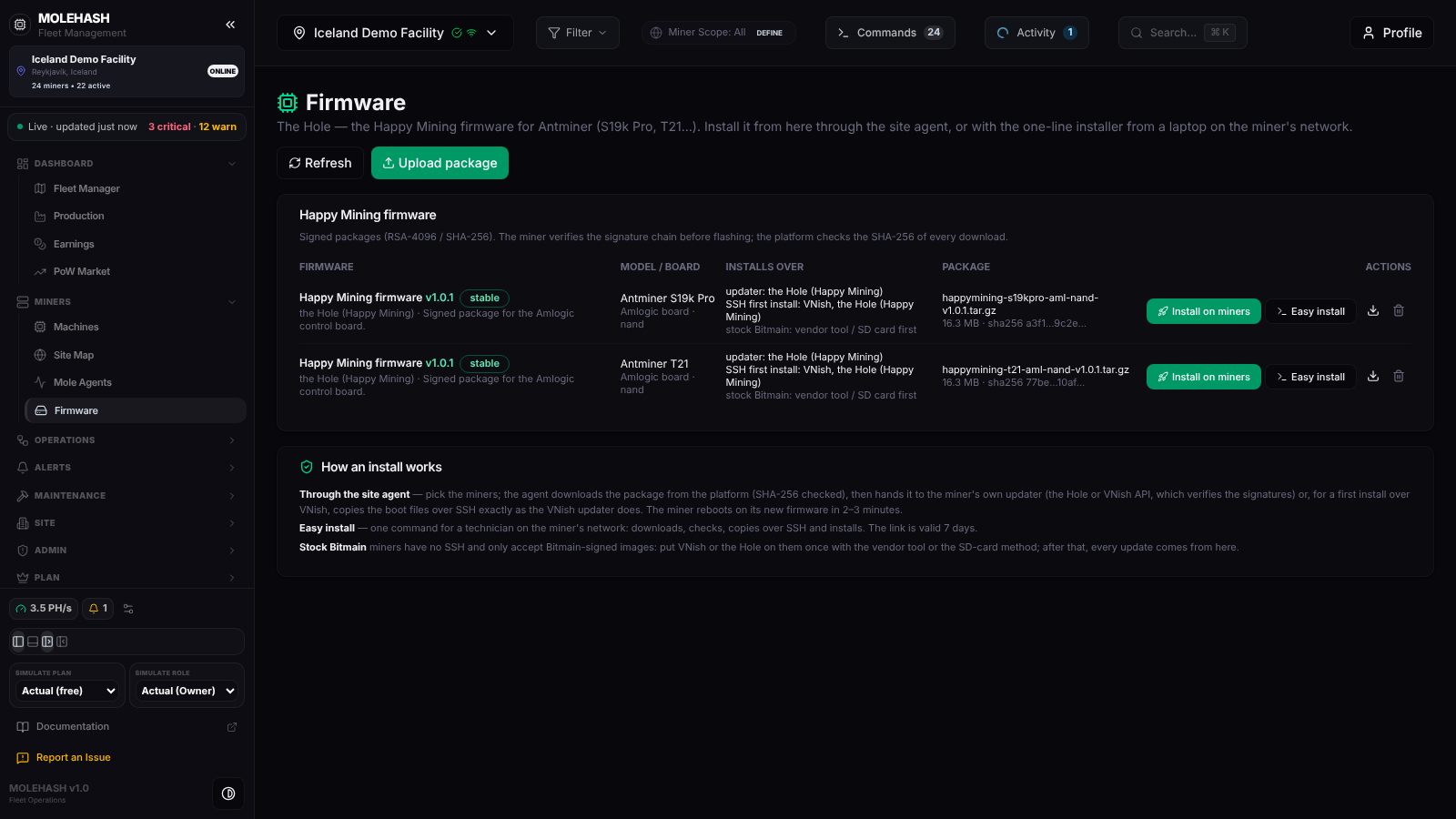 Two packages of Happy Mining firmware v1.0.1 (S19k Pro and T21, Amlogic board) and the "How an install works" card.
① Header — title, a one-line explanation, Refresh and, for administrators, Upload package.
② Happy Mining firmware (the library) — only Happy Mining packages are listed here.
| Column | What it shows |
|---|---|
| Firmware | Name, version, a stable (green) or beta (amber) badge, the family and the description. |
| Model / board | Target miner model, control board (Amlogic, Xilinx, CVITEK, BeagleBone, other) and install type (nand or sd). |
| Installs over | updater: the firmware families whose own updater accepts this package; SSH first install: the families the agent can replace over SSH; and the fixed reminder stock Bitmain: vendor tool / SD card first. |
| Package | File name, size and the start of its SHA-256 fingerprint; external link when the file is not stored on the platform. |
| Actions | Install on miners, Easy install, a download icon and, for administrators, a delete icon. |
Empty state: No Happy Mining package published yet.
③ Install progress — appears once you have launched a batch from this browser (the last 8 batches are remembered). Each batch shows its id, the number of miners, how many are ok, failed or running, a progress bar and up to three failure messages. It refreshes every 8 seconds; ✕ hides a batch. The full detail is in Operations → Activity.
④ How an install works — a reminder card: through the site agent, with Easy install, and the stock-Bitmain rule explained below.
What happens on stock Bitmain miners
Stock Bitmain firmware has no SSH and only accepts images signed by Bitmain, so the platform cannot flash it. Put VNish or the Hole on such a miner once, with Bitmain's vendor tool or the SD-card method; after that every update comes from this panel. In the install dialog these miners are greyed out; if one is targeted anyway the agent stops with an explicit message.
How to …
How to install on miners through the agent
- Select a site in the site switcher (the button is disabled without one) and click Install on miners on the package you want. The dialog Install <name> vX lists the site's miners.
- Narrow the list with the search box (name, IP, model), the firmware filter (all firmwares or one family) and the rack filter (all racks). Only the first 1 500 rows are shown; narrow further if told so.
- Click rows to tick miners, or select / clear eligible (n). Miners on stock Bitmain, Braiins OS, LuxOS, ePIC, Hiveon or MARA are greyed out (not from the platform (vendor tool / SD card)). The Path column tells you what will happen: own updater (signed) when the miner already runs the Hole, SSH first install when it runs VNish, detected by the agent when the family is not known yet.
- Choose a Method: auto (updater if same firmware, else SSH), firmware updater only or SSH first install. Enter the Miner web password (default when empty) and, if different, the SSH password (= web password).
- Click Install on n and confirm — the miners will reboot on the new firmware.
- A toast tells you how many installs were handed to the agent, how many were refused (firmware cannot take it), and warns The site agent is offline: the installs start when it is back if no agent has reported in the last 10 minutes.
- Follow the batch in Install progress. For each miner the agent downloads the package from the platform, checks its SHA-256, detects the miner's firmware, then either hands the file to the miner's own updater or copies and runs it over SSH. The miner reboots and is back in 2–3 minutes; the agent gives a miner up to 15 minutes before marking it failed.
All the miners of a batch are handled by the agent's command worker, up to 10 at a time; there is no per-miner timer on firmware installs.
How to hand a technician a one-line installer (Easy install)
- Click Easy install on a package. The platform creates a download link valid 7 days and shows three copyable lines:
- Linux / macOS / WSL —
curl -fsSL '<link>' | sh -s -- <miner-ip> [miner-password] - Windows (PowerShell, with WSL) — downloads the script with
curl.exeand runs it throughwsl sh - Package only (manual install) — the package download link.
- Linux / macOS / WSL —
- Replace
<miner-ip>; the password defaults toadmin. Run it from a computer on the miner's network, against a miner running VNish or the Hole with SSH enabled. - The script downloads the package, checks its SHA-256, refuses a package built for another control board, copies it to the miner over SSH, runs the installer and reboots the miner (back in 2–3 minutes).
WARNING
The link downloads only this package but needs no login while it is valid. Share it with your technician, not publicly.
How to download a package
The download icon opens the package in a new tab, with the same 7-day link as Easy install.
How to upload a package (administrators)
- Click Upload package and choose the Package (.tar.gz) file (
.tar.gz,.tgzor.tar). The file name pre-fills the control board, model and version when it follows the usual naming. - Fill Name, Version (required), Miner model, Control board, Install type (
nand/sd), Description. The family is fixed to the Hole (Happy Mining). - Tick as needed: installable through the firmware's own updater, first install over SSH (VNish / the Hole), stable release (unticked, the package shows a beta badge).
- Click Upload. Toast Package uploaded · name vX · size; the platform computes the SHA-256 and lists the package at once.
How to delete a package (administrators)
Trash icon → confirm Delete "name version" from the library? → Firmware deleted. The file is removed from the platform.
Good to know
- Install on miners greyed out: no site selected, or the package has no stored file (external link).
- refused (firmware cannot take it) or a failed line mentioning stock Bitmain: flash VNish or the Hole once with the vendor tool or SD card, then update from here.
- This package cannot be installed over <family> firmware from the platform: that family is not in the package's SSH list; use the updater path from a supported firmware.
- Batch stuck on running: the agent is offline or busy — check Mole agents. Installs start when it is back.
- Easy install fails with Download link expired or invalid: the 7-day link has expired; open Easy install again.
- checksum mismatch or This package is for X boards, the miner reports Y: wrong package for this control board.
- A freshly discovered miner may show detected by the agent in the install dialog until its firmware family is known.
- The library reloads when you open the panel or click Refresh.