
Tickets
A ticket is a work order with a checklist of miners. You pick the machines, say what to look at, give it a priority and an owner, and the technician ticks each miner off as Done or Skip. The Tickets panel is where you open tickets, watch them progress and look back at closed ones. The same tickets drive the Repair console, the Planning board and the Operator Stats leaderboard, and each miner page lists the tickets it was part of.
Where: sidebar Maintenance → Tickets · needs the tickets:view permission to read; creating, editing, ticking miners and deleting need tickets:manage on the site. Any member who can read a ticket can comment on it.
What you see
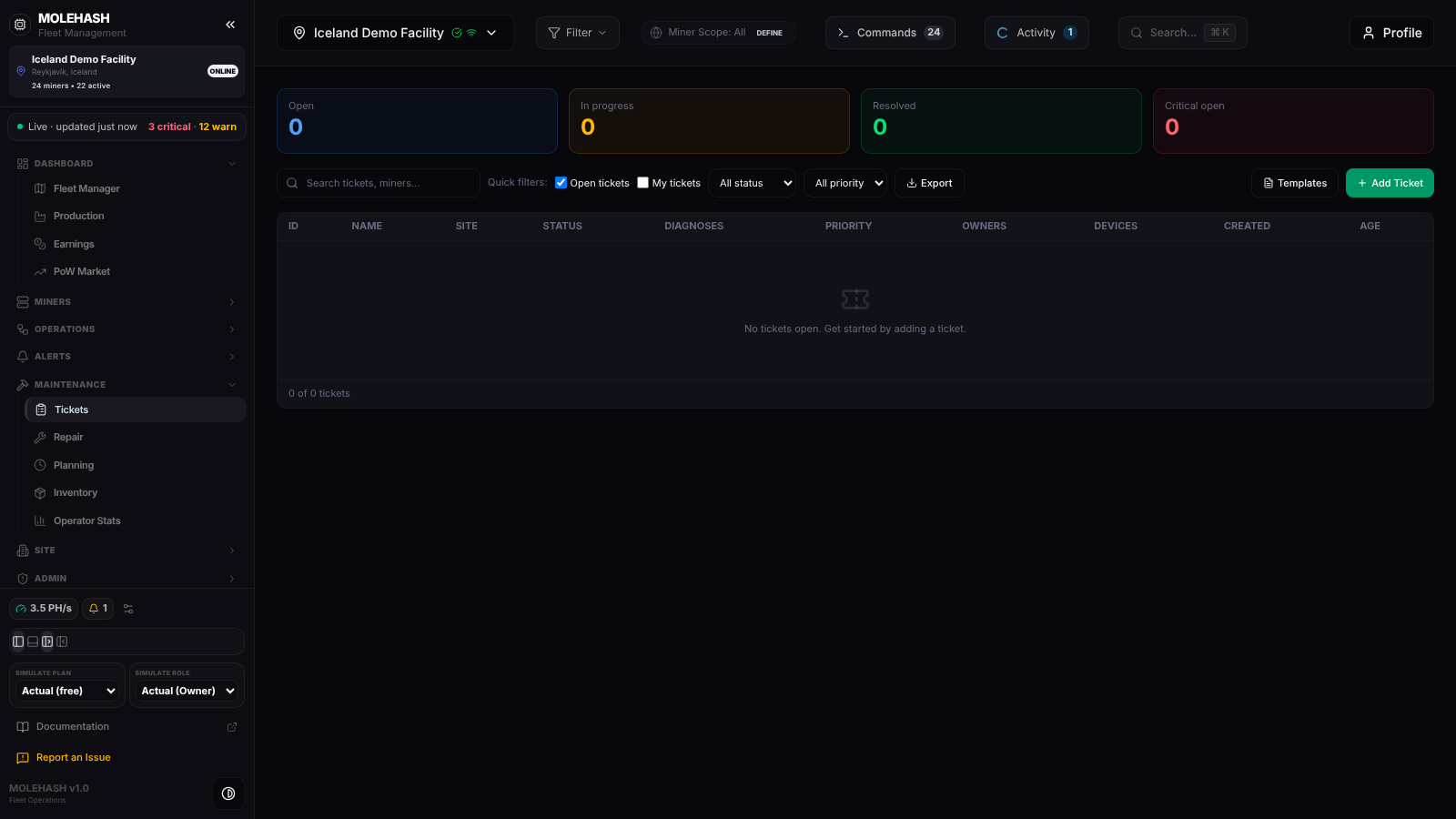 The Tickets panel on the demo site with no ticket open yet.
① Counters — four cards that count every ticket of the current site, whatever the filters below: Open (tickets waiting to be started, shown as Pending in the table), In progress, Resolved (resolved or completed) and Critical open (critical priority and not yet finished).
② Filter bar — the search box matches the title, the owner, the ticket ID and the name or IP of any miner in the ticket. Open tickets (ticked by default) hides finished tickets; My tickets keeps the ones you created or that are assigned to you. The two drop-downs filter by status and priority. On the right: Export, Templates and Add Ticket.
③ Ticket table — one line per ticket. Click a line to open it.
| Column | Meaning |
|---|---|
| ID | Short ticket number. |
| Name | Ticket title. |
| Site | Site the ticket belongs to. |
| Status | Pending (blue), In progress (amber), Completed / Resolved (green), Closed (grey). |
| Diagnoses | One tag per diagnosis, or No Diagnosis. |
| Priority | Low (blue), Normal (amber), High (orange), Critical (red). |
| Owners | The assignee, or the creator when nobody is assigned. |
| Devices | The first two miners and +n for the rest. |
| Created / Age | When the ticket was opened and how long ago (12m, 3h 20m, 2d 5h). |
The footer reads n of m tickets (shown / total). With Open tickets ticked and nothing open, the table reads No tickets open. Get started by adding a ticket.
Ticket detail
Clicking a ticket replaces the table with its detail view; Back to tickets returns to the list.
- Header — title, short ID, the work order description and the status buttons: Start work, Resolve, Close, Reopen and Delete. Only the buttons that make sense for the current status are shown.
- Device details — every miner of the checklist with its live record: name and model, serial, MAC, IP, location on the site map (rack (row, col)), lifecycle state (deployed, in repair, spare, decommissioned), live status with the time since it last reported, and the checklist buttons Done / Skip. A gear icon opens the Edit miner dialog for that machine.
- Comments — the thread, with a box at the bottom to add a comment (Enter or the send button posts it).
- Ticket details (right column) — ID, status, a Priority selector, owners, the most recent report from any of its miners, the scheduled slot set from Planning (or —), progress as done/total miners, the diagnosis chips, who created it and when it was completed.
How a ticket changes status
| Status | How it is reached |
|---|---|
| Pending | New ticket, Reopen, or a Planning assignment. |
| In progress | Start work, or automatically on the first Done / Skip. |
| Completed | Automatically when every miner is Done or Skipped. This is the only status that records a completion time and counts in Operator Stats. |
| Resolved | Resolve button. |
| Closed | Close button. |
How to …
How to create a ticket
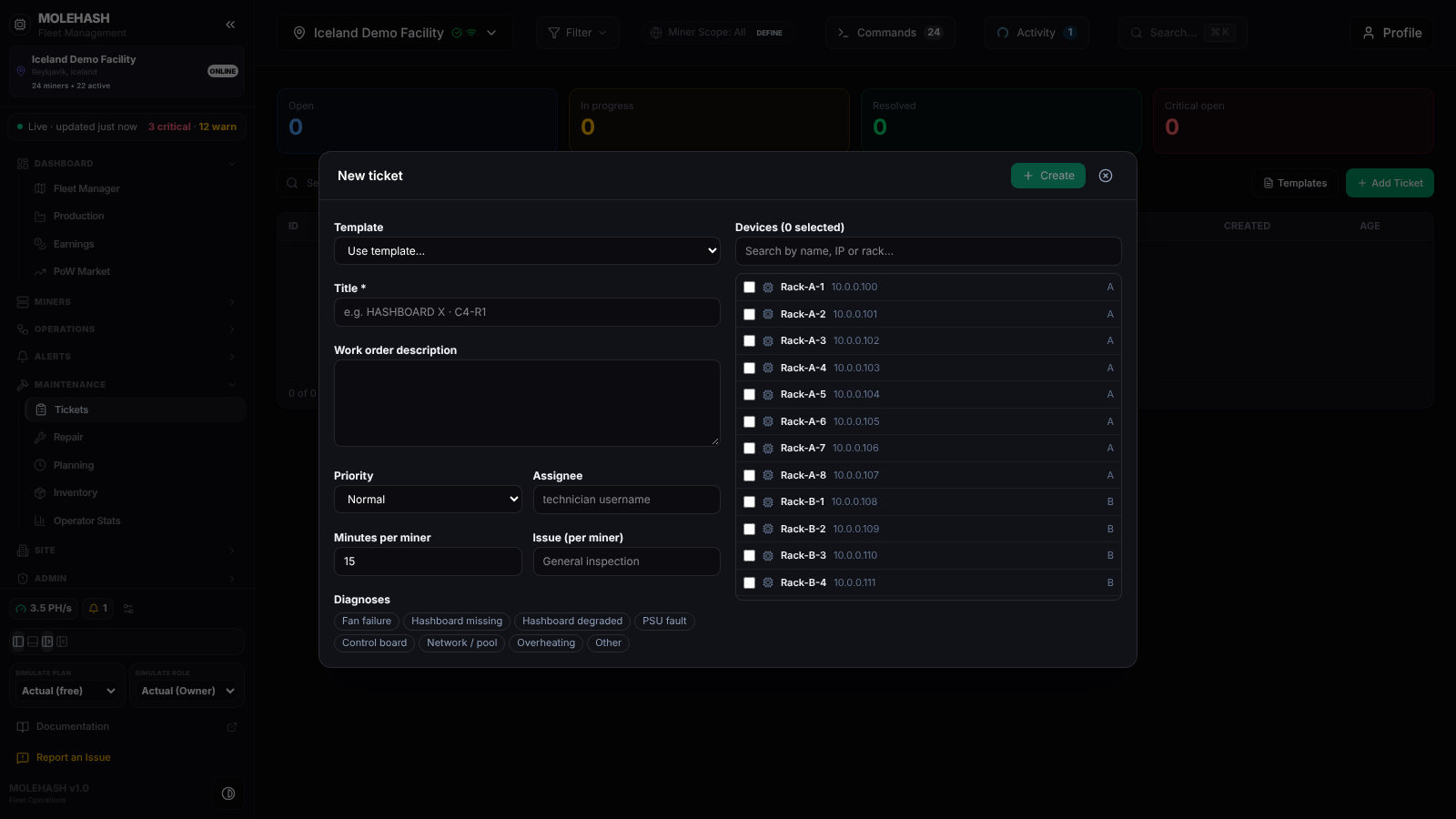 The New ticket dialog: template and work order on the left, device picker on the right.
- Click Add Ticket.
- Optionally pick a Template (Use template…). It fills the title, description, assignee, minutes per miner, per-miner issue, priority and diagnoses for you. If the site has no template yet, an Add default templates button creates five ready-made ones (FAN, NOT UPDATED, FAIL HASHING, HASHBOARD X, Hardware Error).
- Fill in the Title (required) and the Work order description — what the technician should do.
- Set the Priority, type the technician's username in Assignee, adjust Minutes per miner (15 by default, used for pacing) and the Issue (per miner) text (defaults to General inspection).
- Click the Diagnoses chips that apply (fan, hashboard, PSU, control board, network, firmware, overheating, cable, other). The demo site shows a shorter set of labels than a real installation.
- In Devices, search by name, IP or rack and tick the miners to include; the counter in the title shows how many are selected. A ticket can also be created without any miner.
- Click Create. The ticket appears at the top of the list as Pending.
How to work a ticket
- Open the ticket and click Start work.
- In Device details, click Done or Skip on each miner as you go. The progress counter updates; when every miner is Done or Skipped the ticket becomes Completed by itself.
- Change the Priority or toggle Diagnoses at any time; each change is saved immediately.
- Add comments in the thread to leave notes for the team.
- Use Resolve or Close to end a ticket without ticking every miner, and Reopen to bring a finished ticket back to Pending.
How to manage templates
- Click Templates. The dialog lists each template with its priority, minutes per miner and title. The pencil edits one; the trash icon then Confirm deletes it.
- New template opens the form: Template name, Title template (you can use
{site},{date}and{count}, replaced when the template is applied), Default description, Assignee, Min/miner, Default issue, Priority, Template diagnosis (comma separated) and Show on sub-clients, which makes it visible to hosted clients. - Click Create template or Save changes. Closing with unsaved edits asks you to confirm.
How to delete a ticket
Open the ticket, click Delete and confirm. The ticket is removed permanently.
How to export tickets
Click Export. A tickets.csv file is downloaded with every ticket of the current site (all statuses, filters ignored): ID, title, status, priority, diagnoses, assignee, creator, site, miners, creation and completion time.
Good to know
- The list loads when you open the panel or switch site; it does not refresh on its own. Reopen the panel to see tickets created by colleagues.
- Resolve and Close only change the status. They do not tick the remaining miners and do not record a completion time, so only Completed tickets count as closed in Operator Stats.
- Tickets are also created from elsewhere: the Pull Miner command on a miner adds it to the site's first open ticket or opens a Repair Shop: Pulled Miner ticket; the Open Ticket bulk action on the Machines page creates one ticket per site; Generate from logs in the Repair console builds one from flagged miner logs.
- A ticket keeps the site it was created on. The dialog uses the site selected in the sidebar.
- Comments are limited to 4,000 characters; the last 500 comments of a ticket are kept.
- Minutes per miner is stored but not displayed in the detail view, and cannot be changed afterwards from this screen.
- If creating or editing fails with a permission message, you can read tickets on this site but not manage them.
Related
- Repair — the technician's view of the same tickets.
- Planning — assign tickets to technicians and schedule them.
- Operator Stats — leaderboard built from ticked miners.
- Inventory
- Machines