
Earnings
The Earnings page estimates what the site makes: the bitcoin its hashrate should mine per day at the current network difficulty, converted at the live BTC price, minus the electricity bill at a rate you can type in. Results are shown per day, week and month, so you can see at a glance whether the site is in the green at today's prices.
Where: sidebar Dashboard → Earnings · needs the revenue:view permission on the current site (owners and superusers always have it). Without it the item is hidden from the sidebar and opening the page directly brings you back to the Fleet Manager.
What you see
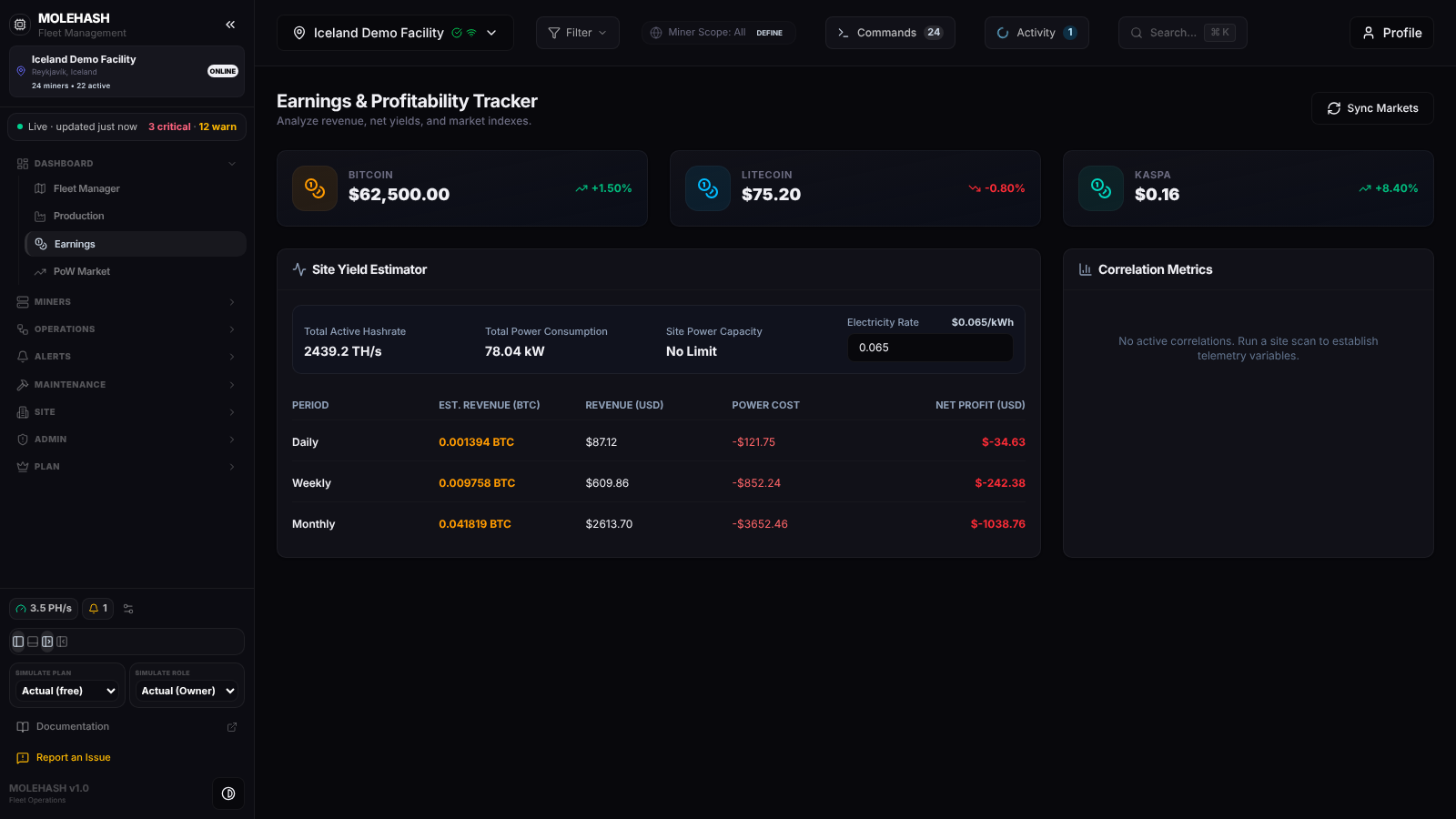 Earnings on the demo site: 2439 TH/s, 78 kW, $0.065/kWh — the net profit is negative at these figures.
① Header — the title Earnings & Profitability Tracker and a Sync Markets button that reloads the site figures and the three coin prices.
② Banners (not on the screenshot) — when a filter is enabled in the header, a note reads "Showing estimated earnings filtered by global scope: "name"" and the estimate uses the filtered miners only. An amber No Active Telemetry Detected banner appears when the hashrate used for the calculation is zero; every figure below is then based on zero output.
③ Market prices — three cards, Bitcoin, Litecoin and Kaspa, each with the US-dollar price and the change over the last 24 hours (green when positive, red when negative). A price shows "—" until it has been loaded.
④ Site Yield Estimator — the input row:
| Field | Meaning |
|---|---|
| Total Active Hashrate | The hashrate used for the estimate, in TH/s |
| Total Power Consumption | The power used for the electricity bill, in kW |
| Site Power Capacity | The site's contracted power, or No Limit when none is set in Site Management |
| Electricity Rate | Your price per kWh in dollars. You can edit it; it starts from the energy cost saved on the site, or 0.065 when the site has none |
Under it, the results table with one row for Daily, Weekly (seven days) and Monthly (thirty days):
| Column | Meaning |
|---|---|
| Est. Revenue (BTC) | Bitcoin expected from the hashrate at the current difficulty and block reward |
| Revenue (USD) | The same amount at the current BTC price |
| Power Cost | kW × hours × your electricity rate, shown in red as a negative amount |
| Net Profit (USD) | Revenue minus power cost; green when positive, red when negative |
⑤ Correlation Metrics — this card currently reads "No active correlations. Run a site scan to establish telemetry variables." and carries no site data in the current build.
How to …
How to see the result at your own electricity price
- Click in Electricity Rate and type your price per kWh (for example 0.045).
- The Power Cost and Net Profit columns update immediately for all three periods.
- The value is not saved: it goes back to the site's energy cost (or 0.065) when you change site or reload. To make it permanent, set the energy cost of the site in Site → Site Management.
How to refresh prices and figures
- Click Sync Markets in the header.
- The site figures and the three coin prices are reloaded. A toast reads Market Prices Synced with the time of the last price update, or Sync Failed with the reason.
How to estimate for part of the fleet
- Open Filter in the header and enable a filter (for example one model or one rack).
- The scope banner appears and the hashrate and power in the estimator become those of the filtered miners. Disable the filter to return to the whole site.
Good to know
- Where the figures come from: with a filter enabled, the filtered miner list; otherwise the site totals (power is measured where the miner reports it and estimated from hashrate elsewhere); and if those are zero, the average of the site's most recent telemetry records.
- Prices and difficulty are refreshed on the server every 10 minutes. The page loads once when you open it or switch site; it does not refresh on its own, so use Sync Markets for the latest numbers.
- The 24 h change shows a red 0.00 % until the prices have loaded.
- "No Profitability Data": the site has no telemetry and zero hashrate. Add miners or install a Mole agent (older screens say "pickaxe") first.
- Revenue looks too high or too low: compare Total Active Hashrate with the Hashrate card on the Fleet Manager. With a filter enabled, the figure covers the filtered miners only.
- Power cost is 0: the fleet reports neither power nor hashrate to estimate from, or the rate is 0.
- A member who cannot see this page is missing
revenue:viewin their role for this site; an owner can grant it under Admin → Role Management.