
Commands
The Commands panel is where you act on the fleet. Pick the miners, pick what to do (reboot, sleep or wake, locate LED, power limit, pool change, or a simple read-out such as "get temperature") and send it. Nothing talks to a miner from the cloud: the order is queued, the site's Mole agent (older screens call it the "pickaxe") picks it up, runs it on each miner with the right method for its firmware, and reports the result back. The same page hosts saved Automations (rules of the form if condition, then action) and the Command Center Log, the live history of every batch.
Where: sidebar Operations → Commands · needs the miners:control permission · pool changes need a paid plan (on the free and lite plans you mine on Ordina Pool) · the Python Scripting mode is for superusers only and must be switched on by the platform administrator.
What you see
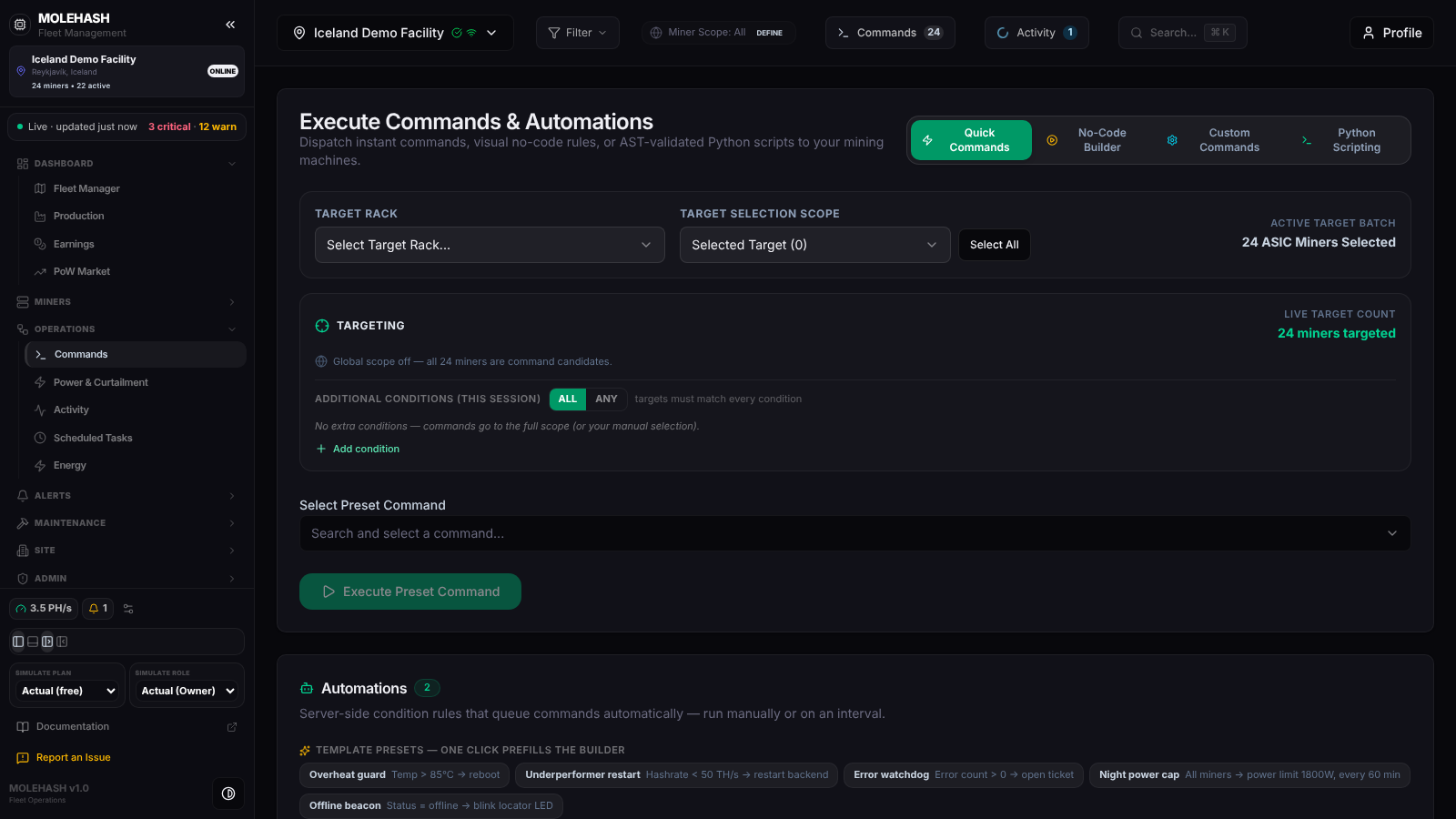 The Commands panel on the Iceland Demo Facility: mode switcher, targeting, preset command, and the Automations card with its template presets.
① Mode switcher (top right of the first card) — Quick Commands, No-Code Builder, Custom Commands, Python Scripting. The targeting controls below are shared by all four.
② Target Rack / Target Selection Scope / Active Target Batch — choose a rack (or All Racks), then either All Scope Miners or Selected Target. Select All / Deselect All toggles the whole scope. Active Target Batch is the exact number of miners the next action will reach — read it before you click anything.
③ Targeting card — if a global filter is active in the top bar, its conditions appear here as chips and a banner says Showing target miners filtered by global scope: "…". Under Additional conditions (this session) you can add your own ALL / ANY conditions (status, model, pool, worker, firmware, tag, location…) with Add condition. The Live target count on the right is the final number: miners in the global scope, that also match your conditions, that are also in your selection if you made one.
④ Select Preset Command / Execute Preset Command (Quick Commands mode) — a searchable list grouped as Control, Status & Info, Hardware Info, Power Management and Pool Management.
⑤ Automations card — your saved rules with a manual or every n min badge, the action, the conditions, Runs / Fired counters, last fired time and last result. The Template presets row prefills the builder in one click: Overheat guard (temp > 85 °C → reboot), Underperformer restart (hashrate < 50 TH/s → restart backend), Error watchdog (error count > 0 → open ticket), Night power cap (all miners → power limit 1800 W, every 60 min), Offline beacon (status = offline → blink locator LED).
⑥ Command Center Log (below, scroll down) — every batch of the site, refreshed every 10 seconds. Filter chips all / pending / processing / success / failed / cancelled with counts. Each batch shows a manual or automation badge, the command, the miner count and the time; each line a status chip, the miner, the error if any, and how long it took.
| Status chip | Meaning |
|---|---|
| pending | Queued, the Mole agent has not picked it up yet (or it is waiting for its turn in a staggered batch). |
| processing | The agent is running it, no result yet. |
| success / failed | Reported by the agent; failed carries the error text. |
| cancelled | Stopped by a user before it ran. |
⑦ Command Results — appears right after you send something: one row per miner, Queued (accepted) or Refused (the firmware cannot run it, or you lack the permission on that site). ⑧ Command Reference — the full command list with what each one returns.
The commands and which firmware supports them
| Group | Command | What it does | Firmware note |
|---|---|---|---|
| Control | Reboot | Restarts the miner. Also recorded in the miner's reboot history. | All |
| Control | Stop mining (sleep) / Resume mining (wake) | Puts the miner to sleep (fans and boards off, a few watts) or wakes it. | All |
| Control | Restart mining software | Restarts only the mining program, no full reboot. | Not on stock Bitmain firmware |
| Control | Locate LED on / off | Blinks the front LED so a technician can find the unit. | All |
| Status & Info | Get Hashrate / Temperature / Power / Uptime / Errors / Pools / Fans / Voltage, Is Mining, Get Firmware Version / Hostname / MAC Address / Power Limit, Check Locate LED, Get Config | Read-only probes; the value comes back in the run details. | All (stock firmware reports power only once its web password is stored) |
| Hardware Info | Get Expected Hashrate, Get Hashboards | Nameplate hashrate and per-board details. | All |
| Power Management | Set Power Limit (1000 … 3000 W) | Caps the miner's draw; any value from 100 to 10 000 W in Custom Commands. | VNish, Braiins OS, LuxOS, ePIC, Happy Mining firmware — refused on stock |
| Pool Management | Change Pool | Points the miner at a new stratum URL, worker and password. | All firmwares · paid plans only |
Power mode (normal / low / high / sleep) and fan mode are available from the Bulk Command dialog in Machines; firmware installs from the Firmware page. Factory reset, overclocking, password and network changes are deliberately not possible from the platform — the panel tells you so if you type them.
How to …
How to run a preset command
- Narrow the targets with Target Rack, your selection and, if needed, Add condition. Check Active Target Batch.
- In Quick Commands, choose a command in Select Preset Command.
- Click Execute Preset Command.
- For anything that changes the miner's state (reboot, restart, stop mining, power limit, pool change, firmware) a red confirmation box appears: Run <command> on n miners?. If you selected no miners explicitly, you must first tick I understand this affects all n miners in scope before Run on n miners becomes active. Cancel closes it without sending anything.
- A toast confirms: n miners — follow the live result in Activity (top bar), plus how many were refused and why. If no Mole agent is online, the toast warns that the command fails unless an agent starts within 3 minutes.
How to send several commands at once (Custom Commands)
- Type commands in the Command Editor, separated by commas, with their value inline:
set_power_limit:1800,change_pool:stratum+tcp://host:port:worker:password. Autocomplete suggests names as you type; the Quick Command Library chips append one for you. - Click Run Command Script. The same confirmation applies to state-changing commands.
How to use the Bulk Command dialog from Machines
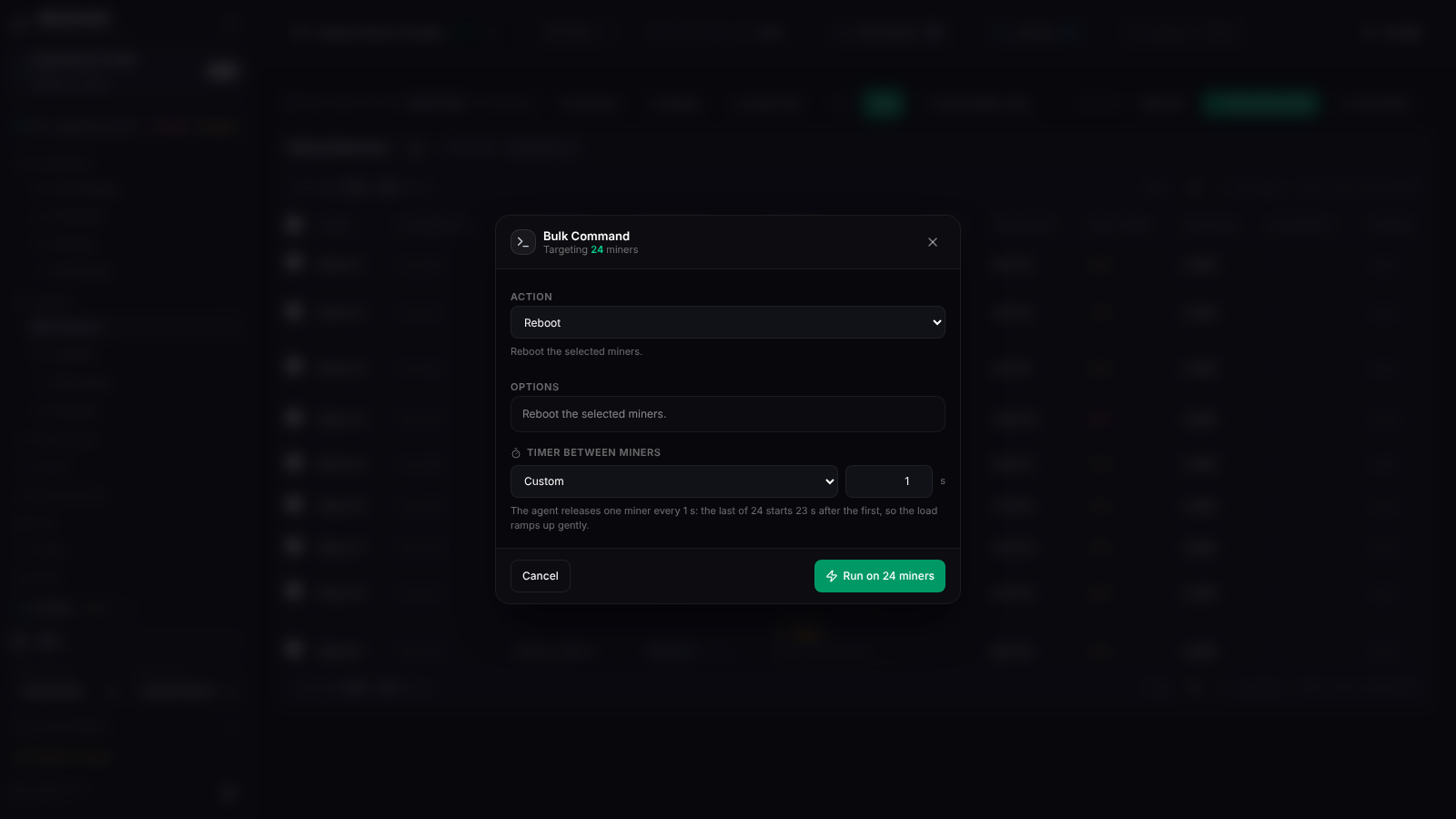 The Bulk Command dialog opened from Machines on 24 selected miners, with a 1-second timer between miners.
- In Machines, tick the miners and open Bulk Command. The header says Targeting n miners.
- Pick the Action. Besides the commands above it offers field edits (expected hashrate / temperature / fan, name template, tags, miner type, credentials, description, lifecycle state, power mode, fan mode, ignore flags) and maintenance actions (pull miners, open a repair ticket, delete miners — irreversible ones ask for an extra checkbox).
- Set the Timer between miners: All at once, presets up to Every 5 min, or Custom in seconds (up to 3600). Above 10 miners the default is 1 second, so the agent releases one miner at a time and a mass wake-up does not trip a breaker. The helper line tells you when the last miner will start.
- Click Run on n miners.
How to build and save an automation (No-Code Builder)
- Under IF Condition Triggers, click Add condition and choose Temperature, Hashrate, Power draw, Uptime, Error count, Status, Model, Name, IP address or Tag with an operator (>, <, ≥, ≤, =, ≠, contains). Choose ALL (every condition) or ANY (at least one).
- Under THEN Target Action, pick Reboot miner, Stop mining, Resume mining, Restart backend driver, Blink locator LED, Set power limit (enter Target Wattage), Change primary pool URL (enter Pool Stratum URL) or Open repair ticket.
- Execute Automation Rule runs it once right now on the current targets. Convert to Python copies it into the Python editor.
- To keep it, type an Automation name, choose Run manually or Run on interval (1–1440 minutes), leave it Inactive or set it Active, and click Save automation (Update automation when editing). The Rule Preview line shows the scope that will be saved with the rule: Every miner at this site or n scoped miners.
- In the Automations card you can later toggle it active, click Run now (toast Run complete — n matched), open History, Edit, or Delete → Confirm delete.
New automations are saved inactive on purpose; flip the switch once you are happy with the rule. An active interval rule is checked every minute by the platform, fires at most once per interval, and Open repair ticket creates a ticket titled [Automation] <name> instead of sending a command.
How to cancel queued work
- Cancel batch on a batch header in the Command Center Log stops every item that is still pending (items already processing finish).
- The ✕ on a single pending line cancels just that miner.
- You can do the same from Activity (top bar or page).
Python Scripting (superusers)
Write a script that runs once per target miner (miner.get_temperature(), miner.reboot(), miner.status …) with autocomplete and ready-made templates. Run Python Script shows per-miner SUCCESS / FAILED and printed output in Sandbox Execution Logs. If the server has not enabled scripting you see Custom scripts are disabled on this server.
Good to know
- The Command Center Log refreshes every 10 seconds; the Activity panel in the top bar follows the same batches live.
- No miners targeted: your conditions or selection exclude everything — widen them.
- A Refused row names the reason (for example power limit on stock Bitmain). Nothing was queued for that miner.
- Everything stays pending: check that the Mole agent is running under Miners → Mole Agents. After 3 minutes without an agent the items fail on their own; an item the agent claimed but never answered fails after 10 minutes.
- A pool change can come back as Pool change queued for approval by a site manager when the site requires pool-change approval and you cannot edit the site.
- Stored miner web passwords travel only to the agent and are shown as •••• in the log.
Related
- Machines — selecting miners, Bulk Command dialog
- Activity — live results of every batch
- Scheduled Tasks — the same commands on a timetable
- Power & Curtailment — sleeping and waking miners by power target