
Machines
The Machines panel answers "what is every miner of this site doing right now?". It lists the miners your Mole agent has found, lets you choose the columns you care about, pick miners one by one or by range, and send a command to one, several or all of them. Click a row to open that miner's own page.
Where: sidebar Miners → Machines · needs the miners:view permission. Sending commands needs miners:control, editing fields (tags, names, thresholds…) needs miners:update, deleting needs miners:delete. On the Free and Lite plans Change Pool is refused: free sites mine on the Ordina pool.
What you see
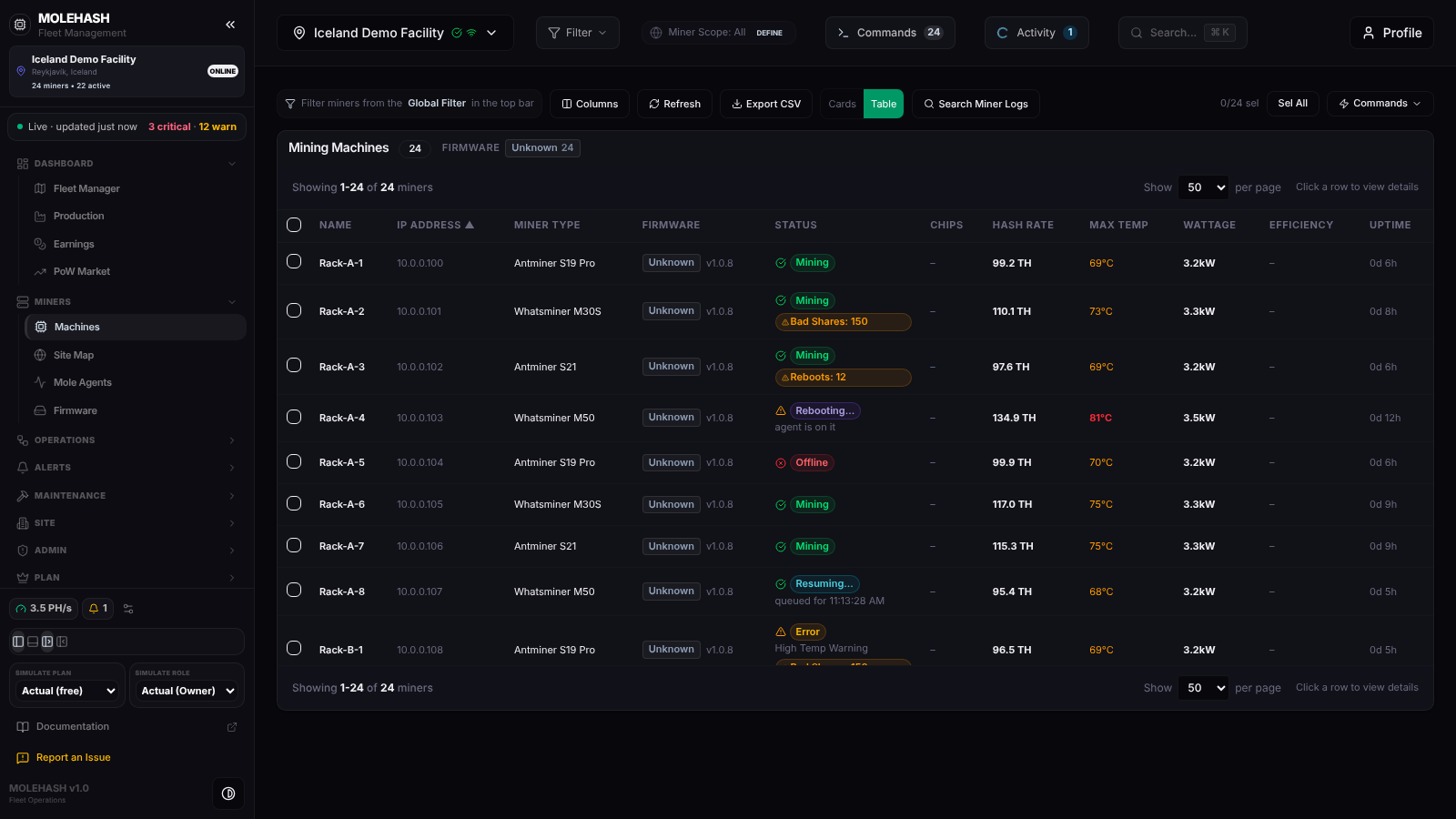 The demo site's 24 miners in table view. Two of them are busy with a command (Rebooting…, Resuming…).
① Toolbar — a reminder that filtering happens in the top-bar Filter button (status, model, rack, transformer, hashrate / temperature / power ranges, IP, free text), then Columns, Refresh, Export CSV, the Cards / Table switch, Search Miner Logs, the selection counter (0/24 sel) with Sel All / Desel All, Bulk actions (n) (appears once something is selected) and the Commands ▾ quick bar. Hosted sites also get a client selector (All clients, one client, Not hosted).
② Firmware breakdown — under the Mining Machines title, one chip per firmware family in the list with its count (the demo shows Unknown 24). Click a chip to keep only that family; click again or All to clear.
③ Pagination line — Showing 1-24 of 24 miners and the page size (10, 25, 50, 100, 250, 500 or All; 50 by default).
④ The table — one row per miner, a checkbox at the left. Click a header to sort (the arrow shows the direction); the sort order is shared with the other panels.
Columns
The default set is Name, IP Address, Miner Type, Firmware, Status, Chips, Hash Rate, Max Temp, Wattage, Efficiency, Uptime. All available columns:
| Group | Column | What it shows |
|---|---|---|
| Identity | Name | Hostname, or the name you gave the miner. |
| Miner ID, IP Address, MAC Address, Serial Number, PSU Serial | As reported by the agent; – when unknown. | |
| Miner Type | Detected hardware model. | |
| Firmware | Family badge (Stock, VNish, Braiins OS, LuxOS, ePIC, Hiveon, MARA, Unknown) and the short version. | |
| Tags, Description | What you typed in Edit miner. | |
| Location | Rack | slot from the Site Map. | |
| Client | Hosting client (hosted sites only). | |
| Health | Status | The status badge (table below). Extra amber badges warn of Bad Shares: n (more than 100 rejected shares) or Reboots: n (more than 8 restarts). |
| State | Lifecycle: deployed (green), in repair (amber), spare or decommissioned (grey). | |
| Error Codes | Number of errors and the start of the last error text (hover for all of it). | |
| Missing Hashboards | Boards missing out of 3, in red when above 0. – when the agent has not reported boards. | |
| Chips | working / expected chips with a bar: green = all chips, amber = chips lost, red = no chips. – means the agent has not reported boards yet (older agents). | |
| Reboots, Last Update, Uptime | Restart count; time since the last report (now, 5 min, 2 h, 1 d); uptime as Xd Yh. | |
| Telemetry | Hash Rate | TH/s (PH/s above 1 000 TH). |
| Max Temp | Hottest temperature reported, amber above 65 °C, red above 80 °C. | |
| Max Fan, Wattage, Efficiency, Power Mode | Highest fan RPM; W or kW; J/TH; the firmware's power mode. | |
| Pool | Active Pool, Active Worker, Accepted, Rejected, Stale | First configured pool and its worker; share counters. |
| Platform | Agent (pickaxe), Miner Created | Which Mole agent reports the miner; the day it first appeared. |
Status badge
| Badge | Meaning |
|---|---|
| Mining (green) | Reachable and hashing. |
| Online (blue) | Reachable, not hashing. |
| Starting (blue) | Reachable, warming up or ramping. |
| Stopped (grey) | Asleep or stopped on purpose. |
| Offline (red) | Not answering. |
| Error (amber) | The firmware reports an error, or the miner cannot reach its pool. The error text is shown under the badge (e.g. High Temp Warning). |
| Unknown (grey) | Anything else. |
| Rebooting…, Resuming…, Stopping…, Updating… (pulsing) | A command is in progress. The small line under it says agent is on it, queued, or queued for 11:13:28 AM when the batch is staggered. |
Cards view
Click Cards for one card per miner: checkbox, status badge, name, IP and rack, model, hash rate, temperature, reject % and power. The choice is remembered in your browser.
How to …
How to choose and arrange columns
- Click Columns. The Table Customizations popover opens.
- Pick a preset (Default, Telemetry, Network/ID) or tick the columns you want under Visible Fields, grouped as Identity, Health, Telemetry, Pool and Platform. At least one column always stays.
- Choose a Row Density (compact, standard, comfortable).
- Drag a column header onto another header to reorder. Revert to default or the red Reset puts everything back.
The layout is saved in your browser only; another computer shows the defaults.
How to filter the list
- Open Filter in the top bar and combine status, model, rack, transformer, ranges, IP prefix or free text. The card header then reads Scope Filtered (name) or Rack x* with a Clear button.
- Click a firmware chip to keep one family.
- Select racks or transformers on the Site Map: a cyan n miners in scope chip appears in the top bar and Machines shows only those miners until you close the chip (✕).
How to select miners
- Tick a checkbox, or click Sel All to select everything currently listed (the header checkbox does the same).
- Shift+click a row, card or checkbox to add the whole range between the last row you clicked and this one, in the current sort order.
- A plain click on a row (without Shift) opens the miner page instead of selecting it.
How to run a bulk command
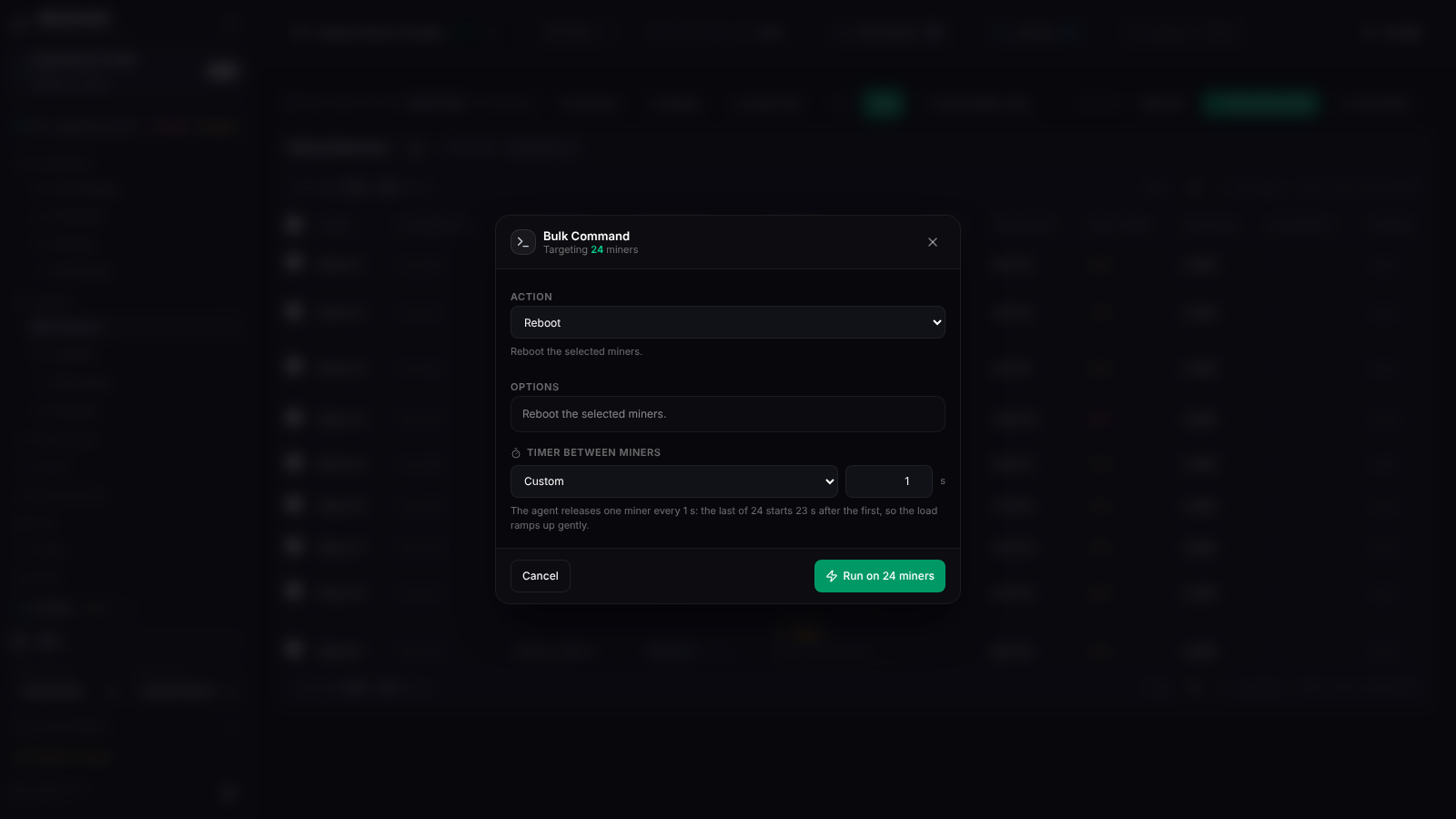 Rebooting all 24 demo miners with one second between each.
- Select miners and click Bulk actions (n). The dialog says Targeting n miners.
- Pick an Action (Reboot by default). They are grouped as Power & State (Reboot, Stop Mining, Resume Mining, Set Enabled, Change State, Set Power Draw, Set Lifecycle State, Power Mode, Fan Mode, Locate LED On/Off), Expected Thresholds (hashrate, temperature, fan high, fan low), Identity & Config (Set Name (Template), Set Tags, Change Miner Type, Update Credentials, Set Description, Change Pool), Ignore Rules and Maintenance (Pull Miners (Send to Repair), Open Repair Ticket, Delete Miners).
- Fill in the Options the action needs. Name templates accept
{rack} {row} {col} {index} {ip_last} {model} {site} {n}. - For hardware actions (reboot, stop, resume, power mode, fan mode, power limit, pool change) set Timer between miners: All at once, Every 5 s, 15 s, 30 s, Every minute, 2 min, 5 min, or a custom 0–3600 s. Above 10 miners the default is 1 s, so a mass start never hits the breakers at once; the line below tells you when the last miner starts.
- Pull and Delete ask you to tick I understand this action is irreversible.
- Click Run on n miners. The button turns to Dispatched and stays disabled until you change the action or reopen the dialog, so a command is never sent twice by accident. A toast gives x succeeded, y failed, and the Results list shows one line per miner (
Queued 'Reboot', a permission denial, or Pool change queued for approval by a site manager when your site requires approval).
Hardware commands are handed to the Mole agent; progress shows as Rebooting… in the Status column and in Operations → Activity. If no agent is online you are warned that the command fails unless an agent starts within 3 minutes.
How to use the Commands ▾ quick bar
Click Commands ▾ to unfold a searchable list (Get Data, Reboot, Restart Backend, Resume Mining, Stop Mining, Get Config, Get Hashrate / Temperature / Power / Uptime / Errors / Pools, Power 1000–2000 W) and an Execute (n) button. With nothing selected it runs on all listed miners (Execute (All n)). Results appear under the bar, one line per miner.
How to use the right-click menu
Right-click a row or card. If the row is part of a multi-selection the menu targets the whole selection (header n miners); items that need one miner are greyed with One miner at a time.
| Item | Effect |
|---|---|
| Details / Settings (edit miner) | Open the miner page / the Edit miner dialog. |
| Go to Miner | Opens the miner's own web interface in a new tab. |
| Pull Miner | Marks the miner unplugged, frees its slot on the Site Map and sends it to repair (confirmation first). |
| Disable / Enable | Disabled miners stay listed but are ignored by alerts and expected totals. |
| Delete (red) | Removes the miner and its history. The agent re-discovers it at the next full sweep if it is still on the network. |
| Open Ticket, View Open Tickets (n), View All Tickets (n) | Create a repair ticket for the targets (Title, What to check), or jump to Maintenance → Tickets. |
| Change Pools, Reboot, Sleep, Wake, Power Mode, Fan Mode, Blink LEDs, LEDs off | Queue that command for the agent. |
| Logs (view / fetch / download) | The miner log viewer (one miner). |
| Replace, Factory Reset, Firmware Upgrade, Password, Static IP | Not available from here. Firmware is installed from the Firmware panel; the others are done in the miner's own interface. |
Escape, a click elsewhere or scrolling closes the menu.
How to export the list
Click Export CSV. The file miners-export-<date>.csv contains the miners currently listed (after filters) with Name, IP, Model, Firmware and version, Status, Hashrate, Temp, Fan RPM, Power, Efficiency, Uptime, Pool, MAC and Serial. The first line records whether a scope filter was active.
How to search the miner logs
Click Search Miner Logs, type a word or a /regular expression/. Every miner log the platform has collected for the site is searched; click a hit to open that log in the viewer.
Good to know
- The list refreshes itself as the agent uploads (roughly every scan interval); in-progress command states refresh every few seconds while a command is pending. Refresh forces a reload.
–in a cell means the agent has not reported that value. Chips and hashboards need Mole agent v3.285.0 or newer.- No miners found. Scan using the Mole Agent…: the site has no agent yet or it has not finished a scan — see Mole agents. No miners match your filters: clear the top-bar filter, the firmware chip, the client selector or the scope chip.
- A miner stuck on Rebooting… means the agent has not picked the command up: check that the agent is online.
- Missing Hashboards assumes three boards for every model.