
Reports
The Reports panel gives you a quick read-out of the current site over a time range — hashrate, temperature and power — and manages the automated e-mail reports: power, hash-rate and profit reports built from your own telemetry and mailed to a list of recipients on a daily, weekly or monthly schedule, or on demand.
Where: sidebar Site → Reports · needs the site:view permission to read; creating, pausing, running or deleting a scheduled report needs site:update on the site.
What you see
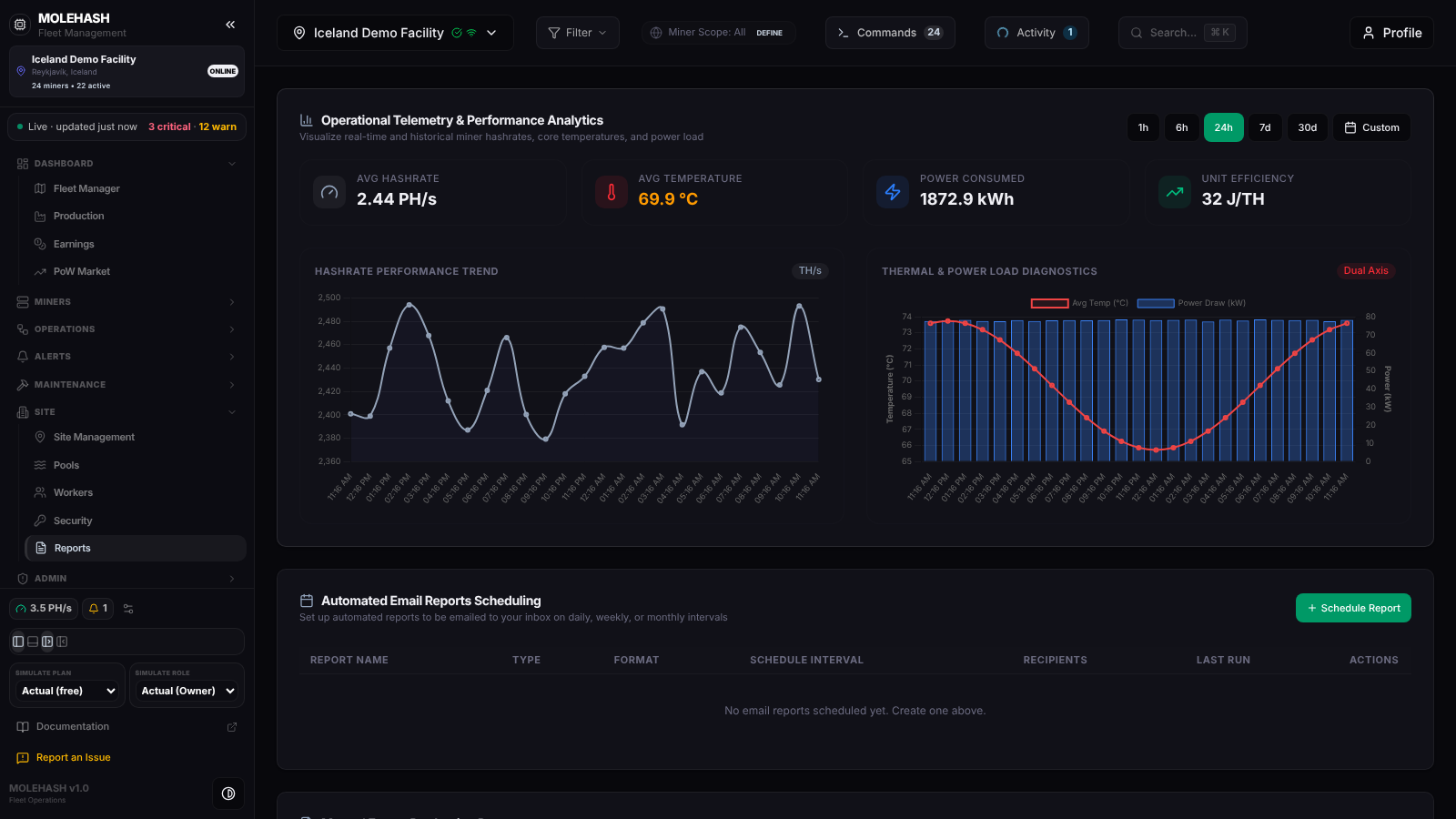 Twenty-four hours of telemetry on the demo site, and the empty schedule table below.
① Operational Telemetry & Performance Analytics — range buttons 1h, 6h, 24h (default), 7d, 30d and Custom (pick a start day and an end day in the calendar, then Apply; Clear resets).
② KPI tiles
| Tile | Meaning |
|---|---|
| Avg Hashrate | Average hashrate over the range (2.44 PH/s). |
| Avg Temperature | Average temperature; green up to 68 °C, amber up to 75 °C, red above (69.9 °C). |
| Power Consumed | Average power multiplied by the length of the range, in kWh (1,872.9 kWh). |
| Unit Efficiency | Average power divided by average hashrate, in J/TH (32 J/TH). |
③ Hashrate Performance Trend — hashrate in TH/s over time. Thermal & Power Load Diagnostics — average temperature as a red line (left axis, °C) and power draw as blue bars (right axis, kW). Labels are times for ranges up to 24 hours and dates beyond. Empty state: No hashrate data points for this range.
④ Automated Email Reports Scheduling — the Schedule Report button and the table of the current site's schedules.
| Column | Meaning |
|---|---|
| Report Name | The name you gave. |
| Type | Production, energy, performance, miners or financial (see the table below). |
| Format | The format you chose. |
| Schedule Interval | Daily at H:MM, Weekly on <day> at H:MM, Monthly on Day N at H:MM. |
| Recipients | The e-mail list; a paused tag when the schedule is inactive. Click to edit. |
| Last Run | Time of the last successful delivery, or Never. |
| Actions | Pause / resume, run now, delete. |
Empty state: No email reports scheduled yet. Create one above.
⑤ Manual Export Production Reports (at the bottom) — a form with start and end dates, a report type and a format, a Generate Report button and, after generation, Download Report and a preview card.
WARNING
The manual export is a placeholder in this build. Generate Report shows a fixed sample preview and Download Report saves a small text file with only the type, format, date range and record count — it does not use your telemetry. To get real data, create a scheduled report and use Trigger report delivery now.
What each report contains
| Type in the form | What you receive |
|---|---|
| Production Report | Per group (site, buildings, hosting clients): average uptime, hashing uptime, average hash rate, energy worked out from hash rate and the miners' nominal efficiency, cost and theoretical hash rate. |
| Power Report (energy & cost) | The same table, with energy from the measured watts. |
| Power Report (hash rate & efficiency) | Same as the Production Report. |
| Miners Status Report | Same as the energy Power Report. |
| Profit Report | Day by day: estimated BTC revenue (your share of the network hash rate times the block reward), revenue in fiat, power cost and profit. |
Whatever Format you select, the attachments are CSV files (one or two per report) and the e-mail body carries the summary table. Time is cut into 15-minute slots; a slot counts only when the Mole agent (older screens say "pickaxe") reported at least one miner in it, so an agent outage shows up as lower data coverage, not as miner downtime.
How to …
How to read the charts over a period
Click a range button, or Custom and pick two days then Apply. The tiles and both charts reload for the current site.
How to schedule an e-mail report
- Click Schedule Report. The form opens in place.
- Fill Report Name (required), choose the Report Type and Format, and type the Recipient Email(s) (required, comma separated, up to 20 addresses).
- Choose the Frequency: Daily, Weekly (then Day of Week) or Monthly (then Day of Month (1-31)), and the Hour (0-23) and Minute (0-59).
- Click Save Schedule. The schedule appears at the top of the table, active.
A daily report covers the 24 full hours before the run hour; a weekly one the last 7 full days; a monthly one the previous calendar month in the site's time zone.
How to pause, run, edit or delete a schedule
- The pause icon pauses the schedule (it then shows paused and is skipped); the amber play icon resumes it.
- The green play icon (Trigger report delivery now) builds the report for the period its frequency covers and e-mails it immediately. Last Run updates only when at least one recipient was accepted by the mail service.
- Click the Recipients cell to edit the list in a prompt.
- The trash icon (Delete schedule) removes the schedule at once, without confirmation.
Good to know
- The charts reload when you change the site or the range; nothing refreshes on a timer.
- Schedules belong to a site: an empty table may just mean the wrong site is selected in the sidebar.
- Last Run: Never after running a report means no recipient was accepted: check the addresses and the platform's mail configuration.
- The hour you enter is read on the server's clock (UTC); a daily report at 07:05 covers 07:00 yesterday to 07:00 today.
- Very low coverage in the e-mail means the agent was offline for part of the period, not that miners were down.
- Weekly day selection lists Monday first; if the delivery day looks shifted, check it against the Schedule Interval column.
Related
- Site Management — energy price and time zone of the site.
- Production
- Energy