
Repair
The Repair Console is the hands-on side of tickets. It shows the open tickets that are yours (or nobody's) as large touch-friendly cards, lets you tick miners off one at a time from the floor, runs a presence check before a miner is pulled from its rack, and lists the removal proposals a manager must approve or reject.
Where: sidebar Maintenance → Repair · needs the tickets:manage permission on the current site. A site must be selected; with no site both lists stay empty.
What you see
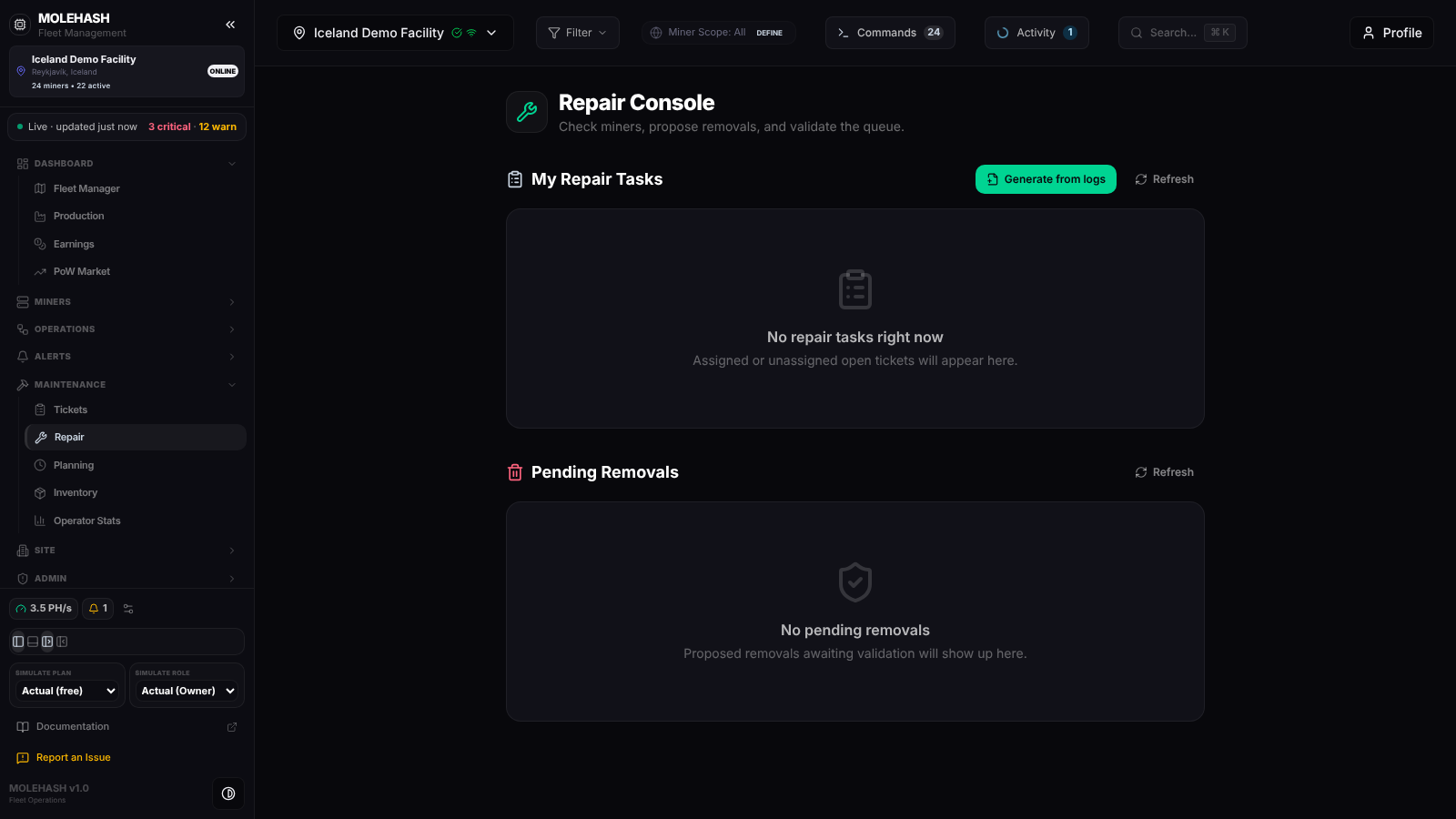 The Repair Console on the demo site, with no task and no pending removal.
① Header — Repair Console: check miners, propose removals, and validate the queue.
② My Repair Tasks — with the Generate from logs and Refresh buttons. The list keeps only tickets of the current site that are Pending or In progress and that are either unassigned or assigned to you. Each card shows the title, done/total, the number of miners still pending and the status. When there is nothing to do the card reads No repair tasks right now — assigned or unassigned open tickets will appear here.
③ Pending Removals — with its own Refresh button. One card per removal waiting for a decision on the current site: miner name, IP, Reason (the checklist issue), who proposed it, and the Approve / Reject buttons. Empty state: No pending removals.
Inside a task
Click a task card to open it; Back to tasks returns. Each miner of the checklist is a card with its name, IP and Issue: text. Miners already Done or Skipped are dimmed with a green tick. A pending miner shows one action button:
| Kind of line | Button | When |
|---|---|---|
| Normal check | Mark Done | The issue text does not contain the word "remove". |
| Removal | Check & Remove, then Confirm Removal | The issue text contains "remove" (for example Remove from rack). |
After Check & Remove, a coloured banner tells you what the platform knows about the miner:
| Banner | Meaning |
|---|---|
| Red — still gone | The miner has not reported for more than 10 minutes, or it is marked offline, unplugged or removed. It looks physically gone: confirm the removal. |
| Amber — validate faulty | The miner reported within the last 10 minutes but is in error, repair, failing or inactive. It is still online but faulty: decide whether to remove it. |
| Green — still healthy | The miner reported recently and looks healthy. Removal is not recommended. |
The banner is advice only; Confirm Removal stays available whatever the colour.
How to …
How to tick a miner off
- Open a task card and find the miner.
- Click Mark Done. A toast confirms Marked done and the ticket's progress updates.
- The ticket switches to In progress on the first tick and to Completed when every miner is Done or Skipped; it then disappears from this list.
How to propose a removal
- On a removal line, click Check & Remove. The presence check uses the miner's last report (no live scan) and the banner appears. If the miner record cannot be read you get Presence check failed.
- Click Confirm Removal. A removal proposal is created with the issue as reason, the checklist line is marked Done and the toast reads Removal proposed — queued for removal approval. If a proposal already exists for that miner it is reused rather than duplicated. Both lists refresh.
How to approve or reject a removal
- In Pending Removals, click Approve: the miner leaves its rack slot on the site map, its status becomes removed, and the proposal records who approved it and when. Toast: Removal approved — removed from the site.
- Or click Reject: the proposal is closed as rejected and the miner is left untouched. Toast: Removal rejected — kept in service.
- If a colleague decided before you, the console answers Proposal already approved/rejected.
How to generate a ticket from miner logs
- Click Generate from logs.
- The platform gathers every miner log of the site that carries a label (labels set by a technician first, otherwise labels proposed by the log analysis) and is not yet linked to a ticket, groups them by miner, and creates one ticket named Log-flagged repairs — n miner(s) with the first labels as each miner's issue.
- The toast Ticket created from logs gives the miner and log counts. If nothing is flagged you get No ticket created instead.
Good to know
- Nothing refreshes by itself: lists reload after each action or when you click Refresh.
- No repair tasks right now while tickets exist means they are finished or assigned to someone else. Reassign them on the Planning board, or clear the assignee so every technician sees them.
- A ticket with no miner shows This ticket has no miners in its checklist and cannot be progressed from here.
- Skip is not available in the console; skip a miner from the Tickets detail view.
- Only pending proposals are listed; approved and rejected ones are kept but not shown.
- Approving a removal changes the miner's live status, not its lifecycle state. To put a repaired miner back in service, set its state back to deployed (Edit miner, or the Set Lifecycle State command) and let the Mole agent report it again.
- A permission error mentioning the miner's site means you can manage tickets on the ticket's site but not on the site the miner belongs to.
Related
- Tickets
- Planning
- Operator Stats
- Machines — Pull Miner and Set Lifecycle State commands.