
Pools
The Pools panel answers two questions: where is my hashrate going right now? (the pools the Mole agent sees on the miners) and what does the pool itself say about my account? (pool API connections). It also holds the site's trusted-pool rules — the list of pools your miners are allowed to use — and shows every pool switch the agent noticed.
Where: sidebar Site → Pools · needs the miners:view permission; site pool connections and trusted-pool rules need site:update. Personal connections belong to you only.
What you see
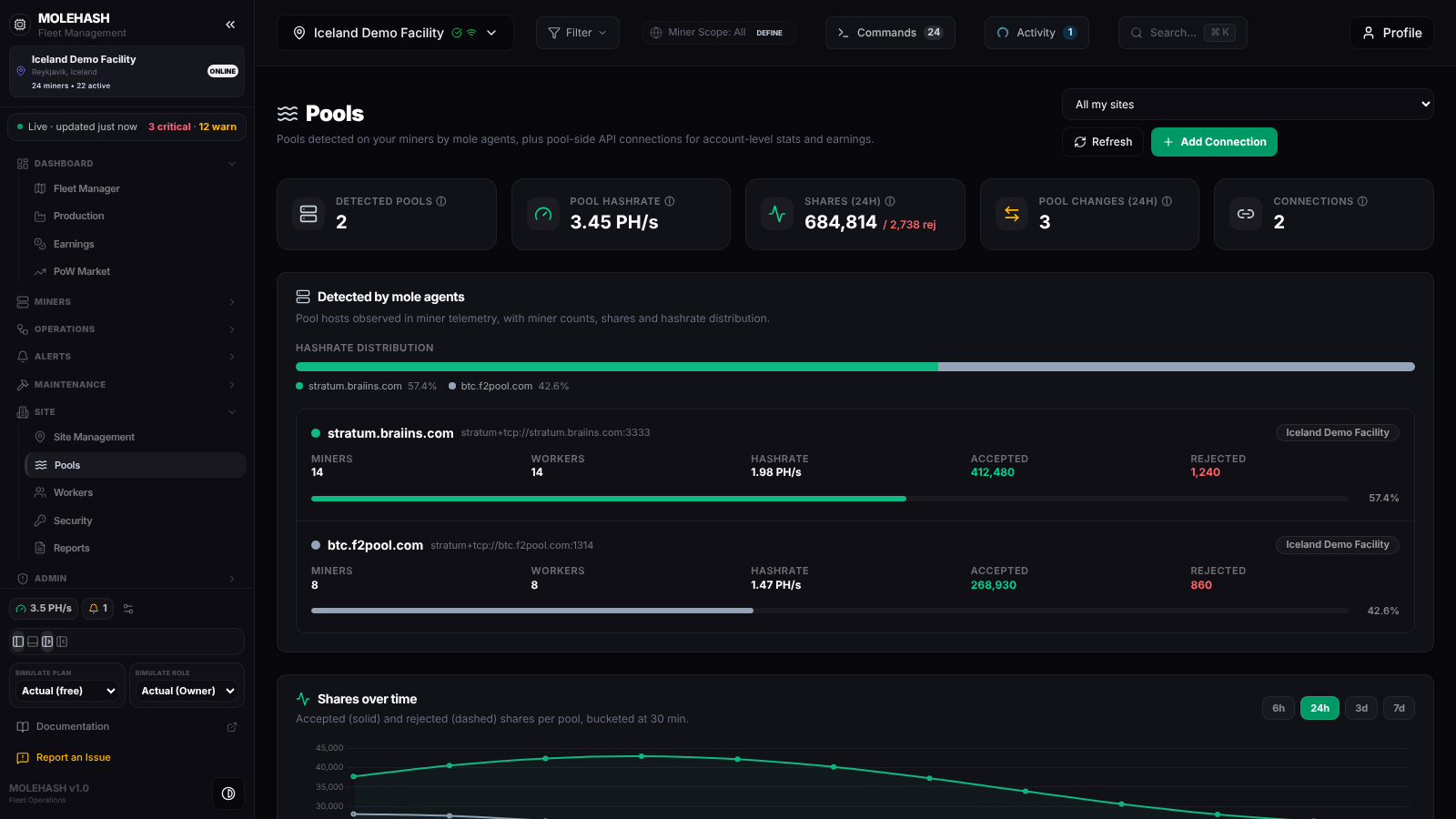 The demo fleet split between two pools, with the shares chart starting below.
① Header — Pools, a site selector (All my sites or one site), Refresh and Add Connection.
② Stat tiles
| Tile | Meaning |
|---|---|
| Detected pools | Distinct pool hosts seen on miners (2). |
| Pool hashrate | Hashrate currently pointed at those pools (3.45 PH/s). |
| Shares (window) | Accepted shares, with rejected shares in red, over the selected window (684,814 / 2,738 rej). |
| Pool changes (window) | Pool switches reported by miners in the window; amber when above 0 (3). |
| Connections | Pool API connections you can see (2). |
③ Detected by mole agents — a Hashrate distribution bar (one colour per pool with its share) followed by one block per pool: the host name (full address next to it), a badge per site using it, Miners, Workers (distinct worker names), Hashrate, Accepted / Rejected shares and a percentage bar. On the demo, stratum.braiins.com carries 14 miners and 57.4 % of the hashrate, btc.f2pool.com the other 8 miners. Empty state: No pools detected yet — mole agents report pool usage as miners check in.
④ Shares over time — a line per pool for accepted shares (solid) and rejected shares (dashed). The window buttons 6h, 24h (default), 3d and 7d also drive the Shares and Pool changes tiles; points are grouped every 15 minutes for 6h, 30 minutes for 24h, 2 hours for 3d and 4 hours for 7d.
⑤ Trusted pool configurations (further down) — the rule table for the site selected in the sidebar. Each rule has a Match type (Regular expression, Contains, Exact), optional Miner types, a Stratum expression and an optional Worker expression. Miners whose pool matches none of the rules raise the Invalid Pool Configuration issue; an empty list switches the check off. A checkbox, Require pool-change approval, queues pool changes made from the app by members who cannot edit the site until a manager approves them.
⑥ Pool changes — every pool changed from X to Y event in the window, shown as from → to chips with the miner name and age. A miner that switched twice or more gets an amber N× — frequent switching badge: a possible misconfiguration or hijack.
⑦ Pool API connections — one card per connection.
| Element | Meaning |
|---|---|
| Status dot | Green OK, grey Simulated (never really queried), red Error (hover for the reason), white Never synced. |
| Badges | Pool type (Braiins, F2Pool, ViaBTC, Custom), scope (Personal or the site name), coin. |
| synced … ago | Time of the last sync. |
| Switch | Turns automatic syncing on or off. |
| Latest stats | Hashrate, workers, shares accepted / rejected and 24-hour earnings from the last sync; — when the pool did not return a value; No snapshot yet before the first sync. |
How to …
How to connect a pool account
- Click Add Connection.
- Fill Label (required), choose the Pool (Braiins, F2Pool, ViaBTC or Custom) and the Scope (Personal (only me) or a site), then Account, API key (not needed for F2Pool), API URL (Custom only, a public address), Coin (BTC by default) and Enabled.
- Click Create Connection. A first sync runs immediately. The dialog reminds you where to find each key: Braiins uses a read-only token from Access Profiles; F2Pool only needs the mining account name; ViaBTC the key from Account → API management; Custom accepts any address returning stats, with the optional key sent as a bearer token.
How to edit, sync, pause or delete a connection
- Edit opens the same dialog; the pool type and scope cannot be changed, and leaving API key blank keeps the stored one. Save Changes.
- The switch on the card pauses or resumes automatic syncing (every 10 minutes while enabled).
- Sync now fetches fresh numbers and reports Sync Complete or Sync Failed with the pool's error.
- History expands a 24-hour chart of hashrate and workers online.
- Delete turns into Confirm delete?; a second click removes the connection and its history. Cancel backs out.
- Personal connections can be edited by their creator; site connections by anyone who can edit the site.
How to define the pools you trust
- Click Add config to add a rule, pick the match type, optionally the miner types it applies to, type the stratum expression and, if needed, a worker expression. The trash icon removes a rule.
- Tick Require pool-change approval if pool changes made from the app by non-managers should wait for approval.
- Click Save (enabled once something changed and a site is selected). Rules with an empty stratum are dropped; an invalid regular expression is refused with the reason. Toast: Trusted pools saved — N rule(s).
How to change the pool on miners
This panel does not change miners. Use the Change Pool command from Operations → Commands (or the per-miner page) to point one or many miners at another pool. When the site requires approval and you cannot edit the site, the change is queued (Pool change queued for approval by a site manager) instead of applied.
Good to know
- The page does not refresh on its own; click Refresh. Detected pools and shares are refreshed server-side each time the agent uploads.
- Simulated means the pool was never really queried: check the account or API key and Sync now.
- A red dot: hover it to read the pool's message (bad token, rate limit, unreachable address).
- Trusted-pool rules apply to the site selected in the sidebar; the site selector at the top only filters detected pools and connections.
- Contains and Exact rules are taken literally; only Regular expression rules are interpreted as patterns.
- Personal connections are visible to you alone; make a connection site-scoped so the team sees it.
- Pool-side hashrate (from a connection) and miner-side hashrate (detected) rarely match exactly; a large gap points at rejected shares or network trouble.